
Introduction
Browserless REST endpoints let you run real browser automation through simple HTTP requests, without setting up or maintaining Puppeteer or Playwright. Each endpoint helps developers with tasks like screenshots, PDFs, scraping, and performance data, and returns exactly what you need in a single request. In this article, you will learn what each REST endpoint does, when to use it, and what a clean, minimal implementation looks like, so you can pick the right endpoint for the job.
Single-Action Browser Tasks
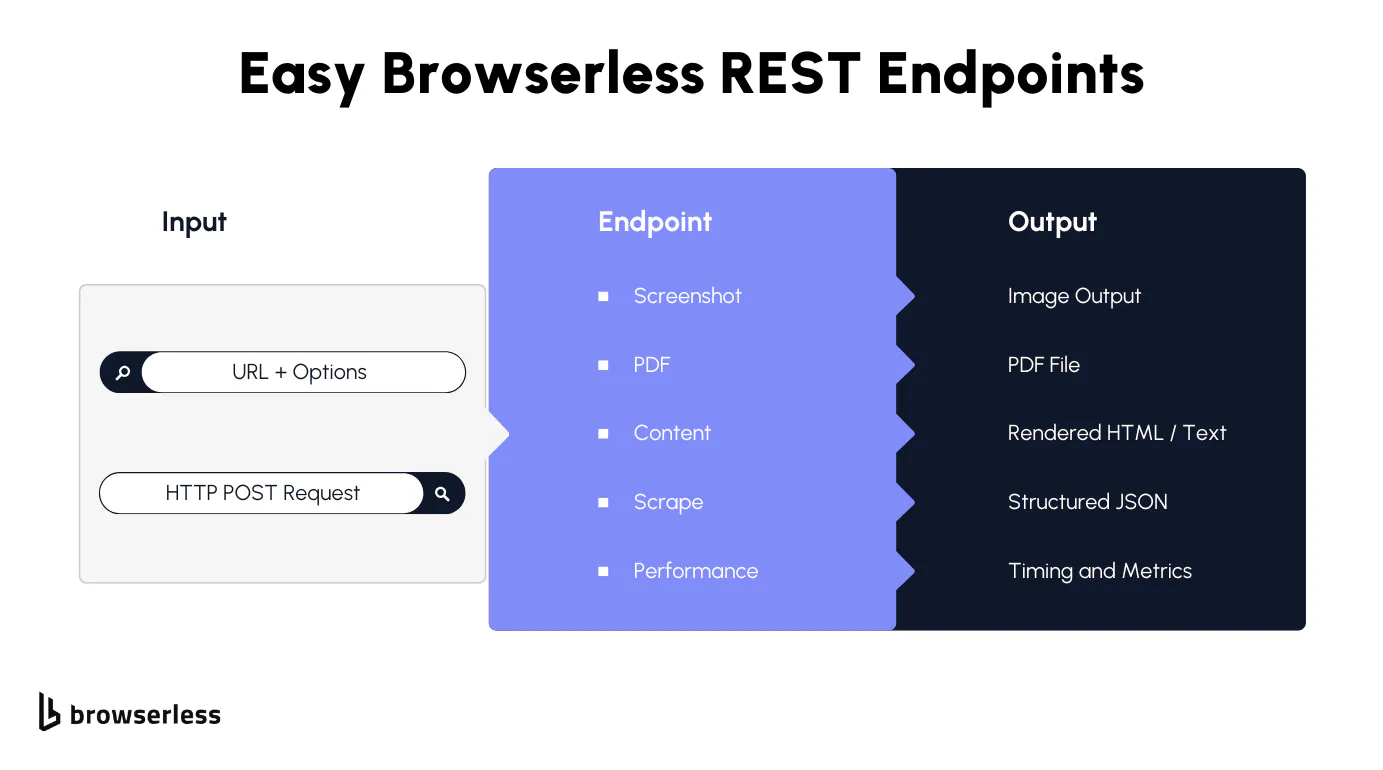
/Screenshot
What it does
The Screenshot endpoint opens a page in a real browser session and captures an image after the page has rendered. This includes client-side JavaScript execution, CSS, fonts, and layout calculations, so the output reflects the page's actual visual state rather than a static HTML snapshot. For developers, this matters because many modern sites don't fully exist until the browser finishes running scripts.
Used for
In practice, this endpoint appears in monitoring jobs, internal tools, and pipelines, where a visual check is faster than digging through logs. Teams use it to track layout regressions, confirm that pages load correctly across different environments, or generate thumbnails for previews and dashboards. It's also a handy debugging tool when a page "works" from a data perspective but looks broken to users.
When to use
Screenshot works best when your goal is to capture what the page looks like at load time, without needing to interact with it. If you just need the page to load once and return a visual result, this endpoint keeps things lightweight and predictable. As soon as you find yourself needing to click buttons, wait for user-triggered events, or handle bot protection, that's usually when another endpoint becomes a better fit.
How to use
You send a POST request to the target URL with optional settings such as viewport size or encoding. Browserless handles the browser lifecycle for you, loads the page, and returns the screenshot in the requested format. From there, you can store it, display it, or pass it into another workflow without worrying about browser cleanup or retries.
curl -X POST "https://production-sfo.browserless.io/screenshot?token=YOUR_API_TOKEN" \
  -H "Content-Type: application/json" \
  -d '{
    "url": "https://example.com",
    "options": {
      "encoding": "base64"
    }
  }'
What's happening here is a full browser load followed by a capture of the final visual state. JavaScript runs, styles are applied, and layout settles before the image is taken, which is why the result matches what a user would actually see. Returning the image as Base64 makes it easy to store, transmit, or embed without managing files or browser lifecycles yourself.
What it does
The PDF endpoint loads a web page in a browser and converts the final rendered result into a PDF. This means you're generating documents from the same rendering engine users see in their browsers, including JavaScript-driven content and dynamic layouts. The output isn't guessed or approximated; it's based on the fully rendered page.
Used for
Developers often rely on this endpoint to generate reports, invoices, and downloadable documents directly from existing web pages. It's also commonly used for archiving pages where consistency matters, such as compliance records or historical snapshots. Instead of building a separate PDF generation system, teams reuse the page they already have.
When to use
PDF is a good choice when the page is meant to be consumed as a document and doesn't require interaction to reach its final state. If the page loads cleanly on its own and the output needs to be printable or shareable, this endpoint keeps the workflow simple. Once you need conditional logic, form input, or multi-page flows, you'll want something more flexible.
How to use
You send a POST request with the page URL, and Browserless handles loading the page, rendering it, and returning a PDF buffer. That buffer can be saved directly to disk, uploaded to storage, or attached to an email or job result, making it easy to integrate into existing systems.
curl -X POST "https://production-sfo.browserless.io/pdf?token=YOUR_API_TOKEN" \
  -H "Content-Type: application/json" \
  -o output.pdf \
  -d '{
    "url": "https://example.com"
  }'
Behind the scenes, the page is rendered the same way it would be in a normal browser tab, then converted into a document once everything has finished loading. That's why dynamic content and client-side rendering are preserved in the output. Saving the response directly to a file keeps the flow simple and avoids building a separate PDF generation pipeline.
/Content
What it does
The Content endpoint loads a page in a real browser and returns the rendered output as either full HTML or plain text. This means JavaScript runs, dynamic content resolves, and what you get back represents the page after it has fully loaded, not just the server response.
Used for
Developers often use this endpoint for raw scraping, content processing, and text-based pipelines. It's a common starting point for systems that feed data into search indexes, LLMs, or internal analysis tools. When you need "everything on the page" without deciding upfront what matters, Content gives you that flexibility.
When to use
Content works best when you want the full page output and don't need structured extraction yet. If you're exploring a site, prototyping a scraper, or passing page content into another system that handles parsing downstream, this endpoint keeps things simple. Once you know exactly which elements you want and how you want them shaped, that's usually when Scrape becomes the better option.
How to use
You send a POST request with a URL and specify whether you want HTML or text output. Browserless loads the page, waits for rendering, and returns the content in the requested format. From there, you can store it, parse it, or pass it along to another service.
/Content with rendered HTML
curl -X POST "https://production-sfo.browserless.io/content?token=YOUR_API_TOKEN" \
  -H "Content-Type: application/json" \
  -d '{
    "url": "https://example.com"
  }'
The browser loads the page, executes client-side code, and then returns the DOM as it exists after rendering completes. Instead of scraping a raw response, you're working with the same HTML structure the browser sees. This makes it useful for exploration, debugging, or passing page content into systems that handle parsing later.
/Content with text-only output
curl -X POST "https://production-sfo.browserless.io/content?token=YOUR_API_TOKEN" \
  -H "Content-Type: application/json" \
  -d '{
    "url": "https://example.com",
    "text": true
  }'
In this mode, the focus shifts from structure to readability. The page still renders fully, but the output is reduced to the visible text a user would read. This works well for search indexing, text analysis, or LLM workflows where markup adds noise rather than value.
Scrape
What it does
The Scrape endpoint extracts structured data from a page using CSS selectors. Instead of returning the entire page, it targets specific elements and returns them as JSON, already shaped for programmatic use.
Used for
This endpoint is commonly used for data extraction and structured scraping workflows. Developers rely on it when they need predictable output, such as lists of products, article titles, prices, or metadata. It's handy in pipelines where consistency matters more than flexibility.
When to use
Scrape is the right choice when you already know what elements you want from the page. If you've inspected the DOM, identified selectors, and want clean JSON output without post-processing raw HTML, this endpoint saves time and reduces complexity. If you're still figuring out what data matters, starting with Content is usually easier.
How to use
You define one or more CSS selectors in the request body and map them to named fields. Browserless loads the page, applies the selectors, and returns the matched results as structured JSON.
Example (cURL - extract titles and links):
curl -X POST "https://production-sfo.browserless.io/scrape?token=YOUR_API_TOKEN" \
  -H "Content-Type: application/json" \
  -d '{
    "url": "https://example.com",
    "elements": [
      {
        "selector": "h1",
        "field": "title"
      },
      {
        "selector": "a",
        "field": "links",
        "attribute": "href"
      }
    ]
  }'
Rather than returning everything on the page, this approach pulls out only the elements you care about and shapes them into JSON. Selectors define what matters, and the response reflects that structure directly. It's most effective once you've inspected the page and know exactly which data you want to keep.
/Performance
What it does
The Performance endpoint loads a page in a real browser and collects timing and performance metrics during the page load. Instead of returning content or visuals, it provides structured data about how the page behaves during load, including timing information and resource usage that reflect what an actual browser experiences.
Used for
Developers use this endpoint for page-load analysis and to monitor performance regressions over time. It's commonly used for monitoring jobs, CI checks, or internal dashboards, where the goal is to spot changes in load behavior rather than debug application logic. It's also useful when you want browser-level performance data without running Lighthouse or managing your own browser tooling.
When to use
Performance is a good fit when you care about speed and resource usage, not page interaction. If you want to answer questions like "Did this page get slower after the last deploy?" or "Is this third-party script impacting load time?", this endpoint gives you that signal with minimal setup. If you need deeper interaction, conditional flows, or performance data across multiple steps, that's usually where more advanced tooling comes into play.
How to use
You send a POST request with the target URL. Browserless loads the page, captures performance metrics during the load, and returns structured timing data in the response. You can store this data, compare it over time, or feed it into alerting and reporting systems.
curl -X POST "https://production-sfo.browserless.io/performance?token=YOUR_API_TOKEN" \
  -H "Content-Type: application/json" \
  -d '{
    "url": "https://example.com"
  }'
Page load is treated as a measurement exercise rather than a content fetch. Timing data is captured as the browser processes scripts, styles, and network requests, giving insight into how the page behaves under real conditions. This makes it easier to track changes over time without instrumenting your own browser or running heavier tooling.
Higher-Control, Session-Based Endpoints
Unblock
What it does
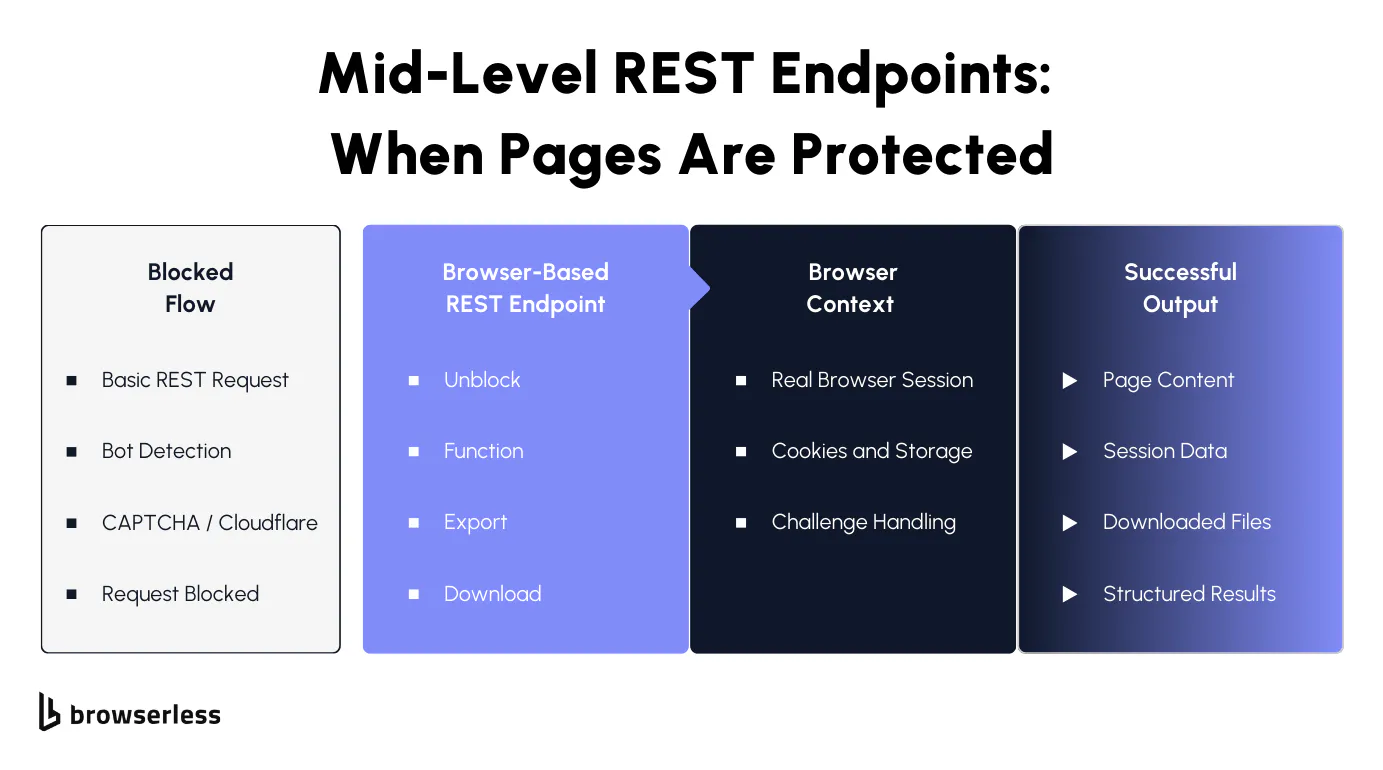
The Unblock endpoint loads a page in a fresh browser session and automatically handles many common bot-detection layers. It handles cookies, basic challenges, and initial session setup so the page loads in a state that looks like a real user visit rather than an automated request.
Used for
Unblock is most often used on protected or guarded websites, including pages behind Cloudflare or similar bot-detection services. Developers usually reach for it after seeing block pages, challenge screens, or empty responses from otherwise simple REST endpoints.
When to use
Unblock is a good next step when standard REST endpoints like Screenshot, Content, or Scrape stop working due to bot protection. If your use case still fits within a single-page load and you don't need complex interactions, Unblock often gets you unstuck without changing your overall approach. When Unblock can't get you through, that's usually the point where a fully controlled browser flow becomes necessary.
How to use
You send a POST request to the /unblock endpoint with the target URL. Browserless loads the page, handles detection mechanisms, and returns whatever state it can establish, such as rendered content, cookies, screenshots, or connection details for continued interaction.
curl -X POST "https://production-sfo.browserless.io/unblock?token=YOUR_API_TOKEN" \
  -H "Content-Type: application/json" \
  -d '{
    "url": "https://example.com"
  }'
The aim here is to reach a usable browsing state rather than immediately extracting data. Cookies, challenges, and initial checks are handled as part of the session setup, which helps the page appear to be a normal user visit. What comes back depends on how far the browser gets, but it's usually enough to move forward without rewriting the flow.
Export
What it does
The Export endpoint opens a browser tab and collects downloadable files exposed during the session. Instead of returning rendered content or extracted data, it focuses on discovering and exporting files that the page makes available.
Used for
Developers use Export to download assets such as reports, datasets, images, or other files that are linked or exposed during page load or initial execution. It's useful when files aren't easily accessible through a static URL or only appear after the page loads in a browser.
When to use
Export is the right choice when your goal is to retrieve files, not to scrape content or extract data. If you need to collect multiple files from a page or capture downloads triggered by page-load behavior, Export handles that in a single request. If you already know the exact file you want and how it's triggered, the Download endpoint may be a better fit.
How to use
You send a POST request to the Export endpoint with the target URL. Browserless loads the page, identifies downloadable assets, and returns the collected files in the response.
curl -X POST "https://production-sfo.browserless.io/export?token=YOUR_API_TOKEN" \
  -H "Content-Type: application/json" \
  -d '{
    "url": "https://example.com"
  }'
Instead of focusing on page content, this step looks for files that become available once the page loads. Anything exposed for download during that session can be collected and returned, which is useful when assets aren't linked directly or only appear after client-side logic runs. It's a clean way to grab outputs without reverse-engineering how downloads work.
Function
What it does
The Function endpoint lets you run your own JavaScript inside a real browser session. Instead of calling a fixed-purpose API, you send a function, Browserless executes it in the browser, and whatever that function returns becomes the response.
Used for
In real-world usage, Function shows up when developers need custom browser logic that doesn't fit neatly into Screenshot, Content, or Scrape. That might mean navigating across pages, waiting for elements to load, clicking buttons, extracting values, or reshaping data before returning it. It's also a common choice for teams who already have Puppeteer-style code and want to run it without managing browser infrastructure.
When to use
Function is a good fit once the simpler REST endpoints start feeling restrictive. If you need direct access to the page object and want to control timing and behavior yourself, this endpoint gives you that flexibility. It works best when the flow is still contained within a single execution and the site isn't aggressively blocking automation.
How to use
To use Function, you send a POST request with a JavaScript function in the request body. Browserless runs that function in the browser context, and the value you return is sent back as JSON.
curl -X POST "https://production-sfo.browserless.io/function?token=YOUR_API_TOKEN" \
  -H "Content-Type: application/json" \
  -d '{
    "code": "async ({ page }) => { await page.goto(\"https://example.com\"); return { title: await page.title() }; }"
  }'
Here, control shifts entirely to custom browser logic. The function runs inside the page context, navigates as needed, and returns whatever data you decide to shape. Because the response mirrors the returned value, this fits well when you need flexibility but still want a single, self-contained execution.
/Download
What it does
The Download endpoint captures files that are generated during browser activity. Instead of guessing file URLs or intercepting network requests, it listens for download events within a browser session and returns the resulting file.
Used for
You'll typically see Download used for CSV exports, generated reports, or assets that only exist after some interaction. This is common in dashboards and admin tools where clicking a button starts a download rather than navigating to a new page.
When to use
Download makes sense when files are created dynamically and require browser behavior to appear. If a file is already available through a direct URL, a standard HTTP request is usually simpler. When the file only shows up after a click, form submission, or script execution, Download removes the need to reverse-engineer how the download works.
How to use
In practice, Download is used alongside browser-controlled logic, such as Function or a WebSocket session. Your code triggers the download inside the browser, and Browserless captures the file and returns it in the response. Rather than defining download behavior declaratively, the interaction that starts the download lives inside the browser execution itself.
When REST Isn't Enough Use BrowserQL (BQL)
What BrowserQL Does
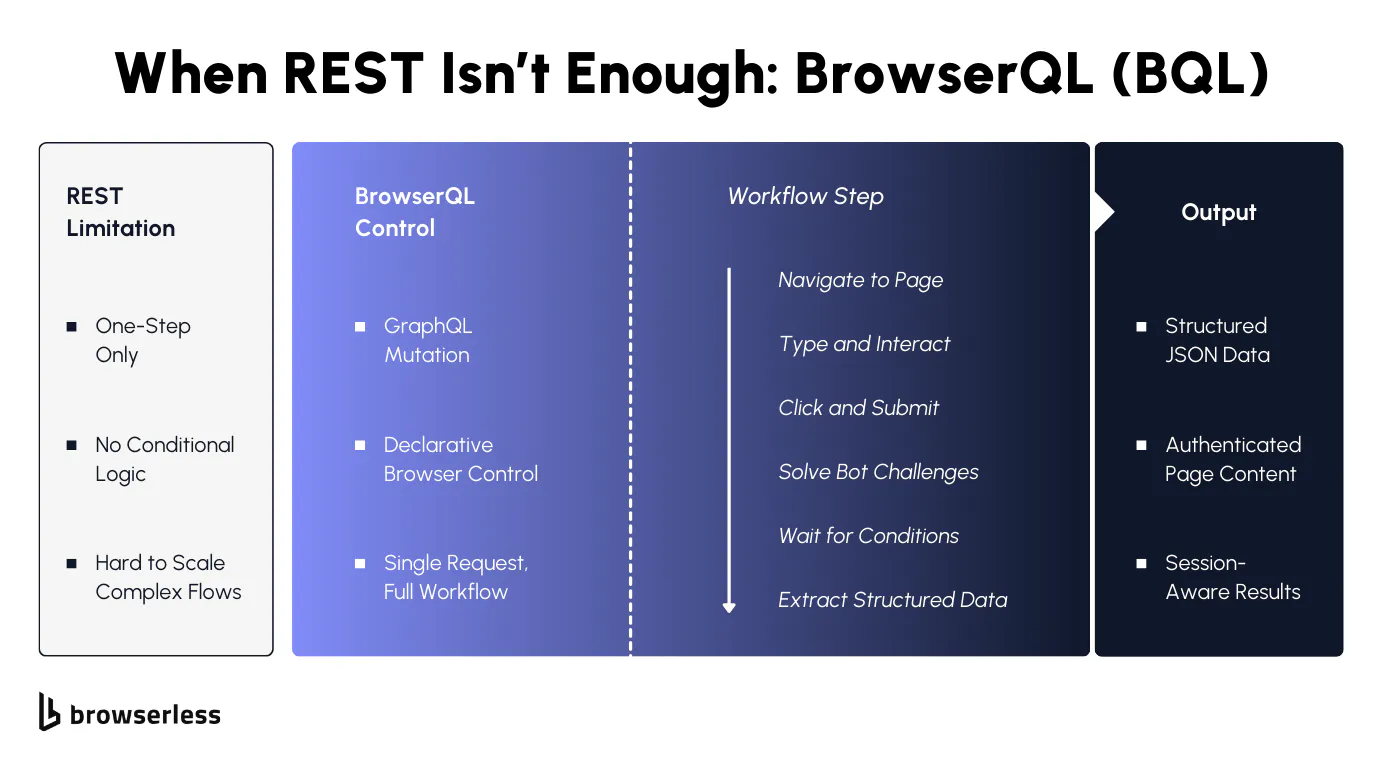
BrowserQL is a GraphQL-based browser automation API that lets you describe browser behavior declaratively. Instead of coordinating multiple REST calls or embedding complex logic in a Function, you define the entire browser flow in a single request. That flow can include navigation, interaction, waiting for conditions, and data extraction, all while Browserless manages the browser session under the hood. Built-in handling for bot detection and CAPTCHA challenges makes it especially useful as sites push back against simpler automation.
When to Move from REST to BQL
Teams don't start with BrowserQL; they end up there after hitting the edges of our prebuilt REST APIs. If Screenshot, Content, Scrape, or even Function begin to feel brittle, BQL is usually the next step. This often happens with login flows, multi-step workflows, or interactions that depend on conditions being met before moving forward.
It also comes up when bot detection consistently breaks simpler approaches, and patching around it adds more complexity than it removes. At that point, describing the whole flow in one place becomes easier than orchestrating it piece by piece.
A Simple BQL Example
A common BrowserQL use case is logging into a site and extracting data from a protected page. Instead of handling cookies, redirects, and timing yourself, you describe the steps declaratively and let the browser execute them as a single workflow.
mutation {
  browser {
    goto(url: "https://example.com/login") {
      status
    }

    type(selector: "#email", text: "user@example.com")
    type(selector: "#password", text: "super-secret-password")

    click(selector: "button[type=submit]")

    waitForNavigation {
      url
    }

    goto(url: "https://example.com/dashboard") {
      status
    }

    text(selector: ".account-balance") {
      value
    }
  }
}
In one request, the browser navigates to the login page, enters credentials, submits the form, waits for the navigation to complete, then moves to a protected page and extracts the data you care about. The response contains structured results from each step, without you needing to manage browser state, retries, or session lifetime.
This is where BrowserQL shines: once your automation starts to look like a real user journey rather than a single action, describing that journey declaratively is often clearer, easier to debug, and more resilient than stitching together lower-level endpoints.
Conclusion
Browserless REST endpoints cover the majority of day-to-day browser automation needs, from screenshots and PDFs to scraping, performance checks, and basic unblocking. As your use cases grow, the tooling naturally progresses from simple REST calls to mid-level endpoints, to Function for custom logic, and finally to BrowserQL when full, multi-step browser flows are required. The aim isn't to use the most potent option available; it's to use the one that fits the job with the least overhead. Use this guide to decide what to reach for first, not just what's technically possible, and when you're ready to put it into practice, you can sign up for a free Browserless account and start experimenting right away.
FAQs
What are Browserless REST endpoints used for?
Browserless REST endpoints are used to run browser automation tasks through simple HTTP requests. They cover common use cases like taking screenshots, generating PDFs, scraping content, collecting performance metrics, and handling basic bot protection. These endpoints are designed for single-purpose browser tasks where you don't need to manage Puppeteer or Playwright yourself.
When should I use Screenshot vs PDF in Browserless?
You should use the Screenshot endpoint when you need a visual image of how a page looks in the browser, such as for monitoring, thumbnails, or debugging layout issues. The PDF endpoint is a better fit when you need a document-style output, like reports, invoices, or archived pages, where pagination and print-ready formatting matter.
What's the difference between Content and Scrape in Browserless?
The Content endpoint returns the full rendered HTML or text of a page, making it useful for raw scraping, exploration, or downstream parsing. Scrape is used when you already know which elements you want and need, and you want structured JSON output using CSS selectors. A typical workflow is to start with Content, then move to Scrape once the data shape is clear.
When should I use Browserless Function instead of REST endpoints?
You should use the Function endpoint when standard REST endpoints are too limited for your use case. Function allows you to run custom JavaScript in a browser context, which helps combine multiple actions like navigation, wait for elements, clicking, and extracting data in a single execution. If heavy bot detection or complex conditional flows are involved, BrowserQL may be a better next step.
When should I move from Browserless REST endpoints to BrowserQL (BQL)?
Moving to BrowserQL makes sense when your automation starts to look like a full user journey rather than a single action. This includes login flows, multi-step workflows, conditional logic, long-running sessions, or scenarios where bot detection consistently breaks simpler approaches. BrowserQL lets you describe the entire browser flow declaratively in a single request, rather than orchestrating multiple endpoints.