
Key Takeaways
- HTTP scraping won't work anymore. Amazon uses AWS WAF, fingerprinting, and behavioral analysis to spot bots. You need stealth routes and residential proxies to look like a real user.
- Automate CAPTCHA solving. BrowserQL automatically handles reCAPTCHA, Cloudflare, and Amazon WAF challenges, so your scraper keeps running.
- Reuse your sessions. Save cookies, rotate IP addresses, and use reconnect to keep browser sessions alive. Amazon is less likely to block you when you appear to be a returning visitor.
Introduction
Scraping Amazon product data sounds simple until you hit your first CAPTCHA challenge. Bypassing Amazon's CAPTCHA is the real problem you need to solve before you can collect data at any scale. Amazon throws everything at automated bots. AWS WAF, image-based CAPTCHA tests, IP address blocking, user agent checks, and behavioral analysis. A simple scraper with basic headers won't survive more than a few requests before getting blocked. This guide walks you through how to actually bypass CAPTCHA on Amazon, solve CAPTCHA automatically, rotate proxy IP addresses, manage sessions, and extract public Amazon product data using BrowserQL, Puppeteer, and the /unblock API.
Why Amazon Scraping is Challenging
In 2023, Amazon invested $1.2 billion to strengthen its platform security and employed over 15,000 people. These measures, including CAPTCHA challenges, IP blocking, and rate limiting, make it increasingly challenging to extract product information.
You're in for an uphill battle if you're using "old school" HTTP scraping methods. Basic HTTP requests might have worked years ago, but now they trigger bot detection alarms.
Amazon's systems can easily spot these outdated methods since they don't mimic genuine browser behavior, missing headers, inconsistent JavaScript execution, and simplified requests are dead giveaways. If your scraper doesn't adapt, you'll likely get blocked almost immediately.
Let's go over some of the major ones.
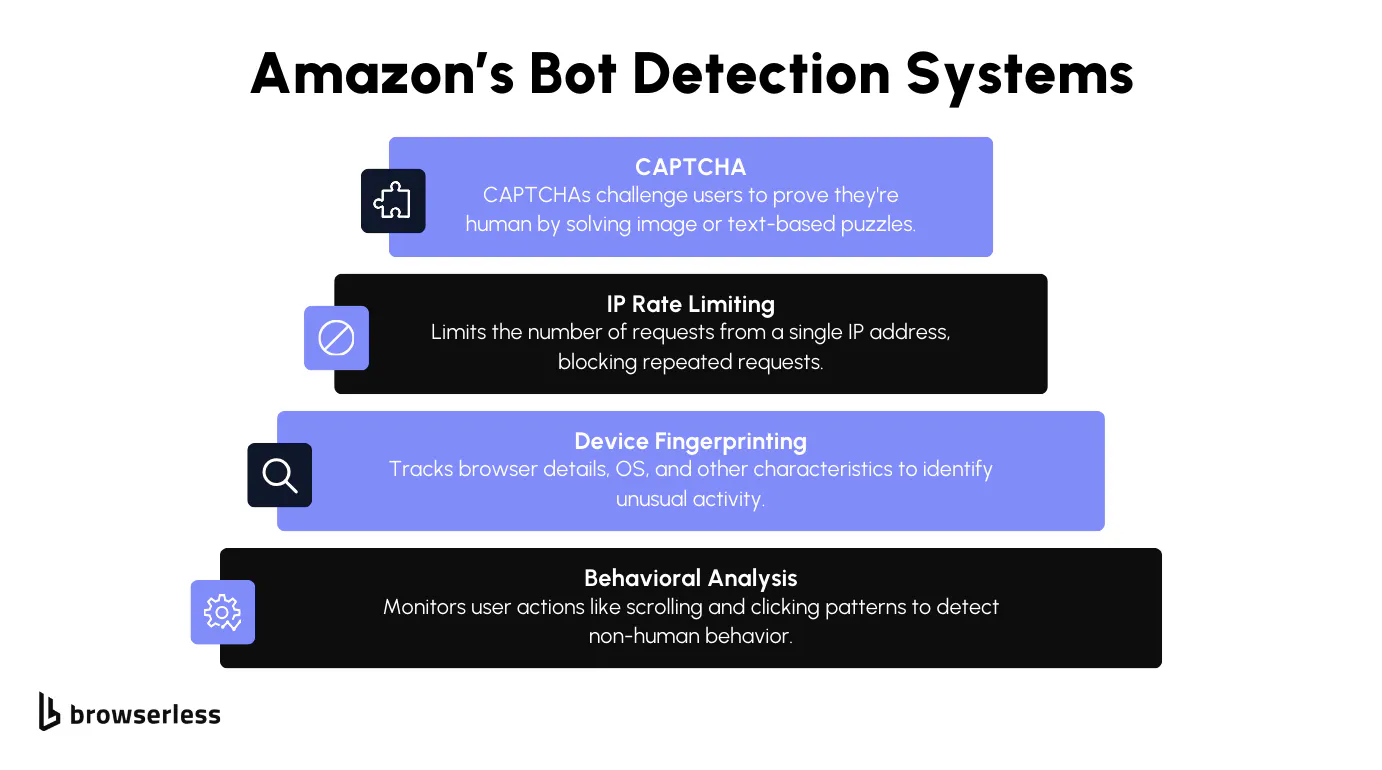
- Device & Browser Fingerprinting: Amazon tracks various details about your device and browser. It collects information such as your operating system, browser type, and other identifiable characteristics. If anything about this "fingerprint" seems inconsistent, Amazon may restrict access.
- IP Rate Limiting: Another hurdle is IP rate limiting. If too many requests come from the same IP address in a short time, Amazon flags the activity. Once flagged, your IP can get blocked or throttled, preventing you from continuing to scrape. This forces scrapers to slow down or use multiple IPs to stay under the radar.
- CAPTCHAs: If Amazon thinks you're suspicious, you'll get a CAPTCHA page. These annoying challenges make you pick out street signs or type out distorted letters. They're simple for people but difficult for bots to solve automatically.
- Behavioral Analysis: In addition to technical monitoring, Amazon also examines how you interact with the site. It focuses on patterns like how fast you click, scroll, or move the mouse. You might get blocked if it notices that actions happen too quickly or in a way that doesn't mimic how humans typically browse. Scrapers that move through the site too efficiently often get caught here.
All these systems make scraping Amazon more challenging. While collecting and processing the data is pretty straightforward, getting past these defenses takes careful planning.
Here's what getting blocked looks like, and how to scrape Amazon without it:
Tools For Scraping Amazon
Now that you know your challenges when scraping Amazon, let's look at the tools that will help you overcome those barriers. With the proper setup, you can bypass the anti-bot systems and access the data you're after. Below are the main tools you'll be using, each with its strengths regarding scraping and automation.
BrowserQL (Recommended)
BrowserQL is Browserless's GraphQL API for browser automation, and it's the tool you want when scraping sites like Amazon that have aggressive bot detection. You write GraphQL mutations instead of scripting every browser action, which means you can handle navigation, CAPTCHA solving, and data extraction in a single request.
The /stealth/bql endpoint includes built-in fingerprint evasion and residential proxy support, so you spend less time fighting Amazon's AWS WAF and more time pulling the product data you need.
Puppeteer/Playwright
Puppeteer and Playwright are automation libraries that allow you to automate browser actions. These tools are essential when dealing with dynamic websites like Amazon, where content is often loaded dynamically through JavaScript.
With Puppeteer and Playwright, you can simulate almost any user interaction, from clicking buttons to filling out forms and scrolling through pages. They give you the flexibility to interact with the site just like a regular user would, but with the precision of an automated script. These libraries also let you manage cookies, sessions, and headers, which can help you avoid some of the easier bot detection systems.
Proxies
One detail that can lead to detection is when websites check your IP address. Requests coming directly from an IP belonging to a cloud service can be a quick giveaway that it's not a genuine visit.
Many services allow you to use a residential proxy. These vary in both ethics and quality, with some using hidden terms and conditions to trick app users into allowing them to route traffic through their devices.
/unblock API
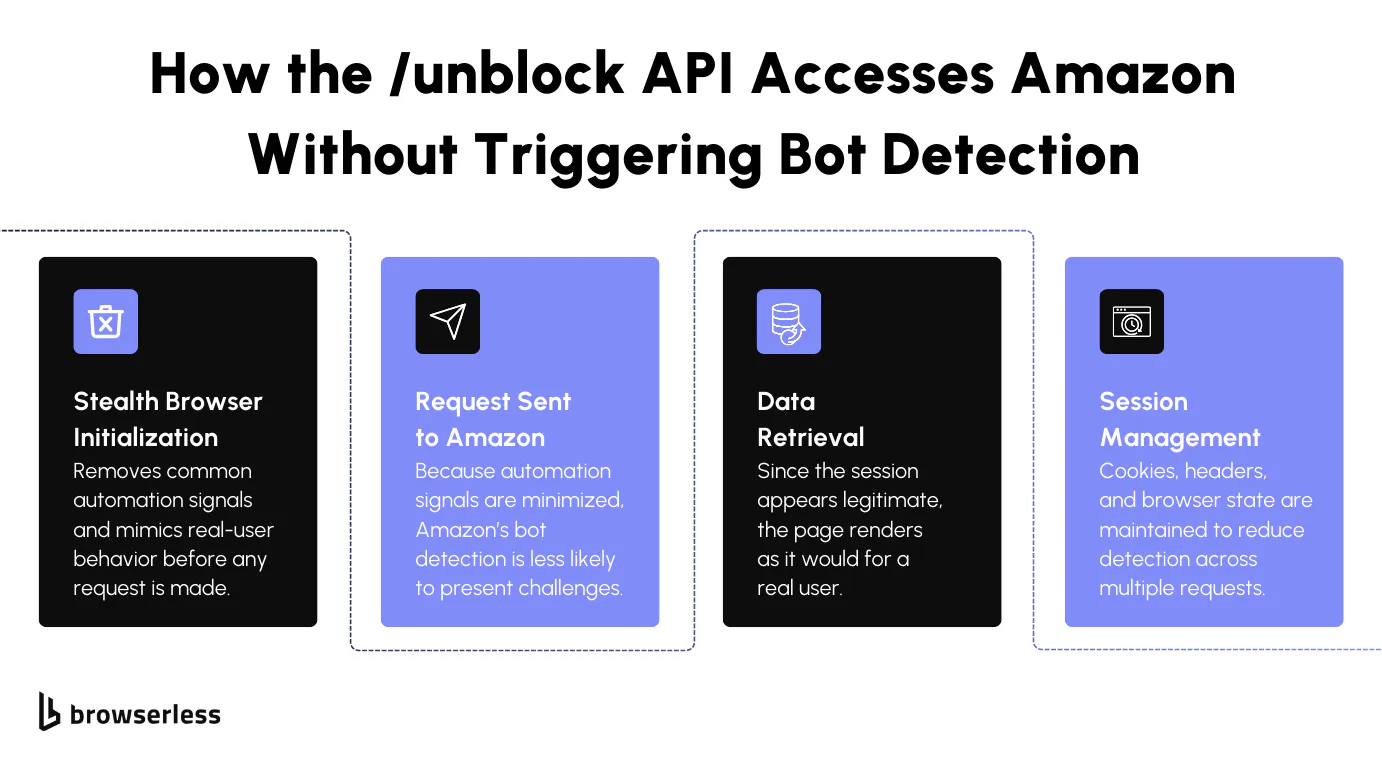
The /unblock API is designed to hide the many automation fingerprints that libraries leave behind. For example, Playwright and Puppeteer both turn on the DevTools debugger by default, and open a browser at non-standard viewport sizes (Puppeteer defaults to 800x600px, Playwright to 1280x720px), even if you then specify a different viewport.
Unlike basic scraping tools, the /unblock API makes your browser properties look genuinely human by mimicking real, non-automated profiles. This way, you can dodge detection and access blocks with ease.
Browserless also manages browser deployments and residential proxies, making it ideal for scaling your scraping with high concurrency.
Setting Up Your Environment
Let's set up your environment by installing Puppeteer or Playwright, connecting them to Browserless, and testing some basic functionality to ensure everything works smoothly.
Step 1: Install Puppeteer or Playwright
The first thing you'll need to do is install either Puppeteer or Playwright, depending on your preferred library. Both are great for automating browser tasks, and you'll find them useful for interacting with Amazon's website.
Here's how to install them via npm:
npm install puppeteer-core
Or if you are using Playwright, use the snippet below
npm install playwright-core
Once installed, these libraries allow you to automate browser actions. Puppeteer is focused on Chrome and Chromium, while Playwright supports multiple browsers (Chromium, Firefox, and WebKit). You only need one of them, depending on your specific use case.
Step 2: Connect Puppeteer/Playwright to Browserless
Next, you'll want to connect your chosen library to Browserless, which allows you to leverage Browserless's managed browser environment, taking advantage of features like proxy management and automated scaling without worrying about maintaining the browser infrastructure yourself.
Here's how you do it:
For Puppeteer:
import puppeteer from "puppeteer-core";

const TOKEN = "YOUR_API_TOKEN_HERE";

(async () => {
  const browser = await puppeteer.connect({
    browserWSEndpoint: `wss://production-sfo.browserless.io?token=${TOKEN}`,
  });
  const page = await browser.newPage();
})();
or
For Playwright:
import { chromium } from "playwright-core";

const TOKEN = "YOUR_API_TOKEN_HERE";

(async () => {
  const browser = await chromium.connectOverCDP(
    `wss://production-sfo.browserless.io?token=${TOKEN}`,
  );
  const context = await browser.newContext();
  const page = await context.newPage();
})();
What's happening here is that Puppeteer or Playwright connects to Browserless via a WebSocket URL (wss://production-sfo.browserless.io). This connection allows you to control a remote browser instance hosted by Browserless rather than running it locally. Once connected, you can create a new browser tab (newPage()) and navigate to any webpage. We'll navigate to Amazon in the next step.
Connecting Puppeteer or Playwright to Browserless means you don't have to worry about maintaining browser versions, handling memory leaks, or scaling your scraping operations manually.
Browserless manages your browsers, allowing you to focus solely on your scraping tasks. You also gain access to features like proxy rotation and concurrency, which are particularly useful when scraping larger sites like Amazon.
Step 3: Test Basic Functionality by Launching a Browser
Now that you've set up the connection, let's test the basic functionality by launching a browser and navigating to a webpage. This simple test will help you confirm that your setup is working properly and that you can access websites via the Browserless connection.
(async () => {
  const browser = await puppeteer.connect({
    browserWSEndpoint: `wss://production-sfo.browserless.io?token=${TOKEN}`,
  });
  const page = await browser.newPage();
  await page.goto("https://www.amazon.com/dp/B09B8V1LZ3");
  console.log("Page title:", await page.title());
  await browser.close();
})();
In this snippet, you launch a new browser instance via Browserless and navigate to an Amazon product page. Once the page loads, the script logs the page title to the console, verifying that everything is working as expected.
Afterward, it closes the browser instance. This gives you a quick way to check that your Puppeteer (or Playwright) setup is properly connected and functional. These steps will give you everything you need to start scraping Amazon, and your environment will be set up to handle larger tasks using Browserless's powerful infrastructure.
Bypassing Amazon's Bot Detection
Amazon's bot detection will block you fast if you're not prepared. Two reliable approaches to get past it are stealth routes (for Puppeteer/Playwright) and BrowserQL's /stealth/bql endpoint. Both reduce fingerprinting and make your browser appear to be a real user.
Using Stealth Routes
Stealth routes use path-based semantics and Chrome DevTools Protocol to provide stronger anti-detection than typical solutions. Browserless offers three options:
- /stealth (recommended) Managed stealth with advanced anti-detection and realistic fingerprinting.
- /chromium/stealth Fingerprinting mitigations tailored for Chromium.
- /chrome/stealth Standard Chrome experience with enhanced bot detection resistance.
To use stealth with Puppeteer or Playwright, swap your connection URL to the stealth WebSocket endpoint:
// Stealth (recommended)
await puppeteer.connect({
  browserWSEndpoint:
    "wss://production-sfo.browserless.io/stealth?token=YOUR_API_TOKEN_HERE",
});

// Or: wss://production-sfo.browserless.io/chromium/stealth?token=...
// Or: wss://production-sfo.browserless.io/chrome/stealth?token=...
For BrowserQL, send mutations to the stealth BQL endpoint at https://production-sfo.browserless.io/stealth/bql?token=... instead. When scraping Amazon, add &proxy=residential&proxyCountry=us to the URL so each request goes through a different residential IP. See Stealth routes for full configuration options.
Here's an example calling the stealth BQL endpoint from Node:
const response = await fetch(
  "https://production-sfo.browserless.io/stealth/bql?token=YOUR_API_TOKEN_HERE",
  {
    method: "POST",
    headers: { "Content-Type": "application/json" },
    body: JSON.stringify({
      query: `mutation OpenAmazon {
        goto(url: "https://www.amazon.com/dp/B09B8V1LZ3", waitUntil: domContentLoaded, timeout: 35000) { status }
        productTitle: text(selector: "span#productTitle", timeout: 15000) { text }
      }`,
      variables: {},
    }),
  },
);
const data = await response.json();
Using the /unblock API
The /unblock API takes a different approach. Instead of connecting a browser library, you send a single POST request and get back the page content with bot detection already bypassed. It hides automation fingerprints, rotates IPs, and handles CAPTCHAs so you can keep scraping without interruptions.
const TOKEN = "YOUR_API_TOKEN_HERE";

(async () => {
  const response = await fetch(
    `https://production-sfo.browserless.io/unblock?token=${TOKEN}&proxy=residential`,
    {
      method: "POST",
      headers: { "Content-Type": "application/json" },
      body: JSON.stringify({
        url: "https://www.amazon.com/dp/B09B8V1LZ3",
        browserWSEndpoint: false,
        cookies: false,
        content: true,
        screenshot: false,
      }),
    },
  );
  const result = await response.json();
  console.log(result);
})();
Setting browserWSEndpoint and cookies to false tells the API you don't need a persistent session or stored cookies. Setting content to true means you want the full HTML back after detection is bypassed.
If a CAPTCHA still gets through, use BrowserQL's solve mutation to handle it automatically. For the strongest results, combine the /stealth/bql endpoint with solve so you get fingerprint evasion and CAPTCHA solving in a single request.
Solving CAPTCHA with BrowserQL
When Amazon shows a CAPTCHA, the solve mutation detects the type and solves it automatically. It handles reCAPTCHA, Cloudflare, and Amazon WAF challenges. Use solve instead of the deprecated verify mutation. Note that the solve mutation is currently experimental, so its behavior may change in future releases.
mutation SolveCaptcha {
  goto(
    url: "https://www.amazon.com/dp/B09B8V1LZ3"
    waitUntil: domContentLoaded
    timeout: 35000
  ) {
    status
  }
  solve {
    found
    solved
    token
    time
  }
}
You can also specify the CAPTCHA type if you know what you're dealing with. See all supported CAPTCHA types here.
mutation SolveRecaptcha {
  goto(
    url: "https://www.amazon.com/dp/B09B8V1LZ3"
    waitUntil: domContentLoaded
    timeout: 35000
  ) {
    status
  }
  solve(type: recaptcha) {
    found
    solved
    token
    time
  }
  click(selector: "button[type='submit']") {
    time
  }
}
After solving, you can chain other actions in the same mutation, like clicking a submit button to continue past the challenge page. For more details, see Solving CAPTCHAs with BrowserQL.
Amazon sometimes shows custom image CAPTCHAs with distorted text. For these, use the solveImageCaptcha mutation:
mutation SolveAmazonImageCaptcha {
  goto(
    url: "https://www.amazon.com/errors/validateCaptcha"
    waitUntil: domContentLoaded
    timeout: 35000
  ) {
    status
  }
  solveImageCaptcha(
    captchaSelector: "img[src*='captcha']"
    inputSelector: "input#captchacharacters"
    timeout: 60000
  ) {
    found
    solved
  }
}
Extracting Structured Data with mapSelector
Use mapSelector when you need to pull data from Amazon search results or any listing page with multiple products. For a single product page, use the text mutation with aliases instead (covered in the "Scraping the Product Data" section below).
Here's a simple example that grabs titles and links from an Amazon search page:
mutation GetProductList {
  goto(
    url: "https://www.amazon.com/s?k=echo+dot"
    waitUntil: domContentLoaded
    timeout: 35000
  ) {
    status
  }
  products: mapSelector(
    selector: "[data-component-type='s-search-result']"
    timeout: 15000
  ) {
    titleLink: mapSelector(selector: "h2 a") {
      title: innerText
      href: attribute(name: "href") {
        value
      }
    }
  }
}
You can also nest selectors to grab specific fields like title and price from each product on the same page:
mutation GetProductDetails {
  goto(
    url: "https://www.amazon.com/s?k=echo+dot"
    waitUntil: domContentLoaded
    timeout: 35000
  ) {
    status
  }
  products: mapSelector(
    selector: "[data-component-type='s-search-result']"
    timeout: 15000
  ) {
    title: mapSelector(selector: "h2 a span") {
      innerText
    }
    price: mapSelector(selector: "span.a-price-whole") {
      innerText
    }
  }
}
Amazon's DOM changes often. If a selector stops working, inspect the page and update it. See Scraping structured data and the mapSelector API for more options.
Keeping Sessions Alive with Reconnect
Starting a fresh browser for every request wastes time and makes you more likely to hit a CAPTCHA. BrowserQL's reconnect mutation returns a session URL so you can send multiple requests to the same browser without starting over.
Start by opening a session and getting a reconnect URL. Send this to https://production-sfo.browserless.io/stealth/bql?token=YOUR_API_TOKEN:
mutation StartSession {
  goto(
    url: "https://www.amazon.com/dp/B09B8V1LZ3"
    waitUntil: domContentLoaded
    timeout: 35000
  ) {
    status
  }
  reconnect(timeout: 60000) {
    browserQLEndpoint
  }
}
Append ?token=YOUR_API_TOKEN_HERE to the browserQLEndpoint URL you get back, then use it for your next request:
const RECONNECT_URL = "YOUR_RECONNECT_BQL_ENDPOINT" + "?token=YOUR_API_TOKEN_HERE";

const response = await fetch(RECONNECT_URL, {
  method: "POST",
  headers: { "Content-Type": "application/json" },
  body: JSON.stringify({
    query: `mutation FetchProduct {
      productTitle: text(selector: "span#productTitle", timeout: 10000) { text }
      productPrice: text(selector: "span.a-price-whole", timeout: 10000) { text }
    }`,
    variables: {},
  }),
});
To keep the session going, call reconnect(timeout: 60000) again on the original BQL endpoint before the timeout expires. Timeout limits depend on your plan. See Reconnect to Browserless for details.
Using Proxies for Rotating IPs
Amazon limits the number of requests from a single IP address. Once that limit is exceeded, your IP gets blocked. Rotating between different residential IPs makes it much harder for Amazon to track and block your scraping.
With Browserless, you add proxy parameters directly to your connection URL:
const browser = await puppeteer.connect({
  browserWSEndpoint: `wss://production-sfo.browserless.io?token=${TOKEN}&proxy=residential&proxyCountry=us`,
});
Adding proxy=residential&proxyCountry=us routes your traffic through a US residential IP. By default, each network request may use a different node in the proxy pool. To keep the same IP throughout a session, add proxySticky=true to the URL. Residential IPs are less likely to be flagged than data center IPs, which makes it much harder for Amazon to detect that you're scraping.
Managing Cookies and Sessions
Amazon tracks users across visits, and a new session on every request is a quick way to trigger a CAPTCHA. Persistent cookies let you reuse the same session across multiple requests so Amazon treats your scraper like a returning visitor.
Save your cookies after each session and reload them on the next one:
import fs from "fs";

// Save cookies from the current session
const cookies = await page.cookies();
fs.writeFileSync("cookies.json", JSON.stringify(cookies));

// In a later session, load and restore cookies
const storedCookies = JSON.parse(fs.readFileSync("cookies.json", "utf-8"));
await page.setCookie(...storedCookies);
This captures cookies using page.cookies() and saves them to a JSON file. On the next run, you read that file and apply it with setCookie(). Amazon recognizes the session as a returning visit, which means fewer CAPTCHAs and no repeated login prompts.
This matters most at scale. When you're making hundreds or thousands of requests, consistent sessions reduce friction and keep your scraping running without interruptions. Combined with the /unblock API, rotating proxies, and stealth routes, cookie management rounds out your bot-detection strategy and keeps your requests looking legitimate.
Scraping the Product Data Once Inside
With the more challenging part out of the way, the scraping part becomes much easier now that you've successfully bypassed Amazon's bot detection systems. With access to the site, you can start collecting the product data you're interested in, such as product names, prices, reviews, and other details available on the page.
To extract this data, you can use either CSS selectors or XPath to pinpoint the exact elements you need from the HTML. CSS selectors let you target specific elements by class, ID, or tag.
XPath is another option, offering more flexibility when the HTML structure is complex. Both methods work well, and it often depends on which you're more comfortable using or what the specific page layout calls for.
Code Snippet for Extracting Product Information:
const productName = await page.$eval("span#productTitle", (el) =>
  el.textContent.trim(),
);
const productPrice = await page.$eval("span.a-price-whole", (el) =>
  el.textContent.trim(),
);
const productRating = await page.$eval("span.a-icon-alt", (el) =>
  el.textContent.trim(),
);

console.log(
  `Name: ${productName}, Price: $${productPrice}, Rating: ${productRating}`,
);
Here, we use Puppeteer to extract key details from an Amazon product page. The $eval() function selects elements that contain the product name, price, and rating.
We pass a CSS selector for each piece of data (e.g., #productTitle for the product name), then extract and clean the text using textContent.trim(). This method allows you to efficiently gather specific data points from the page.
Same data extraction using BrowserQL on the same Amazon product listing. Send one mutation to https://production-sfo.browserless.io/stealth/bql?token=YOUR_API_TOKEN_HERE (add &proxy=residential&proxyCountry=us for Amazon). Use aliases so each text field has a distinct key.
Code Snippet for Extracting Product Information (BrowserQL):
mutation ExtractAmazonProduct {
  goto(
    url: "https://www.amazon.com/dp/B09B8V1LZ3"
    waitUntil: domContentLoaded
    timeout: 35000
  ) {
    status
  }
  productName: text(selector: "span#productTitle", timeout: 15000) {
    text
  }
  productPrice: text(selector: "span.a-price-whole", timeout: 10000) {
    text
  }
  productRating: text(selector: "span.a-icon-alt", timeout: 10000) {
    text
  }
}
Send as POST with Content-Type: application/json. The response will include data.productName.text, data.productPrice.text, and data.productRating.text. For product listings (search/category pages), use mapSelector as in the BrowserQL section above.
Monitoring and Optimizing Your Scraping
Now that your scraping system is running smoothly, it's crucial to ensure that it functions efficiently, especially as you expand its scope. Whether you're collecting data from a few pages or a number, refining the procedure and monitoring everything closely will prevent potential problems in the future.
Scaling with Concurrency
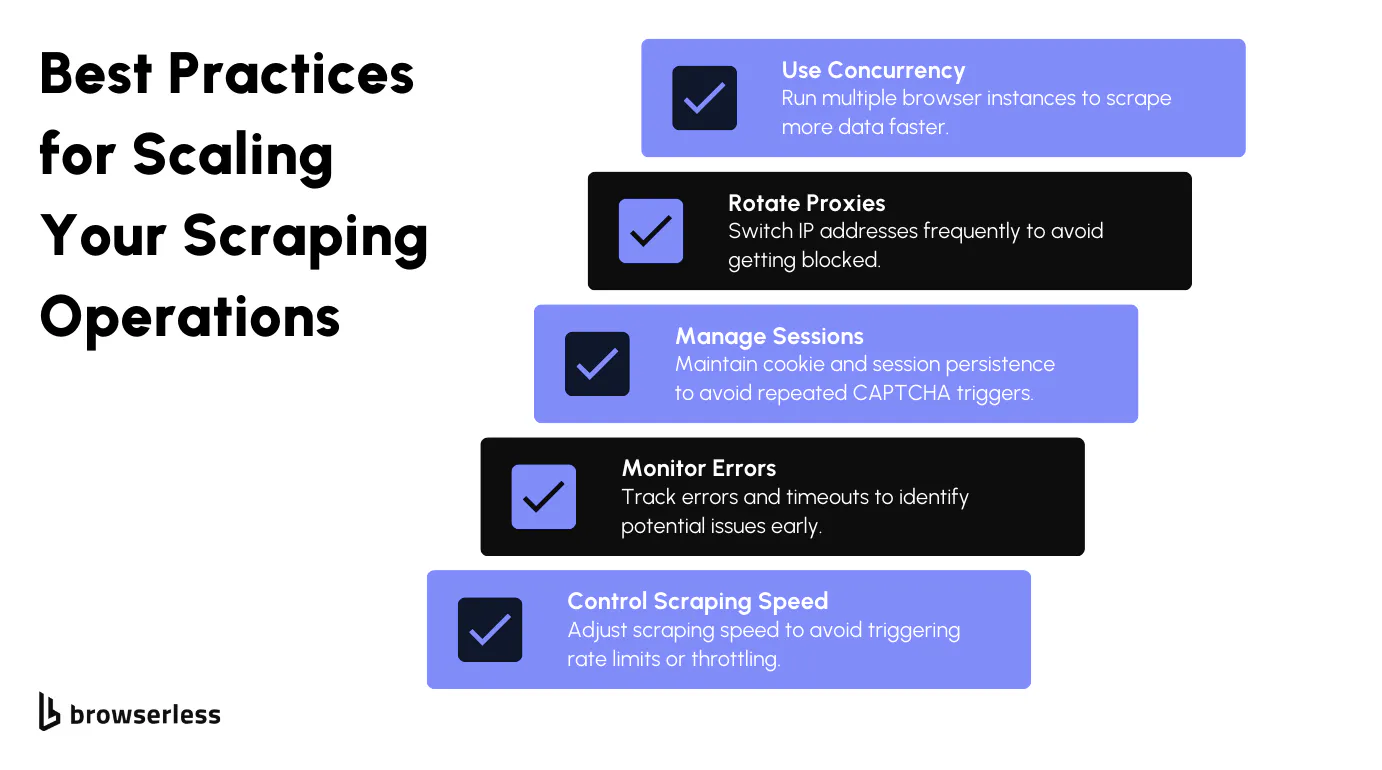
When you want to collect large amounts of data, running web scraping tasks in parallel (concurrency) is the way forward. This helps you accelerate the process by having browser windows work together simultaneously. However, scraping aggressively or quickly can result in throttling or blocking.
Browserless simplifies this by enabling you to create browser instances that run in parallel. You don't have to worry about managing browser sessions or running into limitations. Using this configuration method effectively allows you to expand your web scraping abilities without encountering any issues.
Conclusion
We've discussed ways to efficiently gather information from Amazon by outsmarting its bot detection systems, using techniques such as rotating proxies, adjusting headers, and handling session cookies with Browserless tools. Once everything is properly set up and running smoothly, you'll find it much simpler to expand your information-gathering tasks and track their performance over time. Dealing with Amazon scraping doesn't have to be a hassle. Try BrowserQL and the rest of the Browserless toolkit by signing up for a free trial today.
FAQs
How do you bypass Amazon CAPTCHA when web scraping?
You need tools that make your automated bots look like real users. A simple scraper with basic headers gets blocked immediately. Use stealth routes with residential proxies to mask your browser fingerprint and IP addresses. BrowserQL is a browser automation API with built-in CAPTCHA solving that handles image-based captchas, text-based captchas, reCAPTCHA, and AWS WAF captchas without human interaction. The /unblock API also hides automation fingerprints, so you can access the target page without triggering a CAPTCHA page.
What is the best CAPTCHA solver for Amazon scraping?
BrowserQL solves CAPTCHAs; it automatically detects the CAPTCHA type and handles reCAPTCHA, Cloudflare challenges, and AWS WAF CAPTCHA tests. You send a GraphQL mutation to the /stealth/bql API endpoint with your token, and BrowserQL solves the challenge. No manual CAPTCHA-solving or third-party services needed, so you can collect data without interruption.
Why does Amazon block my scraper, and how do I fix it?
Amazon uses anti-bot mechanisms such as browser fingerprinting, IP rate limiting, behavioral analysis, user-agent checks, and AWS WAF. You get blocked when Amazon spots inconsistent headers, repeated requests from the same IP addresses, or patterns that lack human interaction. Fix it by using stealth routes to generate realistic fingerprints, rotating proxy IP addresses, managing cookies to appear as a returning user, and setting a realistic user agent.
Can you scrape Amazon product data without getting a CAPTCHA?
Yes, with the right setup. Connect Puppeteer or Playwright to Browserless using stealth WebSocket URLs, enable residential proxy rotation, and save cookies between sessions. When a CAPTCHA page appears, BrowserQL's solve mutation automatically handles it. Use CSS selectors or BrowserQL's text mutation to extract public data, such as product names and prices. For search pages with many items, mapSelector retrieves structured Amazon data from multiple listings in a single API request.
How do I scale Amazon scraping without getting blocked?
Rotate IP addresses with residential proxies so Amazon cannot track repeated requests. Reuse cookies to make your browser appear to be a returning visitor. Use BrowserQL's reconnect feature to keep sessions alive across multiple API requests. Browserless runs multiple browser instances in parallel to collect data faster. Just don't scrape too aggressively, or rate limiting will kick in. Monitor your response codes and error rates to catch blocks early.