
TL;DR
- Automation scripts. Code that runs a predefined sequence of steps without manual effort, used for everything from file processing and data jobs to controlling real browsers.
- Where complexity hides. Most of the work in browser automation is infrastructure (drivers, versions, memory, cleanup), not the script logic itself.
- The cleaner pattern. When browser execution runs as a managed service, your scripts stay lightweight, predictable, and easy to scale.
- Where Browserless fits. It exposes browser automation behind REST endpoints like
/content,/pdf, and/screenshotso your scripts stay focused on logic instead of Chrome lifecycle.
Introduction
A script that moves files, transforms data, or runs a nightly job is an automation script. Teams write them in Python, JavaScript, Java, and other languages to automate workflow steps, process data, power automated testing, and control browser-based tasks without manual effort. As websites have grown more dynamic, browser automation has become harder to write and harder to keep running. The rest of this guide walks through what automation scripts are, how they work, and why the browser layer in particular trips most teams up.
What are automation scripts?
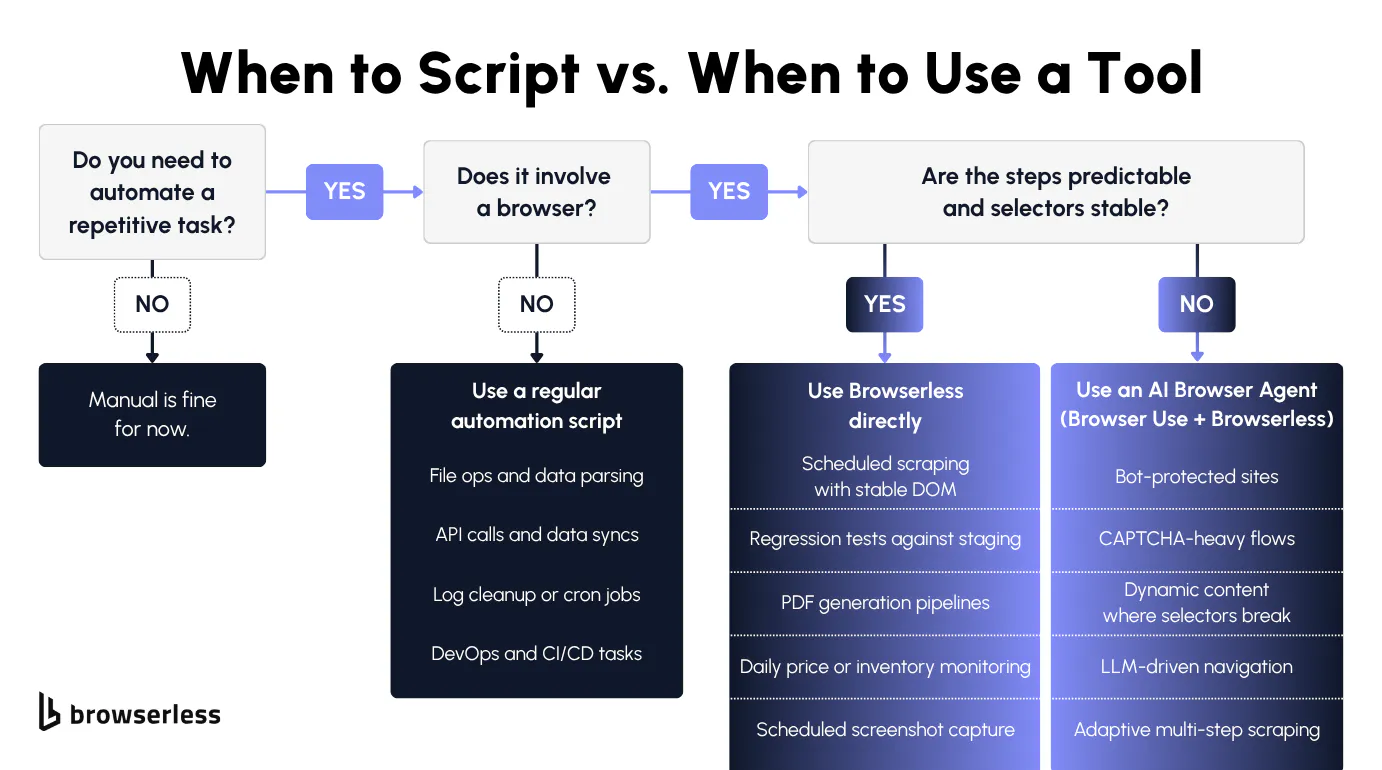
You write an automation script when you'd rather not click through a user interface (UI), copy data between spreadsheets, or run disk cleanup on every machine by hand. Your script handles those steps in the same order on every run.
In Python, JavaScript, or Java the pattern is the same: define the steps, handle the errors, let the script repeat. Your test script can open a page, verify the right elements rendered, log the result, and run the same checks across staging, quality assurance (QA), and production without you touching a thing. The same validation logic works across a hundred environments without changing a line.
Even teams using visual automation tools fall back to scripts under the hood. The tool handles orchestration (triggers, scheduling, retries), while the script handles the real logic: validating a form field, transforming a data payload, or integrating with internal services.
Common automation script use cases
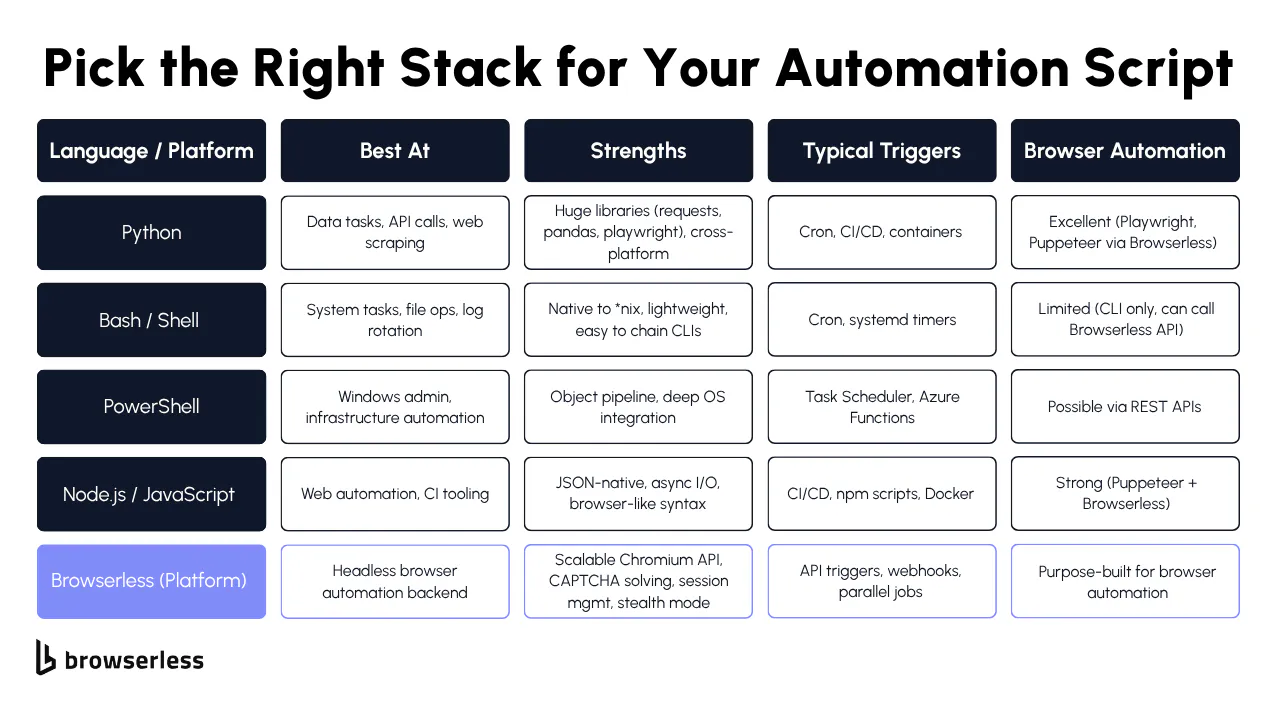
Workflows, data processing, and scheduled jobs
Automation scripts handle non-browser tasks: moving files between services, transforming data formats, validating configuration, syncing databases, running nightly reports, and monitoring logs. A script executes the workflow automatically based on predefined logic, giving teams a single source of truth for how a process runs, regardless of who triggers it or when.
Browser-based automation and scraping
Browser-based automation adds a layer of difficulty that file-based scripts don't have. A raw HTTP request only gets you the page before any client-side code runs. A test script might fill out a form, click through a multi-step checkout, or verify that a modal closes correctly after user interaction.
Web scraping, content extraction, screenshot generation, and PDF creation all need a fully rendered page. Dynamic content, async loading, and cross-environment differences introduce failure points that don't exist in file-based scripting. A selector that works on one version of a page might silently break on the next deployment.
Automated testing and validation
Automated testing depends heavily on well-written scripts. The framework gives you structure (test runners, assertions, reporting), but the actual validation logic lives in your scripts: which fields to check, which edge cases to cover, what "broken" looks like for your specific app. If a test passes, the feature works. If it fails, the team knows exactly what broke and where.
How automation scripts work with modern browsers
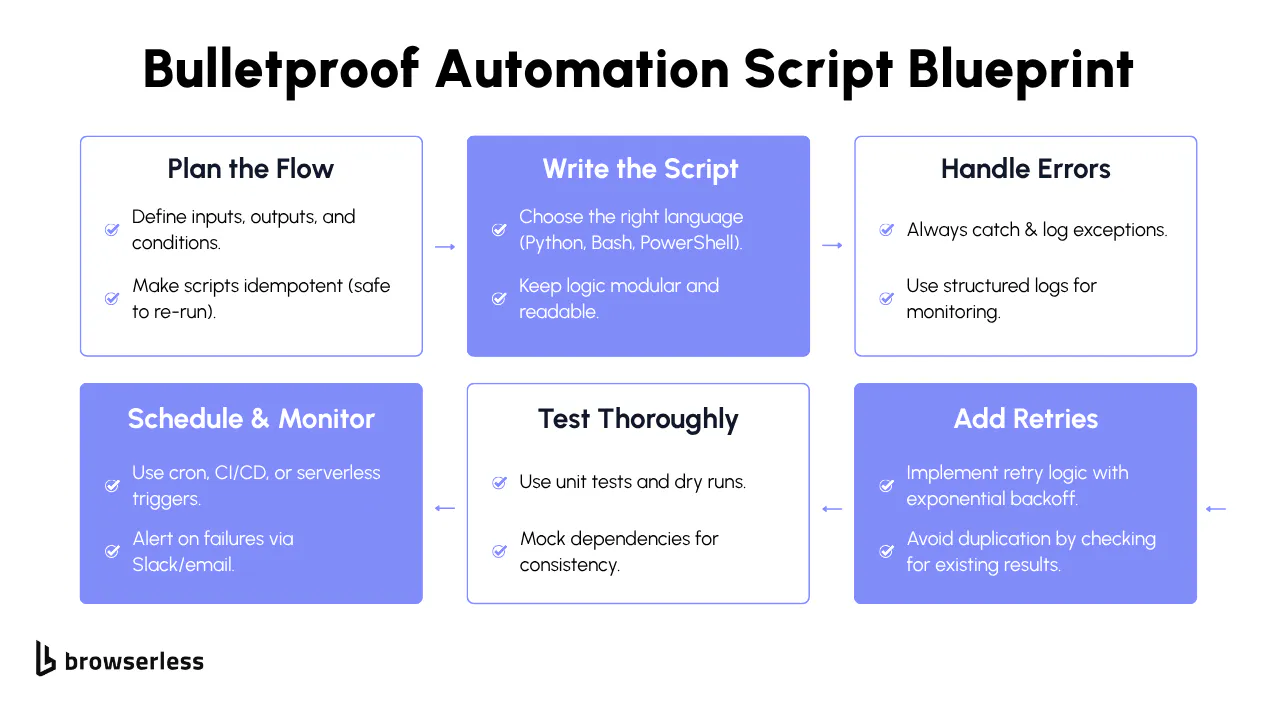
Browser-based scripts diverge from file or API scripts in two ways: the page only exists after JavaScript runs, and the request flow has to look like a real user. The next two sections cover each in turn.
Why is browser automation harder than API automation?
With API automation, your script sends a request, gets structured data back, and processes the response. The whole thing is often 20 lines of Python or a quick curl call. Testing an API endpoint is the same pattern: hit the endpoint, check the response, log the result. No rendering, no waiting, no UI state to manage.
Browser automation changes the equation. The rendered page only exists after the browser executes JavaScript, so the same kind of HTTP request that worked against an API endpoint won't return the data you actually need.
On top of the rendering challenge, you'll run into anti-bot protections, Completely Automated Public Turing tests (CAPTCHA), and behavioral detection that flag anything that doesn't look like a real user clicking around. If your script isn't running in a real browser, it will either be blocked outright or return a partially-rendered page that's missing the data you need.
Reliable test results and accurate scraped data both require a real browser, headless or headful, that renders JavaScript, manages cookies, and behaves like an actual user.
Turning browser automation into API-driven scripts
Take the browser out of your script entirely instead of setting up Chrome, managing drivers, and handling teardown inside every script. You send instructions to a remote browser service and let it do the heavy lifting, either through REST endpoints for one-off tasks, or by pointing your existing Puppeteer or Playwright code at a managed WebSocket when you need full programmatic control.
import requests

# Define the task as structured intent
payload = {"url": "https://news.ycombinator.com"}

response = requests.post(
    "https://production-sfo.browserless.io/screenshot?token=YOUR_API_TOKEN",
    json=payload,
    timeout=30,  # Prevent hanging requests in production
)

response.raise_for_status()  # Surface execution errors clearly
print("Screenshot bytes:", len(response.content))
In this approach, your script sends a URL and a task definition. The browser service renders the page, executes JavaScript, manages the browser lifecycle, and then sends the result back.
A JavaScript-based test script can follow a similar pattern:
const response = await fetch(
  "https://production-sfo.browserless.io/pdf?token=YOUR_API_TOKEN",
  {
    method: "POST",
    headers: { "Content-Type": "application/json" },
    body: JSON.stringify({ url: "https://www.browserless.io" }),
  },
);

if (!response.ok) {
  throw new Error(`Execution failed: ${response.status}`);
}

const pdfBuffer = Buffer.from(await response.arrayBuffer());
console.log("PDF size:", pdfBuffer.length);
The script defines the task and receives rendered HTML output, a screenshot, or a PDF, which can be stored, logged for validation, or fed into automated testing workflows. Each script sends a request, receives a result, and exits. No long-lived browser session to maintain, no state leaking between runs.
How Browserless simplifies automation scripts
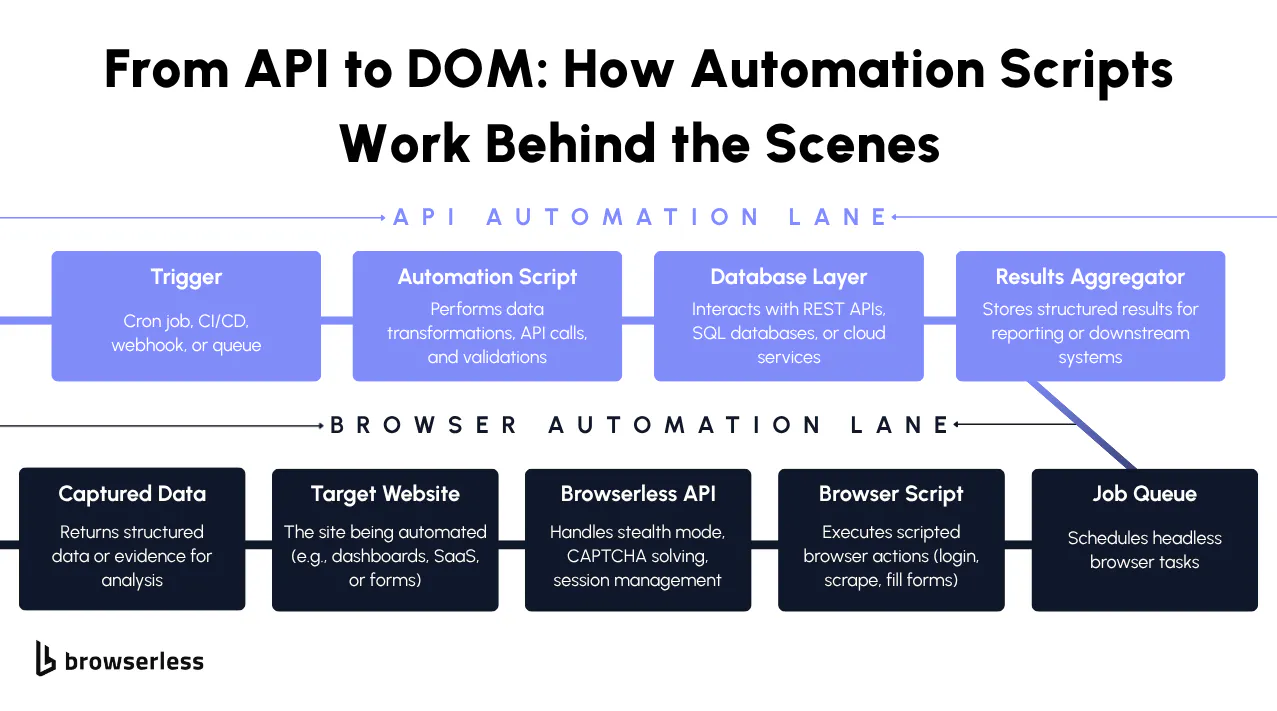
Traditional browser automation scripts have a long list of dependencies: local Chrome installations, matching driver versions, headless mode flags, container memory limits, and teardown logic that runs regardless of whether the script succeeds or fails.
Even a small Selenium script quickly turns into something more involved once you account for headless flags, container resource limits, explicit waits, and proper cleanup.
from selenium import webdriver
from selenium.webdriver.chrome.options import Options
from selenium.webdriver.common.by import By
from selenium.webdriver.support.ui import WebDriverWait
from selenium.webdriver.support import expected_conditions as EC

options = Options()
options.add_argument("--headless")  # Run without visible UI
options.add_argument("--no-sandbox")  # Required in many containerized environments
options.add_argument("--disable-dev-shm-usage")  # Avoid shared memory issues in Docker

driver = webdriver.Chrome(options=options)

try:
    driver.set_page_load_timeout(15)  # Fail fast on slow loads
    driver.get("https://news.ycombinator.com")

    # Explicit wait prevents race conditions on dynamic pages
    WebDriverWait(driver, 10).until(
        EC.presence_of_element_located((By.TAG_NAME, "h1"))
    )

    content = driver.page_source
    print("Page loaded successfully")

except Exception as e:
    print("Automation failed:", e)

finally:
    driver.quit()  # Always clean up browser processes
Note: Browserless itself doesn't host Selenium drivers. Puppeteer and Playwright are the supported clients, but the same pain points apply to anyone running browsers in CI.
As automation scales across continuous integration (CI) pipelines and distributed systems, every new environment multiplies the surface area for version mismatches and resource leaks.
Browserless moves browser lifecycle management out of your scripts and into a dedicated service. Your script sends structured instructions and handles responses like any other API call.
import os
import requests

BROWSERLESS_URL = "https://production-sfo.browserless.io/content"
TOKEN = os.environ.get("BROWSERLESS_API_KEY", "YOUR_API_TOKEN")

def fetch_page(url):
    try:
        response = requests.post(
            f"{BROWSERLESS_URL}?token={TOKEN}",
            json={"url": url},
            timeout=30,  # Protect against long-running executions
        )
        response.raise_for_status()  # Raise exception on non-2xx responses
        return response.text
    except requests.exceptions.RequestException as e:
        print(f"Browser execution failed: {e}")
        return None

if __name__ == "__main__":
    html = fetch_page("https://news.ycombinator.com")
    if html:
        print("Page fetched successfully")
        # Simple validation to confirm rendered content was returned
        if "Hacker News" in html:
            print("Content check passed")
What's left is just business logic: you define the URL, set a timeout, and handle errors. No browser versions to match, no memory flags to tune, no teardown routines to debug. For sites that block automated traffic, the /unblock API handles common bot-detection challenges without the library fingerprints Puppeteer or Playwright usually leave behind.
When to use Browserless in automation scripts
Browserless fits when your scripts need a real browser, not just an HTTP client: scraping JavaScript-heavy pages, generating PDFs, capturing screenshots, or running UI tests that click buttons and check modals. A simple requests.get() won't return usable data for any of these.
You need something that renders the page the way a user's browser would, without running Chrome yourself. Capturing a full-page screenshot of a rendered page becomes straightforward:
const response = await fetch(
  "https://production-sfo.browserless.io/screenshot?token=YOUR_API_TOKEN",
  {
    method: "POST",
    headers: { "Content-Type": "application/json" },
    body: JSON.stringify({
      url: "https://www.browserless.io",
      options: { fullPage: true },
    }),
  },
);

if (!response.ok) {
  throw new Error(`Screenshot generation failed: ${response.status}`);
}

const screenshotBuffer = Buffer.from(await response.arrayBuffer());
console.log("Screenshot generated, size:", screenshotBuffer.length);
Your automation framework, test structure, and workflow logic all stay the same. Only the location of the browser changes. Scaling works the same way too. Every request is independent, so you scale by adding concurrent requests rather than managing a pool of browser instances:
import os
import concurrent.futures
import requests

TOKEN = os.environ.get("BROWSERLESS_API_KEY", "YOUR_API_TOKEN")
ENDPOINT = "https://production-sfo.browserless.io/content"

URLS = [
    "https://news.ycombinator.com",
    "https://www.browserless.io",
    "https://docs.browserless.io",
]

def fetch(url):
    response = requests.post(
        f"{ENDPOINT}?token={TOKEN}",
        json={"url": url},
        timeout=30,  # Each request executes independently
    )
    response.raise_for_status()
    return response.status_code

if __name__ == "__main__":
    # ThreadPoolExecutor demonstrates horizontal scaling at the script level
    with concurrent.futures.ThreadPoolExecutor(max_workers=5) as executor:
        results = list(executor.map(fetch, URLS))
    print("Completed:", results)
Each request is self-contained, so CI pipelines, cron-based scrapers, and test suites can all grow without introducing new infrastructure dependencies or rewriting existing automation.
Conclusion
The automation logic is your code. The browser infrastructure (rendering, scaling, driver versions, and cleanup) shouldn't be. Browserless moves all of that behind REST APIs like /content, /pdf, and /screenshot, so your script only contains the URL, the task, and the response handling. Sign up for a free account and try it against your existing scripts.
FAQs
What are automation scripts used for?
Automation scripts handle tasks a person would otherwise repeat manually: moving files, transforming data, running scheduled jobs, validating test results, and controlling browsers. Workflow scripts save operational time, testing scripts catch regressions before deployment, and browser automation scripts extract data from JavaScript-heavy pages that static HTTP requests can't reach.
How do automation scripts differ from automation tools?
Automation tools handle orchestration (scheduling, triggers, visual flows) while automation scripts handle execution logic: how data gets validated, how errors are caught, and how edge cases are handled. When requirements change, or a workflow hits a case the tool didn't anticipate, teams drop into scripts to define the exact behavior. Most frameworks combine both: a tool layer for coordination and a script layer for the work itself.
Why are automation scripts important for automated testing?
Test frameworks give you structure, but the actual checks live in scripts: which fields to validate, what broken looks like, which edge cases matter. A script can open a page, interact with elements, verify responses, and log failures. Run the same script across staging and production, and you catch regressions before users do.
Which programming languages are used to create automation scripts?
Python is widely used for workflow automation and data processing, JavaScript is common for browser automation through Puppeteer and Playwright, and Java shows up most often in enterprise systems. Any language with an HTTP client can call Browserless APIs directly. For a deeper dive, see our guide to automation scripts in Python, Bash, and PowerShell.
When should you use Browserless with automation scripts?
Browserless is helpful when your scripts need to run on real browsers for JavaScript-heavy pages or rendering-dependent tasks. In automated testing where a test script must validate UI elements or dynamic page behavior, a simple script won't be enough. Instead of running Selenium or Puppeteer locally, your script POSTs to a Browserless endpoint like /content or /pdf, gets the rendered result back, and exits. No driver versions to match, no Chrome to install on every CI runner.