
TL;DR
- Browser extensions are small software add-ons that change what your browser can do, from blocking ads to managing passwords and helping you write faster.
- They're useful, but the risk is real: A 2024 supply chain attack compromised at least 35 Chrome extensions, affecting about 2.6 million users.
- You can reduce the risks by checking permissions, limiting site access, and removing extensions you no longer use.
Introduction
Browser extensions are now part of everyday browsing. You probably already use them without thinking much about it - a spell-checker, an ad blocker, a coupon finder, a password manager, maybe even an AI browser assistant sitting in your toolbar.
And there are a lot of them: Chrome-Stats counted 233,309 extensions in the Chrome Web Store on April 7, 2026.
As well as making your browsing life more convenient, extensions also expand your browser's attack surface. Spin.AI estimates that more than 400 million users downloaded at least one compromised browser extension over a two-year period, which is why security teams are paying much closer attention to them now.
In this guide, you'll learn what a browser extension is, how it works, common examples, where the risk comes from, and how to use browser extensions safely.
What is a web browser extension?
A web browser extension is a small software module that plugs into a browser and changes what that browser can do. It can add new features, remove annoyances, or modify how web pages look and behave.
You'll also hear people use terms like add-ons, extensions, and plug-ins interchangeably, but they're not quite the same thing. Extension and add-on usually mean the same modern browser feature.
Plug-ins are older browser components, such as Java or Flash modules, which modern browsers have moved away from because of security and performance problems. Chrome deprecated NPAPI (Netscape Plugin API) plug-ins years ago, and Firefox ended support for most NPAPI plug-ins in Firefox 52.
How browser extensions work
Most browser extensions are built with familiar web technologies: HTML, CSS, and JavaScript. At the center is a manifest.json file, which tells the browser what the extension is, what files it uses, and what permissions it wants.
Permissions are the part you should care about most as a user. They define what the extension can access or do. Some permissions are narrow and low-risk - a theme extension, for example, mostly changes appearance.
Other extensions need deeper access to work properly. A password manager may need to detect login forms, fill credentials, and interact with multiple sites, so it naturally asks for more.
Browser extension examples
In practice, most browser extensions fall into a handful of familiar categories. You've probably seen ad and tracker blockers such as uBlock Origin, password managers such as 1Password, writing assistants like Grammarly, developer tools including React DevTools and Wappalyzer, productivity tools like OneTab, and a growing wave of AI assistants for summarizing pages or drafting text inside the browser.
What separates the extensions you keep from the ones you forget is repeated daily usefulness. Only 95,000 extensions, 85% of Chrome Web Store, have been installed fewer than 1,000 times. Whether that exact number shifts over time, the bigger point holds: the extensions that reach real scale usually solve a problem you hit again and again.
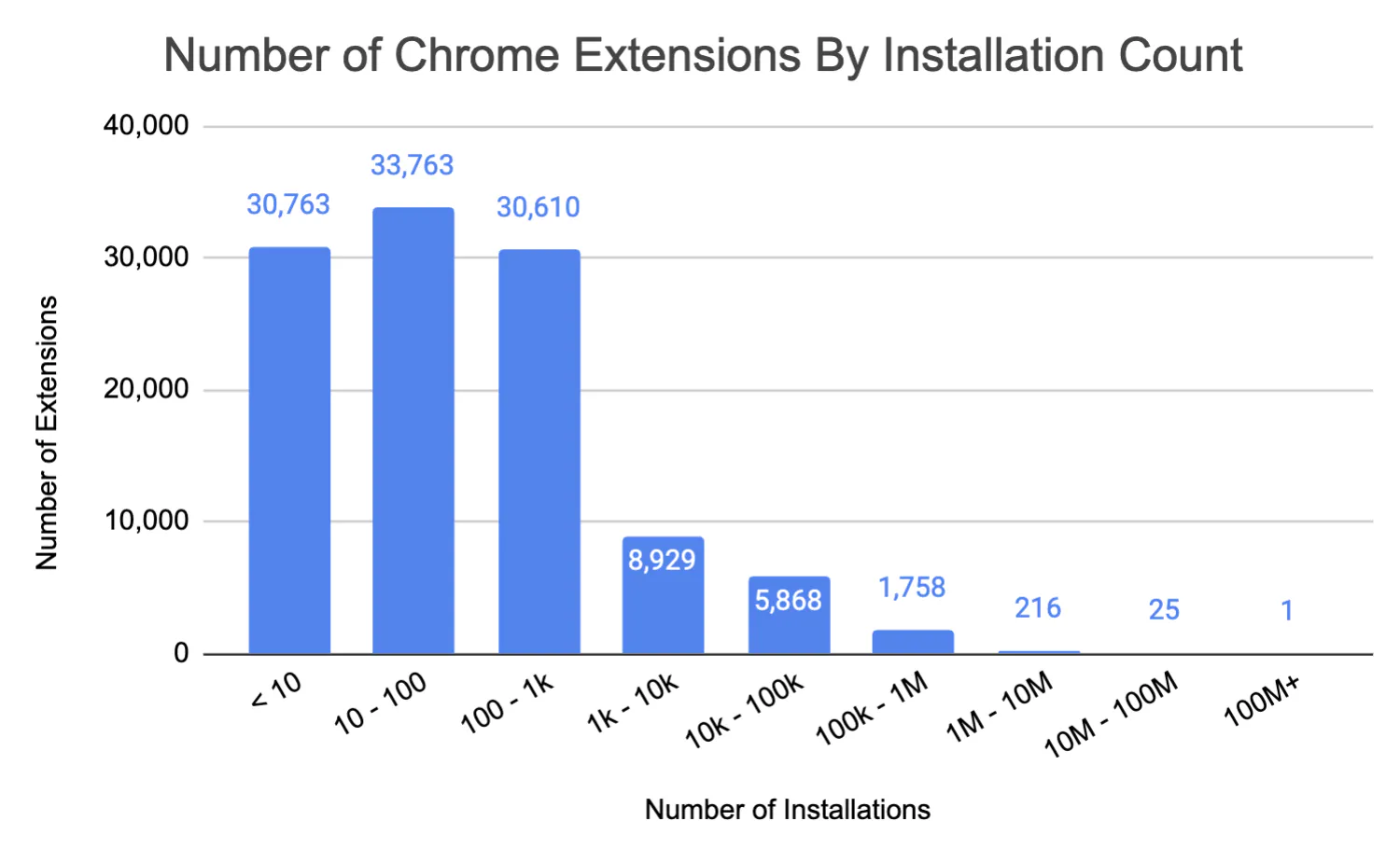
That repeated usefulness is why legitimate browser extensions can feel indispensable. It's also why they're worth scrutinizing. The same access that lets an extension improve your workflow can also create a serious security risk when the wrong code gets in.
Are browser extensions safe?
The honest answer is yes, most are safe enough to use - but a meaningful proportion are not, and the risk has grown. Spin.AI says 48% of browser extensions request excessive permissions, and about 35% fall into a high-risk category linked to potential credential theft, session hijacking, or data exfiltration.
The December 2024 supply chain attack on Chrome extensions affected at least 35 extensions and about 2.6 million users after a malicious update slipped through Chrome Web Store review. In February 2025, GitLab identified at least 16 malicious Chrome extensions affecting at least 3.2 million users.
Bad actors consistently use the same tactics:
- Fake listings. Attackers publish malicious browser extensions directly in official stores and disguise them as legitimate tools.
- Compromised accounts. They take over a developer account, then ship a malicious update to an extension people already trust.
- Acquired extensions. They buy an existing extension with a real user base, keep the branding, and quietly inject malicious code later.
Part of the problem is visibility. Extensions are embedded into browser applications and do not create normal process start events, which makes them harder for many security tools to detect than traditional desktop software.
So the real issue is not whether every extension is dangerous by default. It's whether the extension is trustworthy, actively maintained, and limited to the access it genuinely needs.
What can a malicious extension access?
If you grant broad permissions, a malicious extension can potentially see far more than you might expect. Extensions may gain access to web traffic, saved credentials, session cookies, and clipboard data. In many cases, host permissions and API permissions on Chrome can grant elevated access across sites, while Firefox grants clipboard read access to extensions that explicitly request it.
Depending on what you grant, a malicious extension can access:
- Browsing history. The URLs you visit and the full content of pages you open.
- Form data. Anything you type into fields on sites the extension can read and modify.
- Session tokens. Cookies and auth tokens that keep you logged in across sites.
- Clipboard contents. Copied text, including passwords you paste manually.
That scope is exactly why you should read permission prompts before you click install.
Browser extension privacy and security tips
You don't need to swear off extensions completely. You just need a tighter review process before installing browser extensions and a cleanup habit afterward:
- Use official stores. Stick to the Chrome Web Store, Firefox Add-ons, the Edge Add-ons store, or Safari's supported distribution paths instead of downloading random packages from the web.
- Check age, reviews, and install count. Very new extensions with tiny user bases deserve more skepticism.
- Read the permissions prompt carefully. If a simple utility wants access to all websites, cookies, or your clipboard, that's a red flag. On many browsers, permission changes can trigger warnings, and optional permissions exist for a reason.
- Audit installed extensions regularly. Unused extensions still expand your attack surface.
- Watch updates as closely as installs. Many serious incidents come from malicious updates pushed through trusted extensions, not from obviously shady ones on day one.
- Use allowlists at work. If you manage an enterprise environment, a reviewed allowlist beats free-for-all installs.
Those habits won't remove every risk, but they dramatically lower the odds that a helpful tool turns into a privacy or security problem later.
Conclusion
Browser extensions are useful enough to become indispensable, and risky enough to warrant scrutiny. They can improve your workflow, speed up browsing, and surface information without switching tabs. They can also access sensitive data, modify page content, and create a security exposure that's easy to overlook. Browser extensions can improve your online experience, help you move faster, and make websites easier to use. At the same time, they can access sensitive data, change website content, and create a security risk that many users underestimate.
For developers and engineering teams, there's a parallel lesson here. The more browser state, profiles, and installed extensions you manage yourself, the more moving parts you own.
Browserless gives you managed browser automation through REST APIs and WebSocket connections for Puppeteer and Playwright, including workflows for screenshots, PDFs, scraping, and session-based automation, without maintaining your own browser fleet.
If your team is building headless browser automation, that's the cleaner path: fewer browser instances to babysit, less environmental drift, and a more controllable setup from the start. Sign up for free to get started.
Browser extension FAQs
What is a browser extension?
A browser extension is a small add-on that modifies or extends what your browser can do, usually using web technologies such as HTML, CSS, and JavaScript.
What is the difference between a browser extension and a plugin?
A browser extension is the modern add-on model used by browsers today. A plug-in usually refers to older technologies such as NPAPI modules like Java or Flash, which modern browsers have phased out for security and performance reasons.
How do I check what permissions a browser extension has?
Open your browser's extensions or add-ons manager, select the extension, and review its permissions or site access. Chrome and Edge both expose this information.
How do I remove a browser extension?
In Chrome, Edge, and Firefox, you remove extensions from the browser's extension or add-on management page by selecting the extension and choosing remove.
Do browser extensions slow down your browser?
They can. Normally, they have minimal impact, but some can add noticeable CPU work, and the slowdown is additive when you run many extensions at once.
Are browser extensions the same across Chrome, Firefox, and Edge?
They're similar, but not identical. The WebExtensions model is broadly cross-browser, yet stores, review processes, permission UX, and some APIs differ across Chrome, Firefox, Edge, and Safari.