
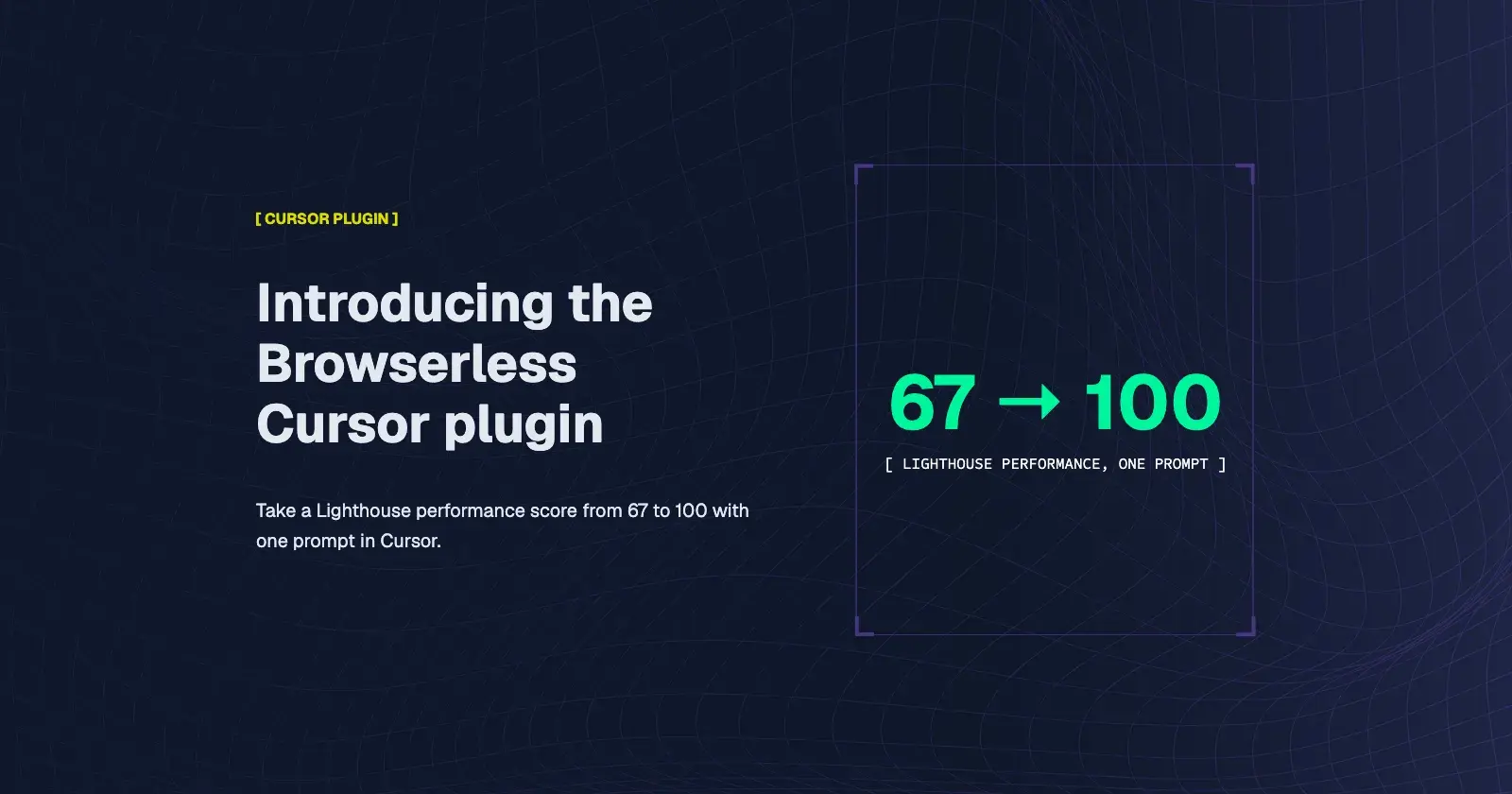
The Browserless Cursor plugin is live on the Cursor marketplace. It brings the Browserless MCP straight into Cursor, so your agent can scrape pages, crawl sites, search the web, drive hosted browser sessions, and audit performance without leaving the editor. You install it in a couple of clicks, sign in once, and the tools show up in every agent chat.
To show what that looks like in practice, we pointed it at a real site. With a single prompt in Cursor, the agent took the site's Lighthouse performance score from 67 to 100. The site looks exactly the same.
What the Browserless Cursor plugin gives your agent
Cursor already ships with its own browser tools, and they're great for checking your work locally. The Browserless Cursor plugin adds what a single local browser can't. Every tool runs on hosted Browserless infrastructure, so the agent can fire off multiple executions in parallel without tying up your machine. Stealth and CAPTCHA solving are built into the tools, so sites with bot detection don't stop the agent halfway through a task. It connects Cursor to the hosted Browserless MCP, and the agent picks the right tool for the job on its own.
Here's what ships in the plugin today. Cursor groups the tools into reads and writes.
Reads
browserless_smartscraperfetches a single page as markdown, HTML, links, a screenshot, or a PDF, and handles JavaScript rendering and bot detection for you.browserless_crawlfollows links from a starting URL and scrapes every page it finds.browserless_mapdiscovers the URLs on a site before you decide what to scrape.browserless_searchsearches the web, news, or images, and can scrape each result.browserless_exportreturns a page in its native format, or bundles it with its assets as a ZIP.browserless_performanceruns a Lighthouse audit on a URL and returns scores, metrics, and audit findings.browserless_skillloads site-specific recipes on demand, like cookie banners, shadow DOM, and CAPTCHAs.browserless_account,browserless_usage,browserless_logs,browserless_sessions, andbrowserless_profileslet the agent check your plan, usage, request logs, sessions, and saved browser profiles. They only read.
Writes
browserless_agentopens a stateful browser session the agent can snapshot, click, type, and scroll through, step by step.browserless_functionruns custom Puppeteer code in the cloud when the built-in tools aren't enough.browserless_link_connectandbrowserless_link_checkoutround out the write tools.
This list will change over time. We ship new tools and refine existing ones regularly, and the plugin picks them up from the hosted server automatically. The plugin repo and the docs always have the current set.
Install the Browserless Cursor plugin
There are two ways to install it. Both take under a minute.
From Cursor Settings
- Open your project in Cursor.
- Click the gear icon in the top right to open Cursor Settings.
- Open the Customize panel and search for "Browserless".
- Click Browserless, then click Add to Cursor.
- Choose Add for myself so the plugin is available across all your projects.
From the Cursor marketplace
- Go to the Cursor marketplace.
- Find Browserless under the Infrastructure category, or search for it.
- Click Browserless, then click Add to Cursor.
Connect the Browserless MCP to your account
Once the plugin is installed, click Authenticate. Your browser opens and asks you to log in to Browserless. Authorize access to the Browserless MCP, then click Open Cursor to jump back to the editor.
That's it. There's no API token to copy or paste. Back in Cursor, you'll see the plugin's tools and resources listed and ready to use.
If you don't have an account yet, sign up for free. The free plan covers hundreds of performance audits a month, plus room to try the other tools.
Example: improve a Lighthouse performance score from Cursor
To put the plugin to work, we picked a task most devs have on their backlog. Make a slow site faster.
Our demo site is the scraping playground we host for tutorials, and we opened its source repo in Cursor. Quick FYI on its SEO score. It's low partly because the site uses noindex and nofollow meta tags to keep it out of search engines. We don't want it indexed, so we left those tags in place and kept SEO out of scope for this demo.
Get a baseline in Chrome DevTools
Lighthouse is built into Chrome DevTools, so you can run an audit locally in a few clicks. It's also the engine behind PageSpeed Insights, which adds real-user field data on top when it's available. Everything in this post uses Lighthouse directly.
- Open the site in Chrome.
- Right click anywhere on the page and choose Inspect.
- Open the Lighthouse tab.
- Keep the default settings and click Analyze page load.
The audit can take a minute or two. On mobile, the default, the site scored 67 on Performance, 88 on Accessibility, 100 on Best Practices, and 63 on SEO.
We switched to desktop and ran it again. Performance came in at 91, with the other scores unchanged. Desktop often scores higher because Lighthouse uses different device and throttling settings.
Normally, this is where you'd work through that list of fixes one by one, or paste them into a prompt yourself. We skipped that and let Cursor pull the audit results and act on them directly.
Why bother at all? Lighthouse helps identify performance problems that can affect user experience. To assess real-world Core Web Vitals, check field data separately.
Run the audit from Cursor
Next we opened a new agent chat and gave it this prompt:
Check the performance for this site in desktop and mobile formats and enhance / improve as many opportunities flagged to improve our site.
We didn't name a tool. The agent picked browserless_performance on its own and asked for permission to run it. We clicked Always run so it wouldn't ask again. The tool call shows which URL it's checking and exactly what goes out in the request, so you always know what the agent is doing.
The tool returns Lighthouse scores, metrics, and audit findings. The difference from running it in DevTools is that the agent can read the results and act on them.
Let the agent fix it
The agent treated the audit results as its to-do list. It worked through the flagged opportunities, optimized the code, and summarized what it changed when it was done.
We reviewed the summary, committed the changes, opened a PR, and merged it. Then we re-ran the audits.
Before and after
On mobile, Performance went from 67 to 100. Accessibility went from 88 to 100. Best Practices stayed at 100, and SEO stayed at 63 since we left it out of scope.
Desktop landed in the same place. Performance went from 91 to 100, Accessibility to 100, Best Practices held at 100, and SEO at 63.
Visually, nothing changed. Same layout, same content, just a faster site.
More than performance audits
The Lighthouse audit is one example. The same plugin lets your agent scrape a page into clean markdown while you build a parser, crawl a docs site to answer a question about an API, search the web for current information, or open a full browser session to click through a flow and see what breaks. When a site throws up bot detection or a CAPTCHA, Browserless handles it so the agent can keep going.
Because it all runs on hosted Browserless infrastructure, there's nothing to install locally beyond the plugin itself.
Wrapping up
The Browserless Cursor plugin gives your Cursor agent hosted browsers that run in parallel, with stealth and CAPTCHA solving built in. Install it from Cursor Settings or the marketplace, authenticate once, and your agent can audit, scrape, crawl, search, and automate the web from the same chat where it writes your code. We went from a Lighthouse performance score of 67 to 100 with one prompt, and that's just the start.
Grab a free Browserless account, check out the plugin repo, and read the docs for the full tool reference.