
TL;DR
- Headless Chrome runs a full browser without a visible window. It executes JavaScript, renders pages, and supports the same APIs as regular Chrome, which makes it the foundation for screenshots, PDFs, scraping, testing, and browser automation.
- Puppeteer and Playwright are the standard ways to control it. Both connect to headless Chrome over the DevTools Protocol and give you full control over navigation, interaction, and data extraction. The code is nearly identical whether the browser runs locally or remotely.
- Self-hosting headless Chrome breaks at scale. Memory leaks, zombie processes, version drift, and crash cascades turn a simple automation script into infrastructure maintenance. Managed services like Browserless handle the browser lifecycle, so you can focus on automation logic rather than keeping Chrome alive.
Introduction
Headless Chrome is the engine behind most browser automation today. When you generate a PDF, take a screenshot, scrape JavaScript-heavy content, or run end-to-end tests, headless Chrome is probably doing the work, running the full browser without rendering anything to a screen. The problem is that running it yourself gets complicated fast once you move past a single script. This guide covers how to automate it using Puppeteer and Playwright, what breaks when you scale, and how Browserless handles the hard parts.
What headless Chrome is and how it works
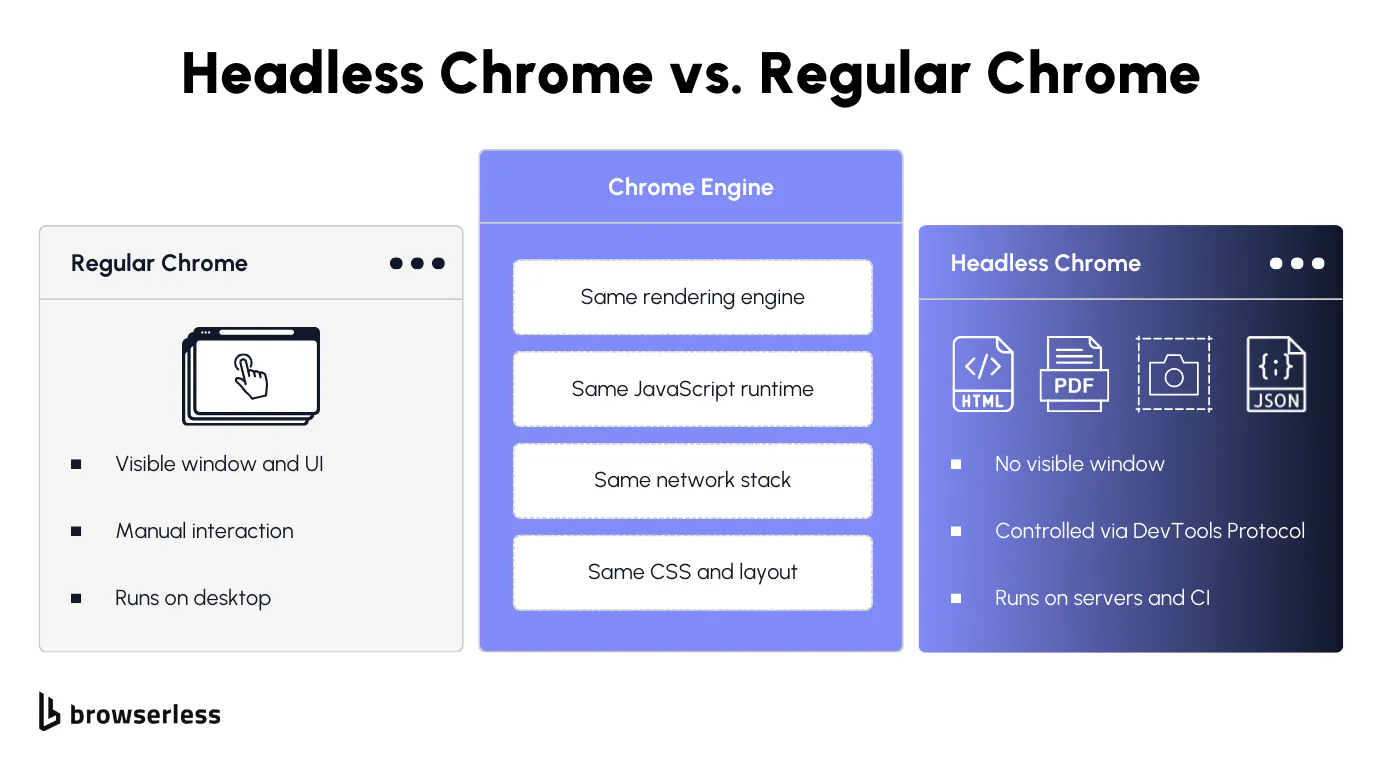
Headless mode vs. regular browser
If you've ever opened Chrome on your desktop, you've used the full version with its graphical user interface, tabs, address bar, and everything you see on screen. Headless Chrome is the same browser with all of that stripped away.
Under the hood, it's still the same rendering engine, JavaScript runtime, and network stack as regular Chrome. Pages render fully, right down to CSS, fonts, and layout calculations. The only difference is that nothing gets drawn to a screen, which is exactly why it's useful: you can run Chrome on servers, CI pipelines, Docker containers, anywhere without a display.
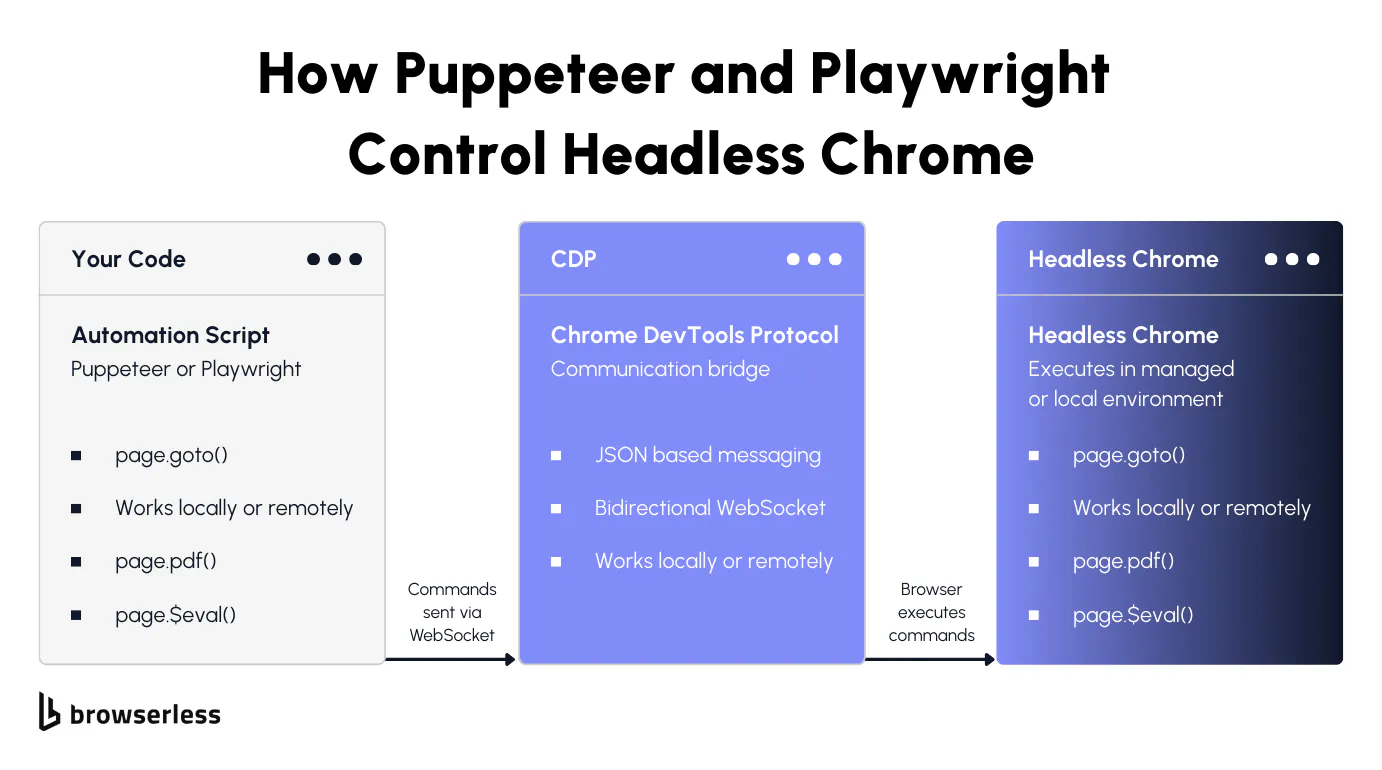
The browser launches as a background process. Your script sends commands over a WebSocket connection via the Chrome DevTools Protocol (CDP), and headless Chrome executes them exactly the way the full version would.
What you can do with headless Chrome
Any site that loads content with JavaScript, lazy loads images, or builds the page client-side needs a real browser to access the data. An HTTP GET just gives you the empty shell before JavaScript runs. Headless Chrome gives you the real thing.
Screenshots of fully rendered pages, PDFs from URLs or raw HTML, scraping dynamic sites, automated testing with real form fills and button clicks, crawling links across pages, downloading files, and running scripts in the browser console.
If Chrome can do it with a window, headless Chrome can do it without one. Puppeteer and Playwright are the two libraries most developers use to control it, and both launch Chrome in headless mode by default.
Automating headless Chrome with Puppeteer and Playwright
Getting started with Puppeteer
Puppeteer is a Node.js library for controlling Chrome and Firefox programmatically. Originally created by Google's Chrome team, it wraps the DevTools Protocol in a high-level API that handles navigation, screenshots, PDF generation, scraping, form submission, and file downloads.
Install it with npm install puppeteer, and you get a bundled Chromium binary that runs Chrome in headless mode. Use puppeteer-core instead if you want to bring your own Chrome binary or connect to a remote browser instance later.
The examples below use ESM imports, so add "type": "module" to your package.json or use .mjs file extensions. This script launches Chrome, hits a page, and grabs a screenshot:
import puppeteer from "puppeteer";

// Launch headless Chrome (headless mode is the default)
const browser = await puppeteer.launch();
const page = await browser.newPage();
await page.setViewport({ width: 1280, height: 720 });

// Navigate and wait for network to settle before taking the screenshot
await page.goto("https://news.ycombinator.com", { waitUntil: "networkidle2" });
await page.screenshot({ path: "hn.png", fullPage: true });
await browser.close();
Chrome launches in headless mode by default, running as a background process controlled via the DevTools Protocol. Each interaction is awaited, so the browser finishes one step before starting the next, then you get a full-page PNG of whatever Chrome rendered, JavaScript-loaded content, and all. The whole thing takes a few seconds.
Want a PDF instead? Same flow, one method change:
import puppeteer from "puppeteer";

const browser = await puppeteer.launch();
const page = await browser.newPage();
await page.goto("https://news.ycombinator.com", { waitUntil: "networkidle2" });

// Generate a PDF with A4 formatting and background styles included
await page.pdf({
  path: "hn.pdf",
  format: "A4",
  printBackground: true,
});
await browser.close();
The browser renders the full page with CSS and JavaScript the same way it did for the screenshot, then converts it to a formatted PDF instead.
Puppeteer goes well beyond screenshots and PDFs. Use page.click() to click buttons, page.type() to fill forms, page.$eval() to pull data out of the page, and page.waitForSelector() to pause your script until an element shows up.
You can navigate links, crawl across web pages, run JavaScript in the browser console, download files, and automate any multi-step flow. Anything you'd do by hand in a browser window, Puppeteer can automate.
Selenium also controls headless Chrome, but most teams that start fresh pick Puppeteer or Playwright. Puppeteer communicates with Chrome natively via the DevTools Protocol rather than through a separate driver like Selenium, so the API is more direct and there's less indirection to debug when something breaks.
Getting started with Playwright
Playwright is Microsoft's take on browser automation, and it covers more ground than Puppeteer: Chromium, Firefox, and WebKit all work through the same API, so one script can target Chrome, Firefox, or Safari's rendering engine.
If you've used Puppeteer, the API will feel familiar, but Playwright adds one concept that changes how you think about running multiple sessions: browser contexts. A context is an isolated session with its own cookies, storage, and preferences.
Instead of creating pages directly in the browser instance as Puppeteer does, Playwright first creates a context, and pages live inside that context. The difference matters when you need to run completely independent sessions inside a single headless browser process:
import { chromium } from "playwright";

const browser = await chromium.launch();

// Create an isolated context with its own cookies, storage, and viewport
const context = await browser.newContext({
  viewport: { width: 1280, height: 720 },
});
const page = await context.newPage();
await page.goto("https://news.ycombinator.com", { waitUntil: "networkidle" });
await page.screenshot({ path: "hn.png", fullPage: true });
await browser.close();
This is how you run parallel sessions: launch one headless Chrome instance, spin up multiple contexts, and each one gets its own cookies, storage, and state with zero cross-contamination:
import { chromium } from "playwright";

// One browser instance, multiple isolated sessions
const browser = await chromium.launch();

// First context: US user session
const contextUS = await browser.newContext({
  locale: "en-US",
  viewport: { width: 1280, height: 720 },
});
const pageUS = await contextUS.newPage();
await pageUS.goto("https://news.ycombinator.com");
await pageUS.screenshot({ path: "hn-us.png" });

// Second context: completely isolated, separate cookies and preferences
const contextDE = await browser.newContext({
  locale: "de-DE",
  viewport: { width: 1280, height: 720 },
});
const pageDE = await contextDE.newPage();
await pageDE.goto("https://news.ycombinator.com");
await pageDE.screenshot({ path: "hn-de.png" });

await browser.close();
Two completely isolated sessions running inside a single browser process. You'd use this to test different user states, run concurrent scraping jobs across web pages, or automate workflows that require multiple accounts without spinning up separate Chrome processes for each.
Playwright also handles Firefox and WebKit with the same API. Swap chromium.launch() for firefox.launch() or webkit.launch(), and your script runs on a different engine across different platforms.
For headless Chrome specifically, both Puppeteer and Playwright get the job done, and the choice between them usually comes down to whether you need those extra engines.
Puppeteer has a simpler API when Chrome is all you need. Playwright is the better fit once you want cross-browser support or context isolation.
We wrote a full Playwright vs. Puppeteer breakdown if you want the details. Both tools work great on a single machine, but the problems start when you need to run dozens or hundreds of these scripts concurrently.
Why self-hosting headless Chrome breaks at scale
The infrastructure you end up building
The Puppeteer and Playwright scripts we wrote earlier work perfectly on your machine. Most developers hit the same wall around the same point: the script is done, it works, and now you need to run it 50 times concurrently on a server.
That's when you stop writing automation code and start building infrastructure to keep Chrome alive:
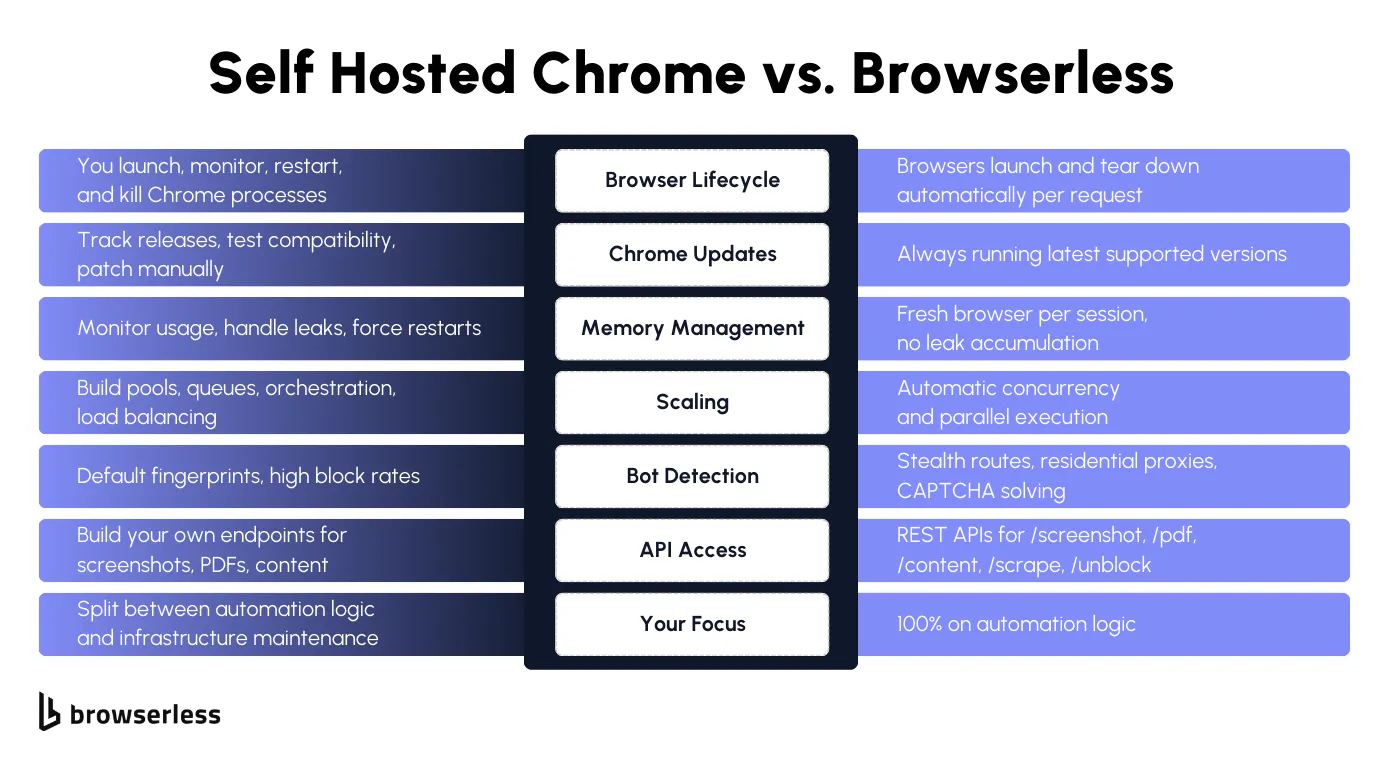
- Compute and orchestration. Servers, Docker containers, Kubernetes or Docker Swarm, or something custom on Linux, all to run Chrome across multiple machines. None of this has anything to do with your actual automation logic.
- Browser process management. Chrome doesn't clean up after itself gracefully, so each instance needs health checks, restart logic, and memory monitoring. Without it, instances eat resources while doing nothing useful, and you won't know until jobs start failing.
- Browser pool management. One headless browser at a time is straightforward. Hundreds means warm pools, session reuse, and affinity routing so jobs land on healthy instances. You're building a custom scheduler on top of your automation code.
- Job queues and concurrency. A traffic spike without proper backpressure handling either crashes your fleet or silently drops jobs. Queue depth, timeout handling, and failure recovery are all per-workflow config you have to build yourself.
- Version management. Chrome and Chromium ship new versions constantly, and each update can change browser functionality, break selectors, or alter how JavaScript renders on web pages. Tracking Chrome updates, OS patches, and compatibility testing across an entire fleet is a job in itself.
Scaling failures almost always occur outside your automation script. Your Puppeteer or Playwright code is fine. Everything around it is what breaks, and what quietly takes over your engineering time.
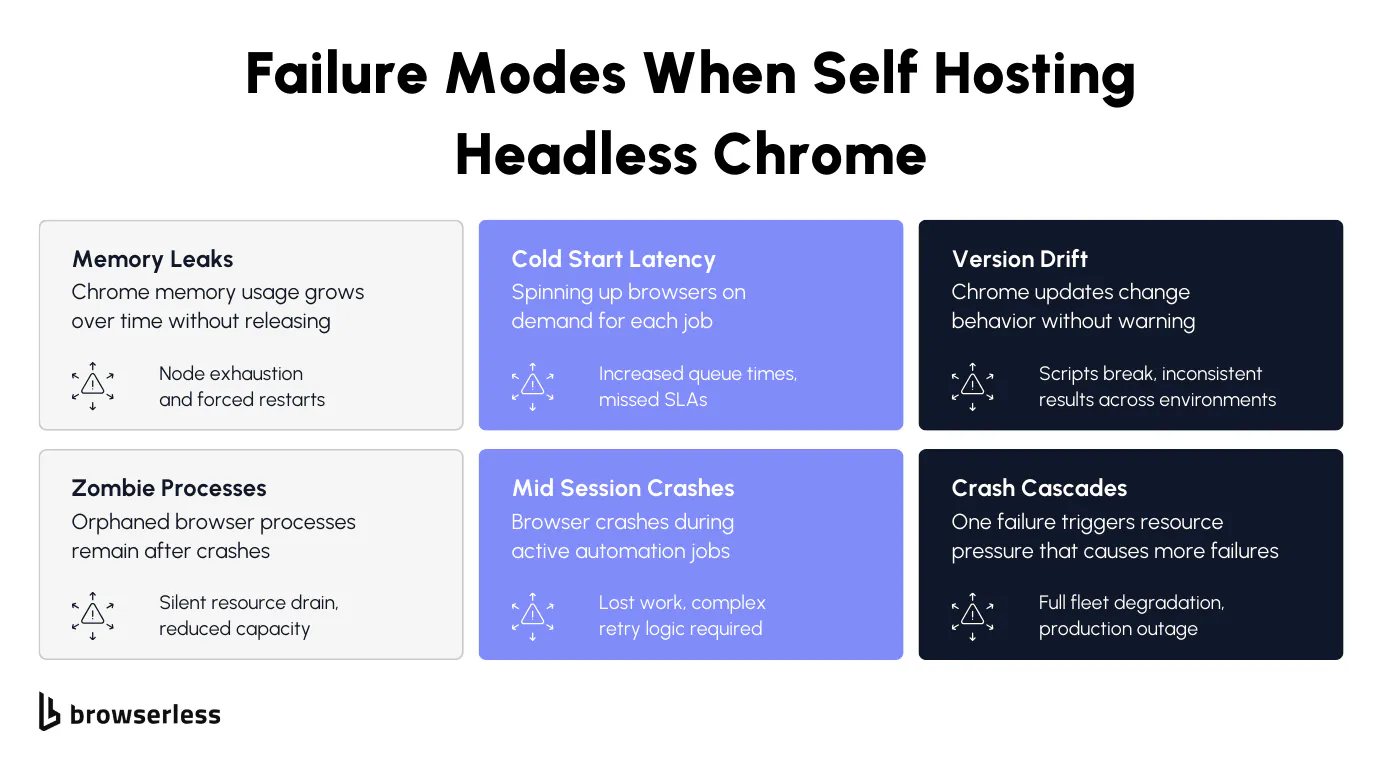
Common failure modes
The frustrating part is that these aren't exotic edge cases. Run more than a handful of Chrome instances at the same time, and you'll hit most of these within the first week:
- Memory leaks. A headless browser instance that starts at 200MB can exceed 1GB after enough page navigations. Chrome doesn't release memory cleanly over time, and eventually the node runs out of memory, the process gets killed, and any active jobs go with it.
- Zombie processes. When Chrome crashes mid-task, the browser process sometimes doesn't fully terminate. These orphans sit there eating CPU and memory while your system thinks the slot is available. The fleet slows down, but the dashboard says everything is fine.
- Cold start latency. Fresh headless Chrome instances take time to spin up. Launch on demand, and you get queue delays. Warm pools help, but add another layer of infrastructure and waste resources during low traffic.
- Mid-session crashes. GPU errors, JavaScript runtime exceptions, and pages that load something Chrome can't handle. Any of these kills a session and takes the cookies, navigation history, and page state with it. Building retry logic that picks up where a crashed session left off is a significantly harder problem than the automation itself.
- Version drift. A script that worked yesterday stops working today because the Chromium version on one instance auto-updated. Google ships Chrome updates regularly, and those updates can change how pages render, how the DevTools Protocol behaves, or which features are available.
- Crash cascades. One failing instance redistributes its jobs to the rest of the fleet, which are now overloaded. Memory spikes, more processes crash, and a single failure becomes full fleet degradation.
All of this is why the next section exists; there's a better way to run headless Chrome at scale without owning any of this infrastructure.
How Browserless replaces self-hosted headless Chrome
REST APIs for screenshots, PDFs, and content
The screenshot and PDF scripts from the previous sections were around 10 lines each, and each required launching a Chrome process, monitoring it, and killing it afterward. If all you need is the output file, that's a lot of ceremony. Browserless REST APIs do the same thing in a single POST request.
Here's a screenshot of a fully rendered page, including all the JavaScript content:
curl -X POST "https://production-sfo.browserless.io/screenshot?token=YOUR_API_KEY" \
  -H "Content-Type: application/json" \
  -d '{
    "url": "https://news.ycombinator.com",
    "options": {
      "fullPage": true,
      "type": "png"
    }
  }' \
  -o hn.png
And a PDF with the same formatting options:
curl -X POST "https://production-sfo.browserless.io/pdf?token=YOUR_API_KEY" \
  -H "Content-Type: application/json" \
  -d '{
    "url": "https://news.ycombinator.com",
    "options": {
      "format": "A4",
      "printBackground": true
    }
  }' \
  -o hn.pdf
You get the same output without managing any Chrome process. Browserless spins up a browser, renders the page, returns the file, and tears it down. For a lot of use cases, this is all you need, and the 10-line Puppeteer script was overkill.
Browserless also exposes /content for fully rendered HTML after JavaScript execution, /scrape to extract specific elements via CSS selectors, and /unblock to bypass bot detection, among others. Same POST-and-receive pattern as the examples above.
BaaS and BrowserQL for full browser control
REST APIs cover single-page tasks, but plenty of workflows need the full Puppeteer or Playwright experience: multi-step navigation, form filling, data extraction across pages, and session persistence. BaaS handles the case where you take your existing script and change one line.
Here's the Puppeteer screenshot workflow running on Browserless:
import puppeteer from "puppeteer-core";

// Connect to Browserless instead of launching a local Chrome process
const browser = await puppeteer.connect({
  browserWSEndpoint: "wss://production-sfo.browserless.io?token=YOUR_API_KEY",
});
const page = await browser.newPage();
await page.setViewport({ width: 1280, height: 720 });
await page.goto("https://news.ycombinator.com", { waitUntil: "networkidle2" });
await page.screenshot({ path: "hn.png", fullPage: true });
await browser.close();
And the Playwright version with context isolation:
import { chromium } from "playwright-core";

// Connect to Browserless over CDP instead of launching locally
const browser = await chromium.connectOverCDP(
  "wss://production-sfo.browserless.io?token=YOUR_API_KEY",
);
const context = await browser.newContext({
  viewport: { width: 1280, height: 720 },
});
const page = await context.newPage();
await page.goto("https://news.ycombinator.com", { waitUntil: "networkidle" });
await page.screenshot({ path: "hn.png", fullPage: true });
await browser.close();
The only change: puppeteer.launch() becomes puppeteer.connect() and chromium.launch() becomes chromium.connectOverCDP(). Automation logic, selectors, navigation, and data extraction all stay identical. The browser just runs on Browserless instead of locally.
That swap means you're no longer responsible for memory monitoring, zombie process cleanup, Chrome version tracking, or Docker orchestration. The Playwright connectOverCDP approach shown above works with Chromium and Chrome on Browserless. Firefox and WebKit are available through Playwright's native connect() method using the /firefox/playwright and /webkit/playwright paths.
Playwright connections support Chromium, Chrome, Firefox, and WebKit, so the same approach works regardless of which headless browser your scripts target.
When sites push back with bot detection, BaaS provides stealth routes and residential proxies, while BrowserQL adds built-in anti-detection and CAPTCHA solving for complex workflows.
BrowserQL works differently from BaaS. Instead of connecting a Puppeteer or Playwright script to a remote browser, you send a single query that describes the navigation, interaction, and extraction you need.
Anti-detection and CAPTCHA solving are built into the engine, not bolted on through flags or extra config. For sites that actively fight automation, it's usually the shorter path to getting data back.
Conclusion
Writing the automation script is the easy part; keeping headless Chrome running reliably once you need more than one instance is where teams burn weeks they didn't budget for. Browserless lets you skip that part. Point your existing scripts at a WebSocket URL for full browser control, or hit a REST endpoint for one-off screenshots, PDFs, and content extraction. Sign up for a free trial and stop maintaining headless Chrome yourself.
FAQs
What is headless Chrome?
Google Chrome without the window, same rendering engine, same JavaScript runtime, same browser functionality, just no GUI. Control it programmatically through the DevTools Protocol, and it runs anywhere you need a browser but don't have a display. Puppeteer, Playwright, and Selenium all use it as their default backend.
What is headless Chrome used for?
Anything that requires a real browser but doesn't require a human to watch it. Scraping JavaScript-rendered content, generating screenshots and PDFs, running automated end-to-end tests, and building scripts that fill forms, navigate pages, and extract data. If the page relies on JavaScript to load its content, a simple HTTP request won't get it. Headless Chrome will.
Puppeteer vs. Playwright for headless Chrome
Puppeteer is simpler, Playwright is more flexible. Puppeteer works with Chrome and Chromium, has a smaller API, and is easier to pick up. Playwright covers Chromium, Firefox, and WebKit through a single API and adds browser context isolation to run parallel sessions within a single process. For most headless Chrome work, they're interchangeable. Pick Playwright if you need cross-browser testing or isolated parallel sessions.
Why does self-hosting headless Chrome break at scale?
Chrome eats hundreds of megabytes per instance and doesn't clean up after itself. At concurrency, you end up building browser pools, job queues, health checks, restart logic, and container orchestration just to keep things running. Most of your engineering time goes into that infrastructure rather than your automation code, and failures in one part of the fleet tend to cascade to the rest of the fleet.
How does Browserless replace self-hosted headless Chrome?
You swap puppeteer.launch() for puppeteer.connect() pointed at a Browserless WebSocket URL, and your automation code runs on managed infrastructure with no Chrome processes to maintain. For single-page tasks like screenshots or PDFs, REST API endpoints skip the library entirely. Sites with bot detection get BrowserQL's anti-detection mode and built-in CAPTCHA solving.
How do I run Chrome in headless mode from the command line?
Pass the headless flag to the Chrome binary: chrome --headless --screenshot="page.png" https://example.com for a screenshot, chrome --headless --print-to-pdf="page.pdf" https://example.com for a PDF, or chrome --headless --dump-dom https://example.com to log the rendered HTML to the console. This covers one-off tasks, but you can't navigate between pages, fill forms, or extract data mid-session. For that, use Puppeteer or Playwright.
Can I use headless Chrome with Selenium?
Yes. Configure Chrome to run in headless mode through ChromeOptions, and Selenium controls it through ChromeDriver. The difference is that Puppeteer and Playwright communicate with Chrome directly via the DevTools Protocol, which is faster and exposes more features. Selenium goes through a separate driver process, which adds latency but supports a wide range of programming languages. Playwright also supports Python, Java, and C#/.NET, whereas Puppeteer is Node.js only.
What Chrome versions support headless mode?
It's been around since Chrome 59. Chrome 112 rebuilt headless using the same code as the full browser, and Chrome 132 removed the old implementation entirely (now only available as chrome-headless-shell). Current headless Chrome supports extensions, cookies, and preferences. Puppeteer and Playwright automatically download compatible Chromium versions, but keeping those versions consistent across a fleet is one of the main headaches of self-hosting.
Can websites detect headless Chrome?
Easily. Headless Chrome exposes signals like the navigator.webdriver flag, missing plugins, and default viewport sizes that bot detection services check for. Fingerprinting-based detectors can distinguish a headless browser from a real user session without much effort. Browserless stealth routes strip these signals and apply realistic fingerprinting so the browser instance looks like a normal user.
What is the difference between headless Chrome and a headless browser?
Headless Chrome is specifically Google Chrome or Chromium running without a window. A headless browser is the broader category covering any browser running without a graphical user interface. Firefox, WebKit, and Edge all support headless mode. Playwright lets you launch and control headless versions of Chromium, Firefox, and WebKit through a single API. When people say "headless browser" in the context of scraping and automated testing, they almost always mean headless Chrome because it has the most mature tooling via Puppeteer and the DevTools Protocol.