
TL;DR
- Text layer first. Extracting structured data from PDF files turns their text and tables into JSON or CSV your code can query, and whether a page has a text layer decides how you read it.
- One script, both cases. A short Python script reads the text layer with pdfplumber and falls back to Tesseract OCR page by page, so scanned and digital-born files come out in the same shape.
- Shape decides the logic. Each kind of data on the page needs its own handling, and a PDF behind a login needs a real browser session before any parser can touch it.
Introduction
You run a script to extract structured data from PDF files, and the invoice total lands in the vendor-name column, page two comes back empty, and nothing crashed. That PDF never stored a table, only characters placed at x and y coordinates, and page two was a scan with no text at all.
The fix is to stop treating the file as one thing and process each page on its own, reading the text layer when there is one and falling back to optical character recognition (OCR) when there isn't. Once that works, you can turn form fields and invoice rows into JSON, and use Browserless to fetch the file with a real browser when it sits behind a login.
What does it mean to extract structured data from a PDF?
Extracting structured data from a PDF means turning document content into structured information your code can query, like a database row or a JSON object. Plain text extraction is a different job, since it dumps every character into one long string and forgets whether a line belonged to a title or a table. Comments live in a separate PDF annotation layer, which pdfplumber exposes as page.annots.
HTML content gives you a DOM to query, and a spreadsheet gives you rows and columns. Apart from fillable forms and accessibility-tagged files, which carry some structure you can't count on, a PDF gives you neither, so every extraction method has to guess at the structure from where characters sit and what they say.
If you also pull data from web pages, the wider guide to structured data extraction covers websites, search results, and social feeds.
Why PDF files resist structured extraction
A clean, single-column test file hides three problems that real batches expose.
- Multi-column layouts. Tools that read left to right, top to bottom can interleave lines from both columns of a research paper, and the reading order is gone.
- Merged or borderless table cells. With no ruled line between columns, the tool has to guess where one column ends and the next begins, and the guess isn't always correct.
- Inconsistent formatting across a batch. An invoice parser tuned to one vendor's template can fall over completely on the next vendor's.
All three assume the page has text, and a scanned page has none, so check for that first.
Digital-born PDFs vs. scanned PDFs
A digital-born PDF, the kind you create by exporting a Word doc or printing from accounting software, stores its text as real characters with coordinates, so you can read it directly.
A scanned PDF is a stack of images, usually from a flatbed scanner or someone's phone pointed at a sheet of paper. There's nothing to read until OCR turns those pixels into characters.
Then there are hybrids, like a digital contract with one scanned signature page tacked on the end. That one page is why you check for a text layer on every page rather than once per file.
Methods for extracting structured data from a PDF
There are four main ways to extract data from a PDF, from simplest to most involved.
Direct text and bounding-box extraction
For digital-born PDFs, a library can extract text from the embedded layer along with each run's bounding box, the coordinates of where it sits on the page. From that you can rebuild paragraphs, spot columns by horizontal position, and often recover table rows from text that lines up vertically.
When a text layer exists, start here, since reading real characters beats recognizing them from an image.
Optical character recognition (OCR) for scanned documents
When a page has no text layer, OCR has to turn the image into text before anything else can happen. Tesseract and similar engines also give you a confidence score per word, which flags the spots where a person should double-check the output.
Layout-analysis and machine-learning models
Layout-analysis models are trained to spot tables, headers, and reading order on messy pages, using the page image as well as the coordinates. Their classification of each region, something like "this block is a table with these column headers," copes with complex layouts like multi-column pages better than coordinate math alone.
LLM-based extraction
Hand a large language model (LLM) a page image or a text dump and it can return structured JSON from a single prompt. That's handy for one-off documents, formats too varied to template, or sorting an incoming batch into document categories before the right parser runs.
The catch is cost and consistency, since an LLM isn't guaranteed to give you the same schema twice unless you constrain the output. One test file won't show that, but an evaluation across a few hundred will.
PDF data extraction tools and deployment options
Every method above has open-source and managed PDF data extraction tools behind it, and the right one depends on your mix of PDFs, your deployment options, and how much setup time you'll trade for per-page cost.
- pdfplumber and PyMuPDF. These open-source Python libraries handle direct extraction, bounding boxes, and tables. pdfplumber is MIT-licensed but works best on machine-generated PDFs and doesn't do OCR, while PyMuPDF is AGPL-licensed, so closed-source products need a commercial license.
- Camelot and Tabula. Both are built for tables, with a lattice mode for ruled tables and a stream mode for whitespace-separated ones. Camelot also has an optional machine-learning parser for borderless tables and an OCR extra for scanned ones.
- Tesseract. This is the open-source OCR engine behind
pytesseract, free and self-hosted with support for more than 100 languages, but only as accurate as the scans you give it. - AWS Textract, Google Document AI, and Azure Document Intelligence. These managed OCR and layout-analysis services integrate through an API and come with prebuilt table and key-value detection for forms, invoices, and receipts. You pay per page, and there's no model to train or host.
- LLM-based parsers. They fit varied formats, at the cost of per-call pricing and schema drift.
For bulk jobs, the PDF scraper roundup compares tools in more depth.
Extracting structured data from a PDF in Python
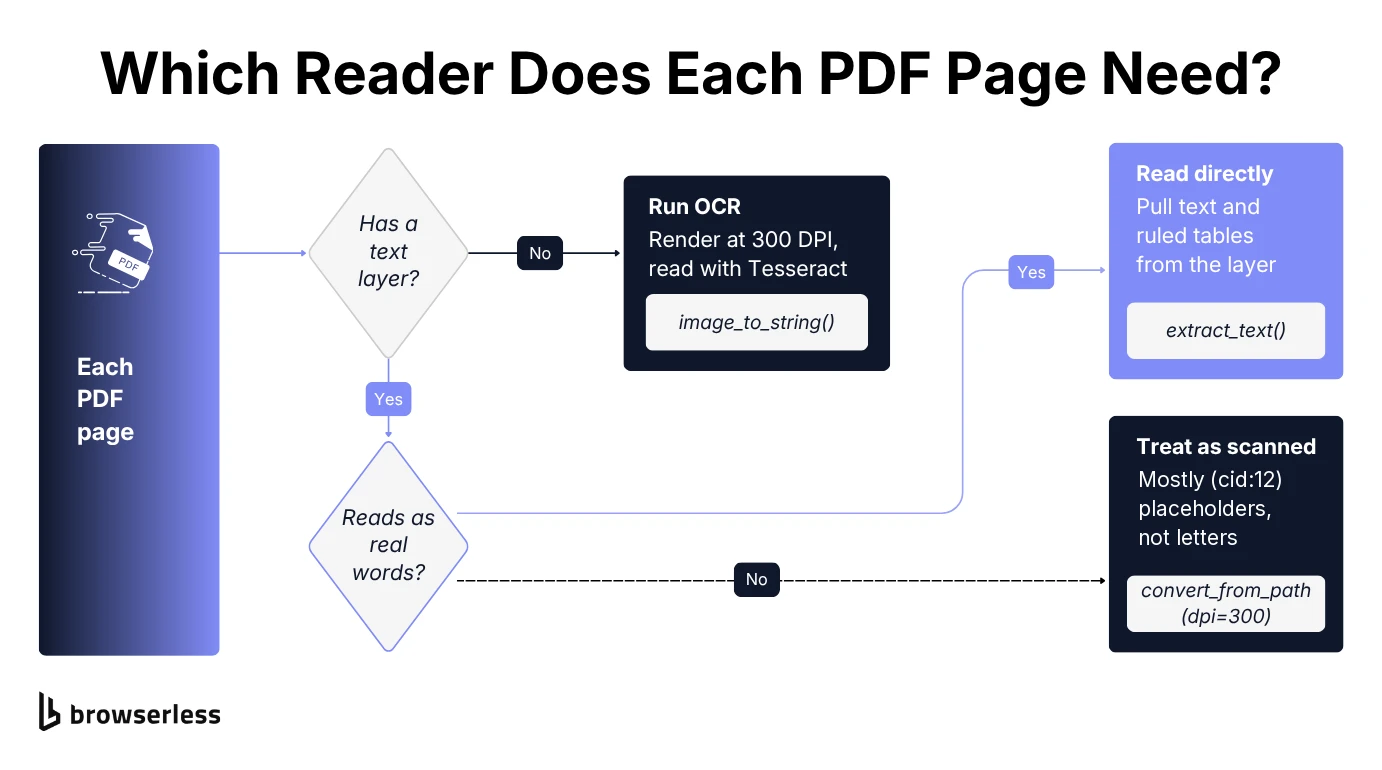
For most real documents, pdfplumber and Tesseract are enough, wired into one script that handles digital-born, scanned, and hybrid PDFs. It checks each page for a text layer and runs OCR only on the pages that don't have one.
The script relies on pdfplumber to read the text layer and tables, pdf2image to render a page as an image, and pytesseract to hand that image to Tesseract, and you can install all three with pip.
pip install pdfplumber pytesseract pdf2image
Two of them also need a system package. pdf2image calls Poppler to render pages, and pytesseract calls the Tesseract engine itself, so install both with your package manager (apt install poppler-utils tesseract-ocr on Debian/Ubuntu, brew install poppler tesseract on macOS).
Now save the following code as a Python file named extract_pdf.py. Its extract_structured_data() function walks the PDF page by page, trying the text layer and any ruled tables first. If is_readable() finds the page empty or at least 10% (cid:N) placeholders, ocr_page() renders just that page at 300 DPI for Tesseract, so a hybrid file's digital pages never touch OCR.
import json
import sys

import pdfplumber
import pytesseract
from pdf2image import convert_from_path


def ocr_page(path, page_number):
    images = convert_from_path(path, dpi=300, first_page=page_number, last_page=page_number)
    return pytesseract.image_to_string(images[0])


def is_readable(text):
    # Fonts without a character map come out as (cid:N) placeholders, not letters
    words = text.split()
    placeholders = sum("(cid:" in word for word in words)
    return bool(words) and placeholders / len(words) < 0.1


def extract_structured_data(path):
    pages = []
    with pdfplumber.open(path) as pdf:
        for number, page in enumerate(pdf.pages, start=1):
            text = (page.extract_text() or "").strip()
            if is_readable(text):
                pages.append({
                    "page": number,
                    "source": "text_layer",
                    "text": text,
                    "tables": page.extract_tables(),
                })
            else:
                pages.append({
                    "page": number,
                    "source": "ocr",
                    "text": ocr_page(path, number).strip(),
                    "tables": [],
                })
    return {"file": path, "pages": pages}


if __name__ == "__main__":
    result = extract_structured_data(sys.argv[1])
    print(json.dumps(result, indent=2))
For a real example, grab the IRS Form W-9, which mixes form fields and tables, and pass it to the script.
curl -sLo fw9.pdf https://www.irs.gov/pub/irs-pdf/fw9.pdf
python extract_pdf.py fw9.pdf
The script prints the result in JSON format, with all six pages of the W-9 marked "source": "text_layer" and four tables on page one. Run a scan of the same form through it and that page comes back with "source": "ocr" and the same keys, so downstream processing only deals with one format.
The output is still raw, with each page's text as one long string and extract_tables() returning None wherever a merged cell spans columns. Turning that into named data points depends on the shape of the data on the page.
Pulling more data out of business documents
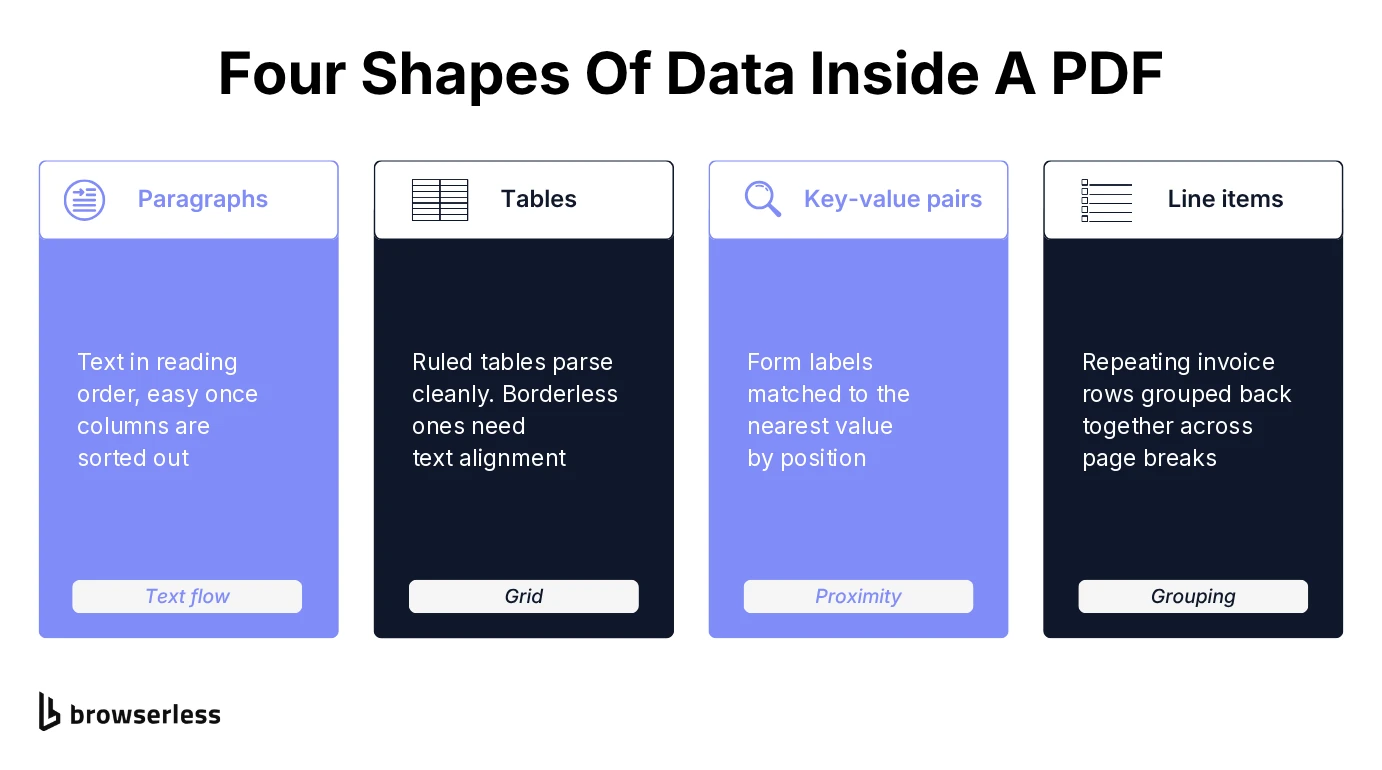
Paragraph text is the easy part, but invoices and forms carry three other shapes of structured information, each needing its own logic on top of the script's output.
- Tables. pdfplumber's
extract_tables()looks for ruled lines by default, so bordered tables come out clean, while borderless ones need its text-alignment strategy or a layout model. - Key-value pairs. Forms put a label like "Invoice Number" next to its value, so you have to pair each label with the nearest value by position.
- Line items. These are the repeating rows of an invoice or purchase order, each with a product, quantity, and price. A line-item table that crosses a page break can split one item in two, so you need grouping logic on top of table extraction.
Push all three through paragraph logic and the script still exits cleanly, which is exactly why the wrong values are so hard to spot.
To see that logic on a real file, grab the Sliced Invoices sample invoice. extract_pdf.py finds three tables in it.
curl -sLo sample-invoice.pdf https://slicedinvoices.com/pdf/wordpress-pdf-invoice-plugin-sample.pdf
python extract_pdf.py sample-invoice.pdf
The invoice also carries a diagonal "PAID" stamp that pdfplumber reads as real text, so stray single letters land inside table cells. Save the following script as parse_invoice.py. It strips those letters, turns the two-column tables into fields, maps line items to their headers, and checks that every total adds up.
import json
import sys

import pdfplumber


def clean(cell):
    # The diagonal "PAID" stamp leaks into cells as stray one-letter lines
    lines = (cell or "").split("\n")
    return " ".join(line for line in lines if len(line) > 1)


def money(value):
    return float(value.lstrip("$"))


with pdfplumber.open(sys.argv[1]) as pdf:
    tables = [
        [[clean(cell) for cell in row] for row in table]
        for table in pdf.pages[0].extract_tables()
    ]

fields, line_items = {}, []
for table in tables:
    if all(len(row) == 2 for row in table):
        fields.update(dict(table))
    elif table[1][0] == "Hrs/Qty":
        header = table[1]
        line_items = [dict(zip(header, row)) for row in table[2:] if row[0][0].isdigit()]

items_total = sum(money(item["Sub Total"]) for item in line_items)
assert round(items_total, 2) == money(fields["Sub Total"]), "line items don't add up"
assert round(money(fields["Sub Total"]) + money(fields["Tax"]), 2) == money(fields["Total"])

print(json.dumps({**fields, "line_items": line_items}, indent=2))
Run python parse_invoice.py sample-invoice.pdf and you get one complete JSON record with eight fields and the line item. The mapping fits this template only.
Where the structured output goes
Structured output usually lands in one of two places. A relational database suits fixed-schema records like invoice line items, while a vector database suits documents whose shape varies, like contracts, where you embed the text and feed retrieval-augmented generation (RAG). For RAG, Markdown output often embeds better than JSON or other formats because headings survive as plain text.
Common pitfalls in PDF extraction
These PDF extraction mistakes rarely show up before the first real batch.
- Trusting any text layer. Fonts without a character map come out as placeholders like
(cid:12).is_readable()catches those, but subtler junk gets through. On the W-9, the rotated margin text comes out backwards, one word per line (.epyt,ro,tnirPfor "Print or type."), so spot-check the output before trusting a new document type. - Feeding OCR crooked scans. The script already renders at 300 DPI, the minimum Tesseract's docs recommend, but resolution won't fix a page scanned at an angle or photographed on a desk. Straighten and clean up those images first, or accuracy drops.
- Skipping checks before the data lands. A total that doesn't match its line items, or a date that won't parse, is a cheap tell that a field landed in the wrong place, so validate values before they hit your database and send low-confidence OCR output, plus anything feeding a financial or legal decision, to manual review first.
When downloading the file is the hard part of PDF processing
Everything so far assumes the PDF is already on disk, but if it holds private data, it's more likely behind a login or on a portal that blocks automated downloads.
An invoicing platform might only show you an invoice PDF after you sign in and open the transaction. A bid-documents portal can nest the file several clicks deep inside an authenticated viewer. Some sources never offer a download at all, only a PDF rendered inside an embedded viewer that has to be read in place.
The DIY fix borrows from web scraping, where you script a real browser session that signs in, opens the target page, and triggers the download the way a person would. That works for a handful of files, but at hundreds a day, sessions expire and portals rate-limit or block automated traffic.
Browserless runs that browser session in the cloud, and its /download API takes Puppeteer code, runs it in a managed browser, and returns whatever file the browser downloads. The same endpoint accepts residential proxies (&proxy=residential&proxySticky=true, so the IP doesn't change mid-login), which are harder for a portal to flag than datacenter IPs, and authenticated profiles that keep you signed in between runs.
To try it against a real login, the official InvoicePlane demo publishes a guest account and keeps every invoice PDF behind its sign-in. Send a plain GET request to one of those PDF links with curl and you get redirected to the login page instead of a file.
The script signs in, opens the invoice list, and clicks the first invoice's "Download PDF" link. That link sits in a dropdown menu and opens a new tab, so the code sets its download attribute and clicks it from inside the page. Set your Browserless API key in the BROWSERLESS_TOKEN environment variable, install requests, and run it.
import os

import requests

TOKEN = os.environ["BROWSERLESS_TOKEN"]
URL = f"https://production-sfo.browserless.io/download?token={TOKEN}"

code = """
export default async ({ page, context }) => {
  await page.goto(`${context.site}/sessions/login`, { waitUntil: "networkidle2" });
  await page.type("#email", context.email);
  await page.type("#password", context.password);
  await Promise.all([
    page.waitForNavigation({ waitUntil: "networkidle2" }),
    page.click('button[type="submit"]'),
  ]);
  await page.goto(`${context.site}/invoices/status/all`, { waitUntil: "networkidle2" });
  const link = await page.waitForSelector('a[href*="/invoices/generate_pdf/"]');
  // The link is hidden in a dropdown and opens a new tab, so force a download in place
  await link.evaluate((a) => {
    a.setAttribute("download", "invoice.pdf");
    a.removeAttribute("target");
    a.click();
  });
  // Give Chrome time to finish the download before the session closes
  await new Promise((resolve) => setTimeout(resolve, 5000));
};
"""

response = requests.post(
    URL,
    json={
        "code": code,
        "context": {
            "site": "https://demo.invoiceplane.com",
            "email": os.environ.get("PORTAL_EMAIL", "guest@invoiceplane.com"),
            "password": os.environ.get("PORTAL_PASSWORD", "demopassword"),
        },
    },
    timeout=90,
)
# raise_for_status() would print the URL, token included, so check the status by hand
if not response.ok:
    raise SystemExit(f"Browserless returned {response.status_code}: {response.text[:200]}")

with open("invoice.pdf", "wb") as f:
    f.write(response.content)
print(f"Saved invoice.pdf ({response.headers['Content-Type']}, {len(response.content):,} bytes)")
What comes back is the demo's newest invoice as a real PDF, and extract_pdf.py reads it as text_layer. The demo is shared, so expect whichever invoice a visitor made last.
If the sign-in fails, Browserless returns a 400 with a selector-timeout message and the script exits before writing anything.
Signing in on every run slows the workflow, and repeated logins from new sessions are a common trigger for rate limits and extra verification. Save the signed-in session once as an authenticated profile, from the Browserless dashboard or its API, then add &profile=<name> to the /download URL and drop the sign-in steps. The rest of the script stays the same.
For a public PDF at a direct URL, the Browserless Smart Scrape API returns its plain text, though it doesn't parse tables or run OCR. Your parser owns the data extraction. Browserless covers the part a parser can't, getting a signed-in browser to the file and handing the PDF to your PDF processing pipeline.
Conclusion
Extracting structured data from a PDF comes down to doing things in order. Check each page for a usable text layer, OCR the pages without one, and only then map tables, form fields, and line items into named fields. Keep those steps separate, and swapping pdfplumber for a managed service or an LLM later means changing one function, not rewriting the script.
As volume grows, the step that tends to break is getting the file in the first place, once PDFs sit behind logins and on-demand portals. Browserless runs those sessions in the cloud, signs in like a person would, and returns the PDF through its /download API. To point it at your own documents, sign up for Browserless.
Extract structured data from PDF FAQs
Can ChatGPT extract data from a PDF?
Yes, if you give ChatGPT the page as an image or text and ask it to extract information into JSON with named fields. Pin the schema in your prompt, though, because without one, field names and nesting drift between documents, which breaks a batch even when every answer looks fine.
Is it possible to extract data from a scanned PDF?
Yes, but only once OCR has run. Because a scanned PDF has no text layer, a library like pdfplumber can't extract text until an OCR step converts the page images into characters.