
TL;DR
- A Google Shopping scraper pulls product names and prices straight off Google's results page, so you can start scraping Google Shopping without checking prices by hand.
- Collect data for price monitoring, competitor analysis, market research, and product research using a Puppeteer script connected to Browserless, with no local Chrome install to maintain.
- Google's bot detection increasingly blocks bare Puppeteer scripts hitting Shopping search, so we cover why that happens and how stealth mode and residential proxies help.
- Prefer Python, or a single HTTP call over managing a browser session yourself? We also walk through the same approach with the Browser Automation Protocol (BAP) Python SDK, and as a single BrowserQL request.
Introduction
In this article, we'll build a Google Shopping scraper that automates searching for a product and pulling the results. Specifically, we'll search for board games and pull the product name and price off the results page as structured Google Shopping data.
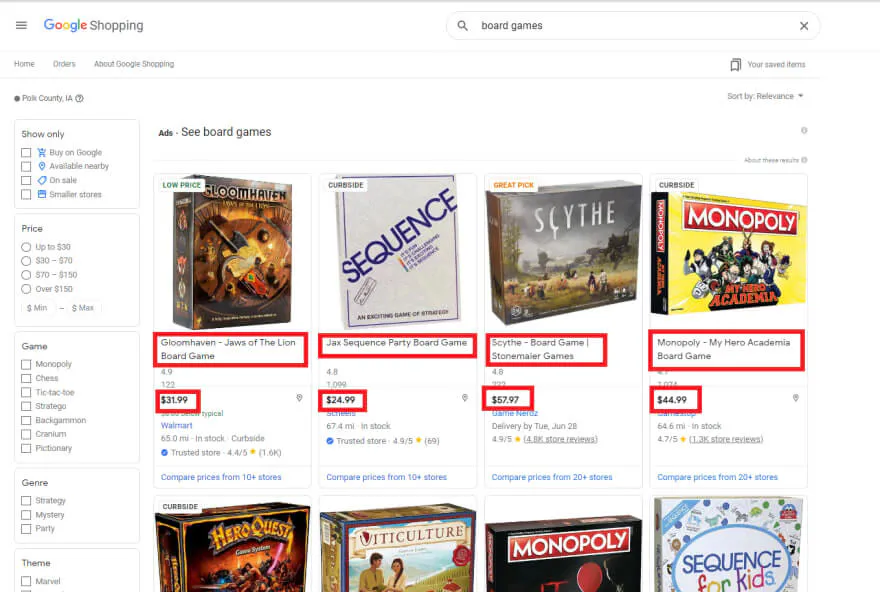
Teams use this kind of data collection for price monitoring, competitor analysis, general market research, and product research, feeding the extracted data into a spreadsheet, a database, or internal analytics tools rather than checking prices by hand.
Google has reorganized Shopping more than once since we first published this guide. It now lives under a udm=28 tab on a regular google.com/search URL rather than its own standalone site, and the markup underneath it has changed too.
Google's shopping results are now protected by bot detection that a bare Puppeteer script increasingly trips, so we'll cover why that happens and how to work around it, plus a Python option and a managed API approach for when you'd rather not hand-roll the browser automation yourself.
For more background on Puppeteer itself, the Puppeteer docs are a good next stop. And if you want more Browserless material after this, our guide to scraping Yelp covers a similarly bot-defended target in more depth.
Why Puppeteer?
Let's quickly cover why we're using Puppeteer to automate a Google Shopping search. First, Puppeteer gives you a high-level API for controlling Chrome, both headless and non-headless. It's maintained by the Chrome DevTools team, so the people building it also build the browser it drives. And most things you can do manually in a browser, you can do with Puppeteer, which makes it easy to adapt this script to whatever you actually need it to do.
Initial setup
Let's get into how to scrape Google Shopping results. We'll start with the setup, and the good news is that you only need one dependency, because Browserless supplies the browser:
npm install puppeteer-core
Once that finishes installing, you're ready to write the script.
If you want to run Chrome locally while developing, install puppeteer instead, as it bundles a browser.
Using Browserless to scrape Google Shopping
Say you want to run this scraper inside a production app. You probably don't want to bundle a full Chrome install just to search Google Shopping every so often, and a plain headless Chrome on a server IP gets challenged by Google almost immediately.
Browserless runs the browser for you. Your code talks to it over HTTP and WebSockets instead of launching Chrome, which also works in remote environments like Gitpod or Codespaces where installing a browser isn't practical. It also gives you the proxy and CAPTCHA tools the script uses to get past Google's bot check.
To follow along, create a free Browserless account and copy your API token from the Home page of your account. Store it in a BROWSERLESS_TOKEN environment variable, which the script reads.
Google Shopping scraper code
We'll show the whole script first, then walk through the parts that are important. Here's the complete code:
const puppeteer = require("puppeteer-core");
const fs = require("fs");

const TOKEN = process.env.BROWSERLESS_TOKEN;
const BQL_ENDPOINT = `https://production-sfo.browserless.io/stealth/bql?token=${TOKEN}&timeout=120000`;

const unblockAndReconnect = async (searchUrl) => {
  const query = `
    mutation UnblockGoogleShopping($url: String!) {
      proxy(url: ["*"], type: [document], country: US) { time }
      goto(url: $url, waitUntil: networkIdle) { status }
      if(selector: "form#captcha-form") {
        solve(type: recaptcha, timeout: 30000) { found solved }
      }
      waitForSelector(selector: "div[data-cid]", timeout: 30000) { time }
      reconnect(timeout: 60000) { browserWSEndpoint }
    }
  `;

  const response = await fetch(BQL_ENDPOINT, {
    method: "POST",
    headers: { "content-type": "application/json" },
    body: JSON.stringify({ query, variables: { url: searchUrl } }),
  });

  const { data, errors } = await response.json();
  if (!data?.reconnect?.browserWSEndpoint) {
    throw new Error(`Google's bot check was not cleared: ${JSON.stringify(errors)}`);
  }
  return `${data.reconnect.browserWSEndpoint}?token=${TOKEN}`;
};

const scrape = async (query) => {
  const searchUrl = `https://www.google.com/search?q=${encodeURIComponent(
    query,
  )}&udm=28&hl=en&gl=us`;

  const browserWSEndpoint = await unblockAndReconnect(searchUrl);
  const browser = await puppeteer.connect({ browserWSEndpoint });

  try {
    const pages = await browser.pages();
    const page = pages.find((p) => p.url().includes("google.com/search"));
    if (!page) {
      throw new Error("Blocked by Google's bot check, back off and retry later");
    }

    await page.waitForSelector("div[data-cid]", { timeout: 15000 });

    const products = await page.$$eval("div[data-cid]", (cards) =>
      cards
        .map((card) => ({
          title: card.querySelector("[title]")?.getAttribute("title") ?? null,
          price:
            card
              .querySelector('[aria-label^="Current Price"]')
              ?.textContent.trim() ?? null,
          merchant: card.querySelector(".WJMUdc")?.textContent.trim() ?? null,
          rating:
            card
              .querySelector('[aria-label^="Rated"]')
              ?.getAttribute("aria-label") ?? null,
        }))
        .filter((product) => product.title && product.price),
    );

    fs.writeFileSync(
      "googleShoppingSearchResults.json",
      JSON.stringify(products, null, 2),
    );

    console.log(
      `Saved ${products.length} products to googleShoppingSearchResults.json`,
    );
    return products;
  } finally {
    await browser.close();
  }
};

scrape("board game");
The first two lines pull in Puppeteer and Node's fs module, which we use to write our results to a JSON file at the end.
const TOKEN = process.env.BROWSERLESS_TOKEN;
const BQL_ENDPOINT = `https://production-sfo.browserless.io/stealth/bql?token=${TOKEN}&timeout=120000`;

const unblockAndReconnect = async (searchUrl) => {
  const query = `
    mutation UnblockGoogleShopping($url: String!) {
      proxy(url: ["*"], type: [document], country: US) { time }
      goto(url: $url, waitUntil: networkIdle) { status }
      if(selector: "form#captcha-form") {
        solve(type: recaptcha, timeout: 30000) { found solved }
      }
      waitForSelector(selector: "div[data-cid]", timeout: 30000) { time }
      reconnect(timeout: 60000) { browserWSEndpoint }
    }
  `;

  const response = await fetch(BQL_ENDPOINT, {
    method: "POST",
    headers: { "content-type": "application/json" },
    body: JSON.stringify({ query, variables: { url: searchUrl } }),
  });

  const { data, errors } = await response.json();
  if (!data?.reconnect?.browserWSEndpoint) {
    throw new Error(`Google's bot check was not cleared: ${JSON.stringify(errors)}`);
  }
  return `${data.reconnect.browserWSEndpoint}?token=${TOKEN}`;
};

const browserWSEndpoint = await unblockAndReconnect(searchUrl);
const browser = await puppeteer.connect({ browserWSEndpoint });
Instead of connecting Puppeteer straight to Google, we allow BrowserQL to open the page first.
The mutation routes the request through a US residential proxy, loads the search page, solves Google's reCAPTCHA if the /sorry/ interstitial appears, waits for product cards to render, and then calls reconnect, which returns a WebSocket URL for that same, already-unblocked browser.
We pass that URL to puppeteer.connect(), appending the token, and carry on with normal Puppeteer code. Using this process from our docs, you can reconnect. It's what enables this script to return listings in testing when a direct stealth connection still hits the challenge page.
Browserless's endpoints are regional; production-sfo in this example, with production-lon and production-ams also available. The token goes in the query string. Keep it in an environment variable rather than hard-coding it. Note that fetch is built into Node 18 and later, so there is no extra dependency.
Next, we build the search URL directly instead of having to type into a search box and click a button:
const searchUrl = `https://www.google.com/search?q=${encodeURIComponent(
  query,
)}&udm=28&hl=en&gl=us`;
udm=28 puts a regular Google search into Shopping mode. It's not documented anywhere obvious, but it's the parameter that counts. Navigating straight to this URL is also more reliable than automating the search box, since Google occasionally changes how that box is marked up, but rarely changes a URL parameter that millions of existing links already depend on.
Now for the extraction step. Older guides, including our own docs example, target generated class names like sh-dgr__grid-result. Those still work on some layouts, but Google regenerates most class names on every deploy, so they go stale fast. A more durable anchor is the data-cid attribute each product card carries, plus the accessibility attributes inside it, since screen readers rely on those and Google has less reason to churn them:
await page.waitForSelector("div[data-cid]", { timeout: 15000 });

const products = await page.$$eval("div[data-cid]", (cards) =>
  cards
    .map((card) => ({
      title: card.querySelector("[title]")?.getAttribute("title") ?? null,
      price:
        card.querySelector('[aria-label^="Current Price"]')?.textContent.trim() ??
        null,
      merchant: card.querySelector(".WJMUdc")?.textContent.trim() ?? null,
      rating:
        card.querySelector('[aria-label^="Rated"]')?.getAttribute("aria-label") ??
        null,
    }))
    .filter((product) => product.title && product.price),
);
Every product card is a div[data-cid]. Inside it, the image wrapper's title attribute holds the product name, the price element's aria-label starts with "Current Price", and the rating element's aria-label starts with "Rated".
The merchant name is the one field that still relies on a generated class (.WJMUdc), so expect that selector to break first; treat it as a nice-to-have and keep the filter on title and price. Cards are buttons rather than links, so there is no product URL to collect here; if you need one, click into a card in a follow-up step.
Because we iterate real cards rather than loose aria-labels, there is nothing to deduplicate. Run this, and you'll get a JSON file with every listing on the first page with title, price, merchant, and rating, ready to pipe into another script. If you'd rather have a CSV for a spreadsheet, swap the JSON.stringify call for a simple CSV writer.
Google still decides whether each request looks automated, so it's worth knowing what the script does to stay on the right side of that check.
How the script handles Google's bot detection
When Google suspects automation, it sends the request to a /sorry/ page titled "Our systems have detected unusual traffic from your computer network" and shows a reCAPTCHA instead of Shopping results. A few signals make that much more likely:
- Requests from a datacenter IP address rather than a residential one.
- A browser fingerprint that looks headless.
- Many automated requests in a short window.
None of these are unique to Google. Bot-management vendors like Cloudflare watch for the same patterns, mostly through browser fingerprinting and request rates. Each part of the script targets one of those signals:
- Stealth endpoint – The script sends its mutation to
/stealth/bql, the hardened BrowserQL route. It runs a privacy-hardened browser with fingerprint randomization, so it doesn't present the default headless Chrome signature. - Residential proxy –
proxy(type: [document], country: US)sends only the page's document request through a US residential IP. Residential traffic is billed per megabyte (6 units per MB), so proxying just the document keeps usage down. - Conditional CAPTCHA solving – The
if(selector: "form#captcha-form")block only runssolvewhen Google actually shows the challenge, so clean runs don't spend time on it. - Block check – If no tab ends up on a
google.com/searchURL after reconnecting, the script throws instead of scraping a challenge page and saving an empty file.
None of this makes your scraper invisible. Google can still challenge a request that looks automated even from a residential IP with a randomized fingerprint, especially on a heavily monitored surface like Shopping search.
What stealth mode and a residential proxy actually buy you is a lower rate of challenges, not a guarantee. Build your scraper to detect and recover from a block gracefully rather than assuming every run succeeds.
Scraping Google Shopping with Python
If you're not writing Node, the Python SDK for Browserless's Browser Automation Protocol, bap-py, gives you the same managed browser through a typed, Playwright-shaped API, with stealth via the /stealth/bql route and CAPTCHA solving available as a method call.
Install it with:
pip install bap-py
Here's the same board-game search in Python, connected through the stealth route:
import bap.sync_api as bap

TOKEN = "YOUR_API_TOKEN_HERE"

with bap.Browserless.connect(
    browser_ws_endpoint="wss://production-sfo.browserless.io/stealth/bql",
    token=TOKEN,
) as browser:
    with browser.page() as page:
        page.goto("https://www.google.com/search?q=board+game&udm=28&hl=en&gl=us")
        products = page.map_selector('div[role="button"][aria-label]')
        listings = [p["innerText"] for p in products if p.get("innerText")][:10]
        print(listings)
map_selector() is doing the same job as $$eval in the JavaScript version: it takes a CSS selector and returns one record – e.g., innerText, innerHTML, and attributes – per matching element, so you skip the query-then-loop pattern.
Swap "board game" in the URL for whatever search term you need, across as many search queries as your use case calls for. The with blocks close the page and the browser automatically once you're done, so there's no separate browser.close() call to remember.
This way isn't the only option if you want to scrape Google Shopping in Python. Plenty of teams use requests and BeautifulSoup first, since it's the more familiar Python web scraping stack.
The problem is that Shopping's results are rendered by JavaScript, so a plain HTTP client sees a near-empty page instead of the product grid, with none of the structured data you actually want. You need something that actually runs a browser, whether that's Selenium, Playwright, or BAP.
A managed API approach with BrowserQL
If you'd rather not manage a browser session at all, BrowserQL (BQL) turns this into a Google Shopping scraper API: a GraphQL-based query language for the same underlying automation, sent as a single HTTP request instead of a script you run yourself:
mutation ScrapeGoogleShopping {
  proxy(url: ["*"], type: [document], country: US) {
    time
  }
  goto(
    url: "https://www.google.com/search?q=board+game&udm=28&hl=en&gl=us"
    waitUntil: networkIdle
  ) {
    status
  }
  if(selector: "form#captcha-form") {
    solve(type: recaptcha, timeout: 30000) {
      found
      solved
    }
  }
  waitForSelector(selector: "div[data-cid]", timeout: 30000) {
    time
  }
  waitForTimeout(time: 3000) {
    time
  }
  products: mapSelector(selector: "div[data-cid]") {
    title: mapSelector(selector: "[title]") {
      name: attribute(name: "title") {
        value
      }
    }
    price: mapSelector(selector: "[aria-label^='Current Price']") {
      innerText
    }
  }
}
Send that mutation as a JSON request to https://production-sfo.browserless.io/stealth/bql?token=YOUR_API_TOKEN_HERE&timeout=120000, and you get back JSON with a title and price for every product card in one round trip, with no Puppeteer or BAP installation required on your side.
The mutation runs the same steps as the Node script: a US residential proxy for the document request, a solve step that only fires when Google shows its reCAPTCHA form, and a wait for the product cards. mapSelector then does the job of Puppeteer's $$eval, returning one record per card. The short waitForTimeout gives lazily rendered cards time to fill in. Without it, only the first 15 or so come back.
Because mapSelector returns lists, each field comes back one level down. The title is at title[0].name.value and the price at price[0].innerText:
{
  "data": {
    "products": [
      {
        "title": [{ "name": { "value": "Catan Game" } }],
        "price": [{ "innerText": "$49.99" }]
      }
    ]
  }
}
When a card shows a sale price, price[0].innerText includes the original price on a second line, so keep only the first line.
Of course, Google does expose some of its own structured product data through Merchant Center for retailers who list their own products, and several vendors sell dedicated SERP APIs built around scraping Google's result pages at scale. Neither of these options gives you arbitrary, keyword-level Shopping search results the way scraping publicly available data with your own query does, so a script or a managed browser call is still the right tool to scrape Google Shopping data in this instance.
For additional resources on where BQL fits against the other scraping tools covered above, the docs linked throughout this article are worth bookmarking.
Conclusion
Puppeteer and Browserless make a solid combination for a Google Shopping scraper: you write the scraping logic, Browserless runs the browser. However, Google's page structure changes regularly, as does its appetite for challenging automated traffic.
Now you've got a script that accounts for both, along with a Python BAP option and a single-request BrowserQL option if you'd rather not manage the browser yourself. Whichever of these scraping tools you build your pipeline around, you can create the same competitive analysis and market research outcomes described in the introduction.
Sign up for a free Browserless account to try the Google Shopping web scraper scripts in this article against your own queries. If you like this "Google Shopping scraper" tutorial, you can check out how our clients use Browserless for different use cases:
- @IrishEnergyBot used web scraping to help create awareness around Green Energy.
- Dropdeck automated slide deck exporting to PDF and generation of PNG thumbnails.
- BigBlueButton, an open-source project, runs automated E2E tests with Browserless.
Google Shopping scraper FAQs
Is it legal to scrape Google Shopping?
In hiQ Labs v. LinkedIn, the Ninth Circuit found that scraping publicly visible data without logging in likely doesn't violate the Computer Fraud and Abuse Act (CFAA), but that ruling came at the preliminary-injunction stage and didn't settle the case. Back in district court, LinkedIn won part of its breach-of-contract claim, and the case ended in a consent judgment: $500,000 against hiQ and a permanent injunction tied to LinkedIn's User Agreement. It's a useful reference point, but it also shows that a site's terms of service can matter as much as the CFAA.
Separately, Google's Terms of Service specifically bar using automated means to access its services in a way that violates the machine-readable instructions on its pages.
Keep your request volume reasonable, don't try to work around a block by impersonating Googlebot's user agent, stay mindful of data protection rules like the General Data Protection Regulation (GDPR) if any of the product or seller data touches personal information, and get legal advice before scraping at a commercial scale.
Is there a free way to scrape Google Shopping?
Browserless has a free tier with no credit card required, which is enough to test a script like the one above. The free plan includes 1,000 units a month, 2 concurrent browsers and sessions of up to 2 minutes, so it suits development and light use rather than a production job running around the clock.
How do I handle pagination on Google Shopping?
The Shopping tab generally loads more results as you scroll rather than through a separate "next page" link. Google changes this layout without much notice, so check the current page's behavior in your browser's dev tools before you build automation around it.