
TL;DR
- Measure, then fix basics. CPU performance is how much work your processor gets done in a given time. To improve CPU performance for web scraping, start by finding what's eating your CPU cycles in Task Manager or
htopand clearing that background load before you touch your scraper's code. - Less work per page. Use the lightest tool that gets the data, block the resources a browser doesn't need, and size concurrency by what each worker does, timing a batch before and after every change.
- Offload the browser. When measurements show headless rendering is still the bottleneck, running the browser on managed infrastructure moves that CPU cost off your machine.
Introduction
If a scraping job that used to finish overnight is now missing its window, with every core pinned at 100%, you've probably started looking up how to improve CPU performance. A faster machine seems like the obvious fix, but the problem usually starts in the work itself. A scraper repeats the same steps on every page, so a little waste on one page gets paid again on each of the next 10,000.
That's why the biggest gains come from asking the CPU to do less per page, with a faster processor as the last resort. In this guide, you'll learn the fundamentals that help any slow PC first, then the choices that matter once a script is driving the browser, like which tool to use, how much concurrency to run, and when to move rendering off your machine. Readers who already have the basics covered can skip straight to the scraping fixes.
What is CPU performance?
CPU performance is how much work your processor completes in a given amount of time. It comes down to how many instructions the CPU executes per cycle and how quickly it clears the queue of tasks waiting on it. Execution time climbs, and system performance drops with it, when too many processes compete for the same cores, when the processor drops below its rated clock frequency to shed heat, or when the code does more work than it needs to.
How to check CPU usage and CPU temperature
To see what's actually using the CPU on Windows, open Task Manager and check the Performance page for a live view of total CPU load, then sort the Processes page by CPU to see which program is responsible. On macOS and Linux, top gives you the same breakdown in a terminal, and htop adds a scrollable view with a usage meter for each core.
Check CPU temperature at the same time. Intel and AMD processors both throttle themselves automatically when they run hot, however much free capacity they have on paper. Neither Task Manager nor macOS Activity Monitor shows CPU temperature, so on Windows use a free tool like HWMonitor or Core Temp for per-core readings, and on Linux run sensors from the lm-sensors package.
How to improve CPU performance on any PC or server
These tips apply to any slow machine, so work through them before you focus on anything scraping-specific.
- Close CPU-heavy background programs. Video editors and gaming clients are obvious offenders, but so are background services like cloud sync and scheduled antivirus scans.
- Trim your startup programs. Every app that launches when your PC boots keeps a baseline CPU and memory cost, so disable the ones you don't need from the Startup apps page in Task Manager or Login Items in macOS.
- Keep drivers and the OS updated. Browsers like Chrome switch off hardware acceleration for graphics drivers on their blocklist, so an outdated driver can leave the CPU rendering work a current one would hand off to the GPU.
- Manage thermals. Cleaning dust out of the fans and heatsinks, and reapplying thermal paste on an older machine, often fixes throttling that looked like it needed a hardware upgrade.
- Check your power mode. On a laptop, switch from battery saver to a balanced or best-performance mode before a long job.
- Tame your browser. If your desktop starts to lag with the browser open, close tabs you aren't using and remove extensions you no longer need.
- Upgrade hardware last. A new component, like more RAM, faster SSD storage, or a newer processor, can enhance performance, but only once the software fixes stop paying off.
The browser earns more than a bullet, though, since it's the program a scraper depends on.
Why CPU performance matters even more for web scraping
Every open browser tab holds memory, and background tabs that are actively running scripts or playing media keep using CPU. Chrome throttles JavaScript timers in tabs that have been hidden for a while to cut that load, but the page in front of you still runs its full JavaScript and layout work and paints each new frame.
A scraper driving a headless browser pays that full foreground cost on every page it loads, and nobody is watching to close anything. Over the course of an unattended job, the wasted CPU decides whether the run finishes on schedule or times out, which matters most when you or the companies you work for depend on fresh data. That makes software optimization, cutting the work each page asks for, the first lever to pull.
How to improve CPU performance for web scraping and browser automation
Choose the lightest tool for the job
Not every page needs a full browser, and there are several ways to get its data that run from cheap to expensive in CPU terms. The cheapest is calling a site's own JSON API and parsing the response, the next is fetching raw HTML and parsing it with a lightweight parser, and the most expensive is rendering the page in a real browser with JavaScript turned on. Parsing JSON only turns text into data structures, while a full browser builds a DOM, runs a layout engine, and executes the page's JavaScript before you touch the data you wanted.
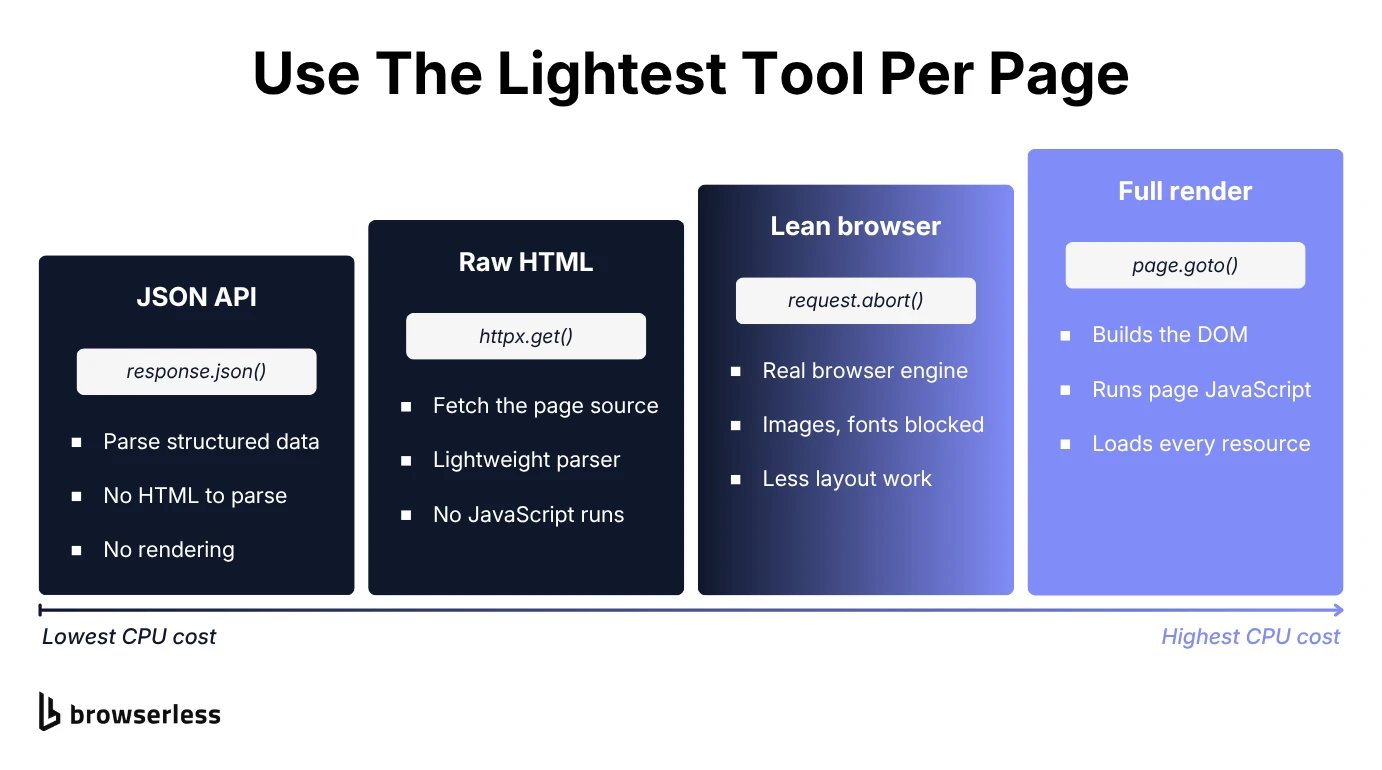
Reach for a full browser when the content is rendered client-side with no API behind it, or when the target checks for a real browser as part of its bot defenses. Plenty of developers default to headless rendering for every target, including ones that would return clean HTML or JSON, and that burns CPU on work the scraper throws away.
Size concurrency by what each worker does
A plain HTTP scrape is primarily I/O-bound, with the CPU spending most of each request waiting out network latency. Running requests concurrently, through async I/O or a thread pool, keeps it busy starting new work during that wait.
Concurrency still needs a ceiling, and where you set it depends on what each worker does. Work that keeps the CPU busy, like parsing in a process pool or driving browser instances, stops scaling once you pass your core count, and every extra worker adds scheduling and context-switching overhead. Python's default worker counts reflect the split, with ProcessPoolExecutor starting one worker per CPU and ThreadPoolExecutor starting up to min(32, cpu_count + 4) threads on the assumption they'll mostly wait on I/O.
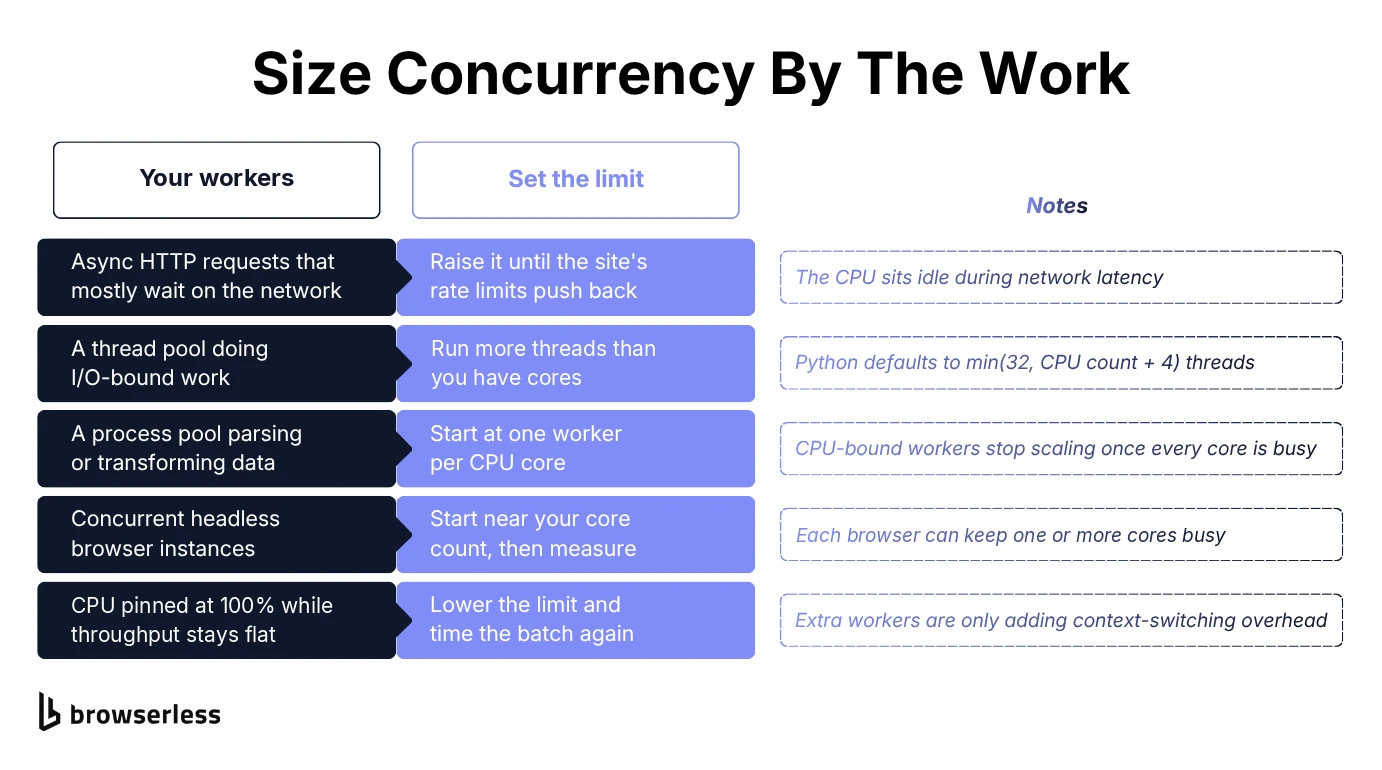
For network requests, rate limits vary from site to site, and those limits or your own bandwidth usually set the ceiling before your CPU does, so it helps to make that limit a setting you control. The script below queues 50 test URLs, fetches them with httpx's async client, and uses an asyncio semaphore so no more than 10 requests are open at once.
import asyncio
import httpx

CONCURRENCY_LIMIT = 10

async def fetch(client, url, semaphore):
    async with semaphore:
        response = await client.get(url, timeout=10.0)
        response.raise_for_status()
        return url, response.text

async def run(urls):
    semaphore = asyncio.Semaphore(CONCURRENCY_LIMIT)
    async with httpx.AsyncClient() as client:
        tasks = [fetch(client, url, semaphore) for url in urls]
        return await asyncio.gather(*tasks, return_exceptions=True)

if __name__ == "__main__":
    urls = [f"https://httpbin.org/get?page={i}" for i in range(1, 51)]
    results = asyncio.run(run(urls))
    ok = [r for r in results if not isinstance(r, Exception)]
    print(f"Fetched {len(ok)} of {len(urls)} pages")
The semaphore caps how many requests are in flight, however many URLs you queue, and return_exceptions=True records a failed request as a result instead of stopping the batch. In test runs, the 50 requests finished in about two seconds and used only a few tenths of a second of CPU time, which is what I/O-bound work looks like. Raise the limit until the target site pushes back or your measured CPU usage tells you to stop.
Cut unnecessary rendering and resource loads
When a real browser is necessary, you can still cut much of its CPU cost. Blocking images, fonts, media, and stylesheets you don't need skips image decoding and a share of the style and layout work on every page. Reusing one browser across pages, with a fresh page for each job, also avoids paying Chrome's startup cost every time.
The Puppeteer script below handles the blocking side by turning on request interception, aborting every request for an image, font, media file, or stylesheet before Chrome downloads it, and letting everything else through. It then scrapes the book titles from Books to Scrape, a practice site built for scraping, and counts how many requests it blocked along the way.
import puppeteer from "puppeteer";

const BLOCKED_TYPES = new Set(["image", "font", "media", "stylesheet"]);

const browser = await puppeteer.launch();
try {
  const page = await browser.newPage();
  let blocked = 0;

  await page.setRequestInterception(true);
  page.on("request", (request) => {
    if (request.isInterceptResolutionHandled()) return;
    if (BLOCKED_TYPES.has(request.resourceType())) {
      blocked++;
      request.abort();
    } else {
      request.continue();
    }
  });

  await page.goto("https://books.toscrape.com/", { waitUntil: "domcontentloaded" });
  const titles = await page.$$eval("article.product_pod h3 a", (links) =>
    links.map((link) => link.title),
  );
  console.log(`Scraped ${titles.length} titles, blocked ${blocked} requests`);
} finally {
  await browser.close();
}
Run against the practice site, the script scraped 20 titles and blocked 23 requests that Chrome would otherwise have downloaded and rendered. The isInterceptResolutionHandled() check skips any request another handler has already dealt with, and the finally block closes the browser even when navigation fails. Check what a page needs before you block stylesheets, as some sites show or hide content with CSS, and blocking too many resource types can trip bot detection on some protected sites. The guide to improving Puppeteer performance covers more ways to optimize a Puppeteer script.
Watch your CPU allocation in containers and the cloud
If your scraper runs in Docker or on a cloud virtual machine, it's often bound by a CPU limit you set, not by the host's hardware. For example, a container started with --cpus="1.5" can use at most one and a half CPUs, so a well-tuned scraper inside it gets throttled much like an overheating laptop.
Additionally, that limit throws off anything that sizes itself from the core count. --cpus sets a CPU-time quota, not a number of cores, so inside that container os.cpu_count() still reports every core on the host, and a ProcessPoolExecutor left at its default starts one worker per host core. Set worker and browser counts from the limit you gave the container, or on Python 3.13 and later set the PYTHON_CPU_COUNT environment variable, and check real usage with docker stats.
The guides to running Puppeteer in Docker and running Playwright in Docker cover the container settings, like shared memory size, that prevent Chrome crashes and keep its stability under load. If tuning those limits for Chrome turns into a job of its own, the last section covers moving the browser out of your containers entirely.
Run a performance analysis after every change
Rather than assuming a fix worked, time a representative batch of requests before and after each change. On Linux and macOS, prefixing the command with time reports wall-clock time next to the CPU time the job used, which is the quickest performance analysis you can run.
Change one thing at a time. If you raise the concurrency limit and block stylesheets in the same run, a faster batch won't tell you which change helped, and a slower one won't tell you which to undo.
When tuning isn't enough, offload the render workload
Once you've applied and measured the fixes above, your own machine or server may still be the ceiling, usually because of browser rendering. Blocking resources trims that cost, but it can't remove the rendering work that made the page need a browser in the first place.
Every concurrent Chrome session adds its own rendering load, and the Browserless Docker sizing guide budgets 8 or more CPUs and 16 GB of RAM for 20 to 50 concurrent sessions, before your own code gets any. At that point, the practical solution is running the browser somewhere built for it.
Browserless offers browsers as a service (BaaS), running Chrome on its own infrastructure so the CPU and memory cost of concurrent headless sessions sits there instead of on your machine. Your plan sets how many sessions run at once, and extra requests wait in a queue. Your Puppeteer or Playwright script swaps its local launch call for a connection to a hosted browser over a WebSocket, and in the Puppeteer script from earlier, that's the only line that changes.
// Replaces: const browser = await puppeteer.launch();
const browser = await puppeteer.connect({
  browserWSEndpoint: `wss://production-sfo.browserless.io?token=${process.env.BROWSERLESS_TOKEN}`,
});
Everything after the connection stays the same, but each page now renders on Browserless's infrastructure instead of your CPU. Since there's no local Chrome to download, you can install puppeteer-core instead of puppeteer, and pointing at the regional endpoint nearest your servers, such as production-lon or production-ams in Europe, keeps latency down. The post on horizontally scaling Chrome shows how much of a challenge running that fleet becomes when you build it yourself.
Offloading solves the browser-rendering share of your CPU load and nothing else, so it won't fix inefficient parsing in your own code or replace choosing the lightest tool for each target. What it removes is the need for teams to keep a machine big enough to run dozens of concurrent Chrome instances just to keep a scraping job moving. If you'd rather hand off the tool choice too, the Browserless Smart Scrape API tries a plain HTTP fetch first and only launches a browser when the page needs one.
Conclusion
A scraper repeats every inefficiency without ever getting tired. Half a second of wasted CPU per page sounds harmless, but across ten thousand pages it adds up to more than an hour, so trimming per-page work pays off before any hardware upgrade. Start with the lightest tool that gets the data, block what the browser doesn't need, size concurrency to the work, and time each change to see what helped.
Some pages will always need a real browser, and that's where most of the remaining CPU goes. If headless Chrome is still pinning your cores, Browserless runs it as a managed service, so the rendering cost lands on its infrastructure and your Puppeteer or Playwright code only needs its launch call swapped for a connection. To try it on your own workload, sign up for Browserless.
How to improve CPU performance for web scraping FAQs
Does more RAM improve CPU performance?
Not directly, since RAM and CPU are separate resources, but a shortage of memory forces your OS to swap data to disk, and managing that swapping costs CPU time. If you see high CPU usage alongside near-full memory, adding RAM can free up the CPU cycles that were going to swap.
Does headless Chrome use less CPU than a normal browser window?
Less than you might expect. Modern headless Chrome runs the same browser engine as the regular one. A headless browser has no window to display, but it still builds the DOM, calculates layout, and runs the page's JavaScript on every page. Switching to headless mode doesn't replace blocking resources or choosing a lighter tool.
How do I tell whether my scraper is CPU-bound or I/O-bound?
Compare CPU time with wall-clock time by running the job with time and adding up the user and sys figures. If they come close to real, or exceed it on a multi-core machine, the CPU is the limit, and adding workers past your core count won't raise throughput. If real is far larger, like the 50-request test above that took about two seconds but used a few tenths of a second of CPU, the job is mostly waiting on the network and can run more requests at once.
Does keeping Chrome updated help scraping performance?
Usually, as long as you stay on the Stable channel. Chrome's other release channels, like Beta and Canary, get changes earlier but are less tested, so any speed gain can cost you stability on a long run. Puppeteer downloads a Chrome for Testing build matched to each Puppeteer release, which makes updating Puppeteer the simplest way to keep the browser current.