
TL;DR
- Python gets you started. Scraping Amazon means pulling public product, price, and rating data from its pages with code, and you can start on product pages and search listings with
requestsand BeautifulSoup, pulling title, price, rating, and image fields keyed by each listing's ASIN. - Reviews are summary-only now. Full review text sits behind Amazon's sign-in page, so the public route is the review summary on each product page, with its average rating, star distribution, and "Customers say" paragraph.
- Fix the fingerprint. Rotated headers stop working once fingerprinting and the Amazon WAF challenge kick in, and in testing the approach that kept working was a fetch whose network fingerprint matches a real browser's, with a full browser held in reserve for pages that need one.
Introduction
When you're figuring out how to scrape Amazon, the first script you write is usually a single requests.get() call to a product page, and it often works. Put that call on a schedule across hundreds of products, though, and you start getting 503 errors and 200 pages that hold a challenge instead of a product, because that steady, repetitive pattern is exactly what Amazon's defenses are built to catch.
In this step-by-step guide, you'll turn that one call into a working Python scraper that can extract data from product pages, search listings, and the public review summary. You'll also see why header tweaks stop working at volume, and what you can switch to when they do.
What Amazon data can you scrape, and why?
Scraping product data from Amazon mostly comes down to a handful of fields on product and search pages. Title, star rating, and price are the data points almost every project needs, and they usually feed one of the four jobs below.
- Price monitoring. Pull a listing's price on a schedule to catch discounts, track a competitor's repricing, or keep an eye on your own buy box.
- Competitor research. Track which products rank where in a category's search results, and how that ranking shifts over time.
- Review data for sentiment analysis. Collect a product's average rating, star distribution, and review summary, then watch how buyer sentiment moves between runs.
- Catalog and seller data. Grab specs, seller name, and stock status, usually matched to Amazon's own product identifier.
That identifier is the ASIN (Amazon Standard Identification Number), a ten-character code that's unique to each listing on a given Amazon domain. It's in the product URL right after /dp/, and again in the product details section further down the page. All the code examples in this guide key off the ASIN, the one field that stays put even when a listing's title or price changes.
Why Amazon blocks scrapers: anti-bot systems explained
Amazon layers its anti-bot measures, so getting past one usually just puts you in front of the next. Four of them do most of the blocking, and two more, session tracking and delivery location, decide whether a request that gets through still sees the real page.
- IP-based rate limiting. Amazon counts how many requests each address sends in a given window and throttles or blocks the ones that look automated, so a home IP making one request a minute looks normal while a datacenter IP firing fifty a second doesn't.
- Browser fingerprinting. Anti-bot systems like Amazon's look well past your IP, at signals such as TLS handshake details, installed fonts, canvas rendering quirks, and whether
navigator.webdriverreports true. A plain HTTP client likerequestshas none of a real browser fingerprint, which is why spoofing a header or two only gets you partway. - The Amazon WAF challenge. Amazon's own web application firewall, AWS WAF, can send a challenge to sessions it doesn't trust before it serves the page. The challenge itself has a full walkthrough in the guide to handling Amazon CAPTCHA and bot checks.
- Behavioral and JavaScript checks. On top of the WAF challenge, behavioral analysis can weigh user behavior in the browser, such as mouse movement, scrolling, and the timing between actions. A script that fetches web pages and parses them immediately, with no rendering and no interaction, doesn't look remotely human.
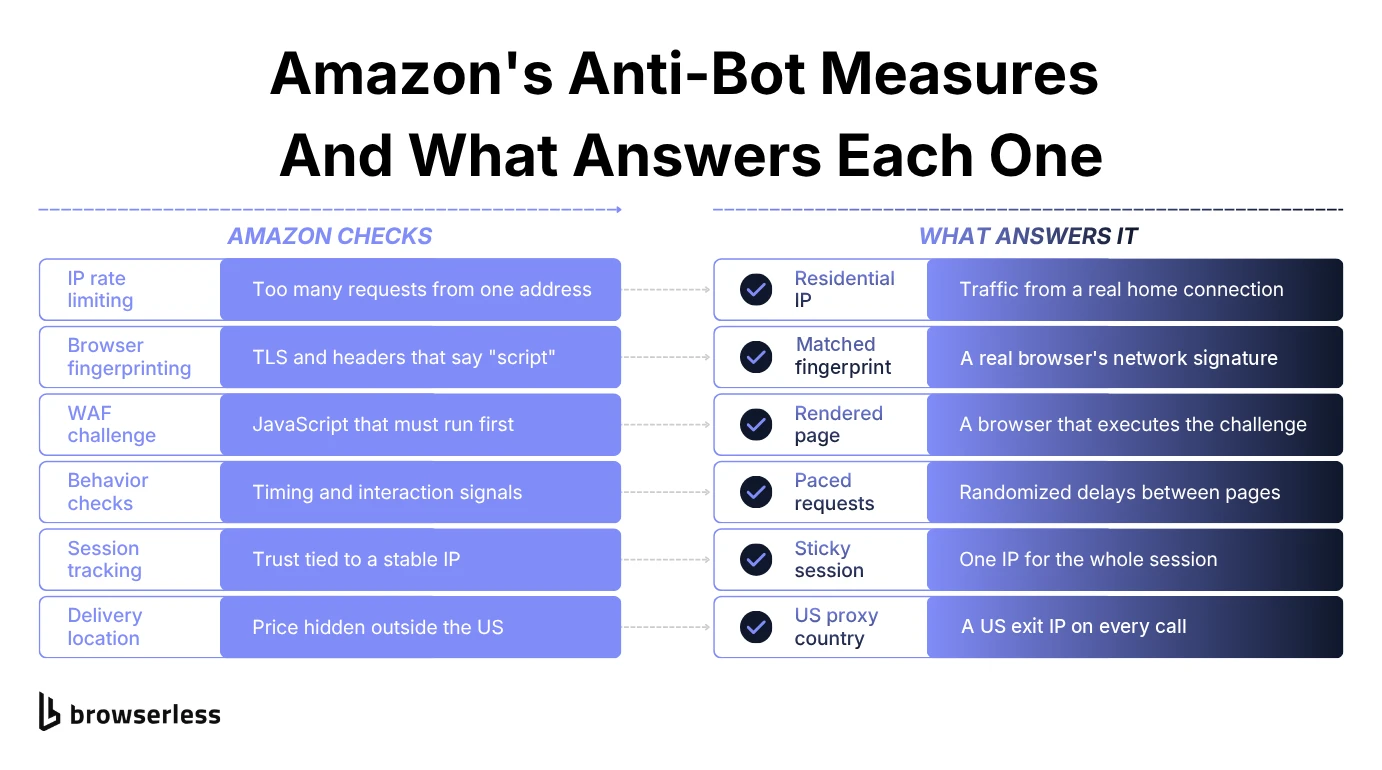
A realistic User-Agent gets you past basic bot filters, and a residential proxy helps with IP-based rate limiting. Amazon can run all four layers at once, though, and no amount of header polish helps a plain requests.get() call with a JavaScript challenge, because it never runs JavaScript in the first place.
Blocks also tend to escalate, so a new IP's first offense might only earn a CAPTCHA page on the next request. Keep sending from that address and it can turn into temporary IP blocks, and retrying in a tight loop keeps the address flagged for longer still. That's exactly what the paced loop in the search section is there to prevent.
The rest of this guide works through that wall, starting with code that takes plain requests as far as they can go.
Setting up your Python environment
Start with a project folder and a virtual environment, so this scraper's packages stay out of your other Python projects.
mkdir amazon-scraper
cd amazon-scraper
python3 -m venv .venv
source .venv/bin/activate
On Windows, activate the environment with .venv\Scripts\activate instead of the source command above.
With the environment active, install the three packages this guide uses. requests makes the HTTP calls, beautifulsoup4 parses the HTML that comes back, and lxml is the parser BeautifulSoup uses under the hood.
pip install requests beautifulsoup4 lxml
How to scrape Amazon product pages with Python
You'll build one scraper that pulls a product's title, price, rating, and image URL from its Amazon page, then writes the results to a CSV file.
Sending your first request
Start with the simplest version possible, a GET request with no headers. Save the following code in a Python file named amazon_scraper.py and run it.
import requests

url = "https://www.amazon.com/dp/B0C3HCD34R"
response = requests.get(url)
print(response.status_code)
You may well see 200 come back with a real product page attached. Amazon doesn't block every bare request on sight, and a single call from a home connection often gets through.
The trouble starts when you repeat that call on a schedule across hundreds of ASINs. Responses turn into 503 errors, or 200 pages whose body is a block page instead of product data, because a request with no User-Agent and no Accept-Language looks nothing like a real browser.
Fix the most obvious giveaway first by sending the headers a real browser sends. Open your browser's developer tools, go to the Network tab, reload the product page, and copy the User-Agent and Accept-Language values from the first request. The example below uses Chrome's User-Agent string on Intel Mac OS X, but any current desktop browser's string works.
Pass those values to requests.get() as a headers dictionary, along with an Accept-Encoding value that requests can decode on its own.
import requests

url = "https://www.amazon.com/dp/B0C3HCD34R"
headers = {
    "User-Agent": "Mozilla/5.0 (Macintosh; Intel Mac OS X 10_15_7) AppleWebKit/537.36 (KHTML, like Gecko) Chrome/129.0.0.0 Safari/537.36",
    "Accept-Language": "en-US,en;q=0.9",
    "Accept-Encoding": "gzip, deflate",
}

response = requests.get(url, headers=headers)
print(response.status_code)
br is missing from Accept-Encoding on purpose, since requests can't decode Brotli without an extra package and advertising it risks a response body your parser reads as garbage.
Realistic headers get you past Amazon's most basic filtering a fair share of the time, but not always. The fingerprinting and behavioral checks are still running, so treat a 200 with real HTML as something to verify, not a guarantee.
Extracting the product title
Once you have real HTML back, parse it with BeautifulSoup and pull the title out of its span tag.
from bs4 import BeautifulSoup

soup = BeautifulSoup(response.text, "lxml")

title_element = soup.select_one("#productTitle")
title = title_element.get_text(strip=True) if title_element else None
The conditional on the last line returns None instead of raising an error when the element is missing. Every extraction below repeats that pattern, so one absent field never crashes the whole run.
Extracting the product price
The price you see on the page is split across two spans, the whole-dollar amount in a-price-whole and a price fraction in a-price-fraction. The hidden a-offscreen copy holds the full price in one piece, so read that one instead.
A product page usually has more than one a-offscreen span element, though. Subscription pricing, quantity discounts, and other-seller offers all use the same class, so grabbing the first match on the page is a gamble. Scope the selector to the container that holds the main buy box price.
price_element = soup.select_one(
    "#corePrice_feature_div .a-offscreen, #corePriceDisplay_desktop_feature_div .a-offscreen"
)
price = price_element.get_text(strip=True) if price_element else None
If both selectors come back empty, the listing is probably on an older template. Fall back to #priceblock_ourprice or #price_inside_buybox, which some older layouts still use, and log which selector matched so you can tell when a fallback starts doing the work.
Extracting the product rating
The star rating lives in the rating element's title attribute, not its visible text, so read the attribute directly.
rating_element = soup.select_one("#acrPopover")
rating = rating_element.get("title") if rating_element else None
That returns a string such as "4.5 out of 5 stars", so split off the first word and convert it with float() if you plan to sort or compare ratings numerically.
Extracting the product image URL
The main image's src attribute gives you a usable thumbnail, but not the highest-resolution version Amazon has. For that one, search the raw page source for the hiRes key Amazon embeds in an inline script tag.
import re

image_element = soup.select_one("#landingImage")
image_url = image_element.get("src") if image_element else None

hi_res_matches = re.findall(r'"hiRes":"(.*?)"', response.text)
hi_res_url = hi_res_matches[0] if hi_res_matches else image_url
The regular expression takes the first hiRes entry, which belongs to the main image. If the page has no hiRes key at all, hi_res_url falls back to the thumbnail, so the field still holds a usable image whenever the listing has one.
Exporting the data to a CSV file
Put the fields into a dictionary and write it out with Python's built-in csv module, since a single row doesn't call for a heavier dependency.
import csv

product = {
    "asin": "B0C3HCD34R",
    "title": title,
    "price": price,
    "rating": rating,
    "image_url": hi_res_url,
}

with open("products.csv", "w", newline="", encoding="utf-8") as f:
    writer = csv.DictWriter(f, fieldnames=product.keys())
    writer.writeheader()
    writer.writerow(product)
Each run overwrites products.csv with a header row and one product. The complete code at the end of this guide combines these steps into a single function you can call once per ASIN.
Common errors when scraping Amazon product pages
A scraper that works on one product page can still fail on the next, and it's usually for one of a few predictable reasons.
- Selector drift. Amazon runs frequent A/B tests on its page layouts, so the same product can render with slightly different markup depending on which test bucket your session lands in. In testing, some product URLs even came back in an alternate layout, with a canonical URL under
/clp/instead of/dp/and no#productTitleat all. Make every lookup returnNoneinstead of raising when an element is missing, as the examples above do, and log which fields came back empty so you spot drift instead of quietly collecting gaps in your scraped data. - Regional domain differences.
amazon.com,amazon.co.uk, andamazon.delook alike, but their markup, currency formatting, and language differ. A price parser tuned for$will mangle a£or€value, so give each domain its own light validation pass instead of assuming one parser covers them all. - Delivery location changes the page. Amazon renders a listing for wherever it thinks you're shopping from. Request Amazon pages for
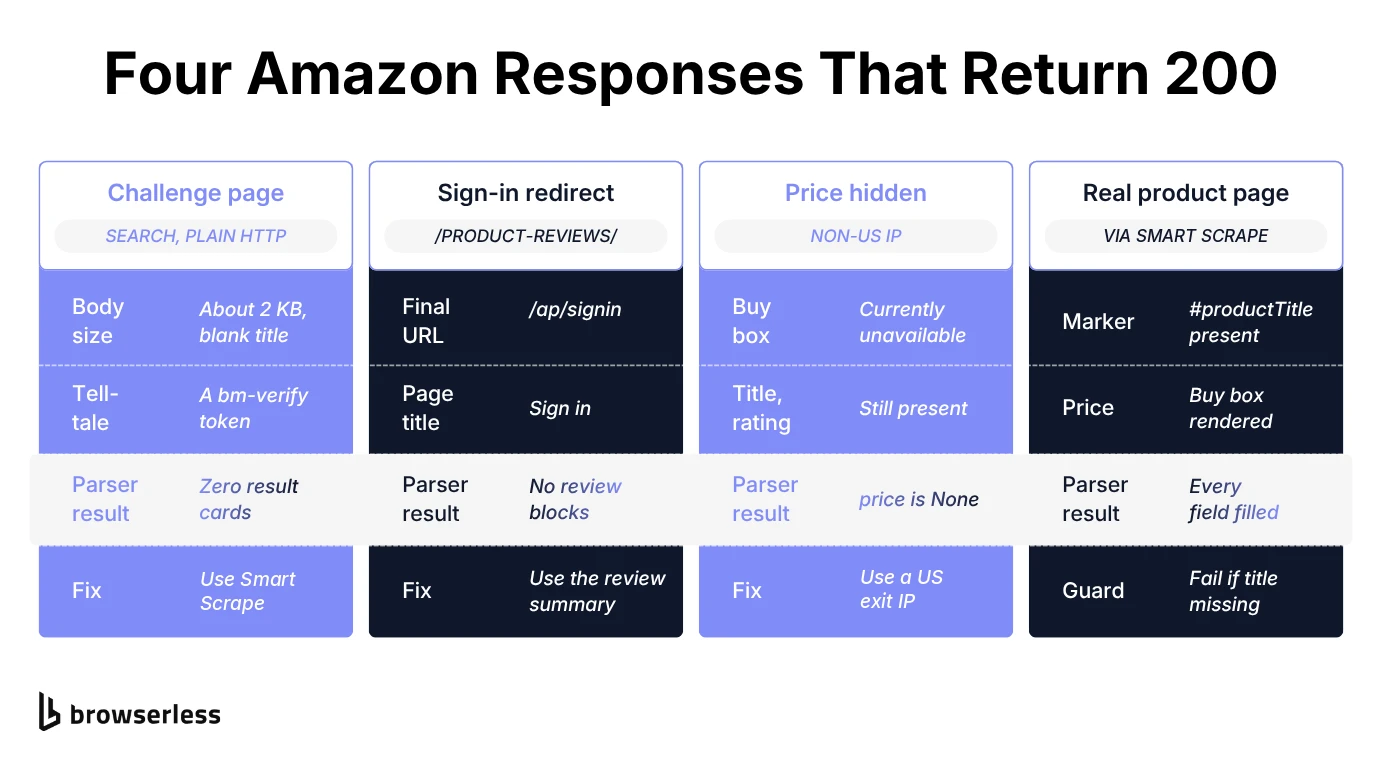
amazon.comfrom an IP outside the US and the same ASIN can come back marked "Currently unavailable" with no buy box price at all, so your price selector returnsNoneeven though nothing is wrong with it. - Mobile versus desktop markup. Send a mobile User-Agent and Amazon serves a different page structure from the desktop one these selectors target. Keep your headers consistent with the layout your selectors expect, or you'll end up debugging "broken" markup that's really a mismatch you introduced.
- A 200 status that isn't real data. A
200means the request succeeded, not that the body holds a product page. A block page or a CAPTCHA interstitial returns200just as happily as the real thing, so check for a known element like#productTitlebefore you trust the response.
Scraping Amazon search results and product listings for price monitoring
One product page gets you one row, and price monitoring and competitor research both need more data than that. You want every product on a search or category page, scraped in one pass.
Amazon marks each organic result card with data-component-type="s-search-result" and a data-asin attribute. Select on both, since data-asin alone also matches sponsored carousels and other widgets that aren't search results.
Put the parsing in a function so the pagination loop further down can reuse it. The search page also gets its own search_soup variable, which keeps the product page's soup intact for the reviews code later.
def parse_listings(search_soup):
    listings = []
    for card in search_soup.select("div[data-component-type='s-search-result'][data-asin]"):
        asin = card.get("data-asin")
        if not asin:
            continue

        title_el = card.select_one("h2 span")
        price_el = card.select_one("span.a-price:not(.a-text-price) .a-offscreen")
        rating_el = card.select_one("span.a-icon-alt")
        reviews_el = card.select_one("a[aria-label$='ratings']")

        listings.append({
            "asin": asin,
            "title": title_el.get_text(strip=True) if title_el else None,
            "price": price_el.get_text(strip=True) if price_el else None,
            "rating": rating_el.get_text(strip=True) if rating_el else None,
            "review_count": reviews_el.get("aria-label") if reviews_el else None,
        })
    return listings


search_url = "https://www.amazon.com/s?k=wireless+headphones"
search_response = requests.get(search_url, headers=headers)
search_soup = BeautifulSoup(search_response.text, "lxml")

listings = parse_listings(search_soup)
if not listings:
    print("No result cards found. The response is probably a challenge page, not search results.")
That empty-list check matters most on search pages, where Amazon's JavaScript challenge turned up in testing even while product pages came back clean. A plain requests call could get back a 200 whose whole body was a tiny interstitial with a bm-verify token and a script that expects a browser to run it.
That's the "200 that isn't real data" case from the common errors section, and the fix is the Smart Scrape route covered in the section on scraping Amazon without getting blocked.
Collecting rating and review count next to price turns a plain price list into real competitor research. You can see at a glance whether the cheaper listing is also the worse-rated one, which a price column alone won't tell you.
Amazon paginates search results, and the link to the next page carries the class s-pagination-next. Follow it like any other link, resolving the relative URL against the search page you started from.
from urllib.parse import urljoin

next_page = search_soup.select_one("a.s-pagination-next")
next_url = urljoin(search_url, next_page.get("href")) if next_page else None
That snippet only finds the link to one next page, so collecting several pages means repeating the request, the parse, and the next-link lookup in a loop, which is also where pacing matters.
Firing requests back to back is the quickest way to trip the rate limiter described earlier, so the loop below waits a short, slightly randomized interval between pages, at a cost of a few seconds per run.
import random
import time

all_listings = []
page_url = search_url

for _ in range(5):
    search_response = requests.get(page_url, headers=headers)
    search_soup = BeautifulSoup(search_response.text, "lxml")
    all_listings.extend(parse_listings(search_soup))

    next_page = search_soup.select_one("a.s-pagination-next")
    if not next_page:
        break
    page_url = urljoin(search_url, next_page.get("href"))
    time.sleep(random.uniform(1.5, 3.5))
The loop stops after five pages or as soon as Amazon stops showing a next link, whichever comes first. all_listings ends up holding every result card from every page it visited.
For price monitoring, this loop is what you put on a schedule. Store each run's results in JSON format with a timestamp, keyed by ASIN, and you've got a price history instead of a single snapshot. A cron job or scheduled cloud function running the script every few hours covers most tracking needs, and you can tighten the interval for categories where prices move faster.
Scraping Amazon reviews for sentiment analysis
Older Amazon scraping tutorials send you to a product's /product-reviews/ page, which used to list every review in paginated blocks. Request that URL today without a session and Amazon redirects you to its sign-in page, so your scraper gets a login form instead of reviews.
Getting past that form means scraping private data behind a login, which carries far more legal and account risk than reading public data off open pages, and it means collecting reviewers' names as personal data. The product page still shows a public review summary, though, and for most sentiment work it's the better input anyway, since it keeps your data collection to aggregate numbers with no reviewer names attached.
The summary has four fields, all with selectors that are more stable than Amazon's generated class names.
- Average rating. The star icon's hidden label, such as "4.5 out of 5 stars".
- Rating count. The total number of global ratings that average is built from, shown next to the stars.
- Star distribution. The share of ratings at each level, from five stars down to one.
- "Customers say" summary. A paragraph Amazon labels as "Generated from the text of customer reviews", covering the themes buyers praise and complain about.
You can pull all four from the product-page response you already parsed for the title and price. All the data the summary needs is in there, so there's no extra request to make.
import re

avg_el = soup.select_one("i[data-hook='average-star-rating'] .a-icon-alt")
count_el = soup.select_one("span[data-hook='total-review-count']")
summary_el = soup.select_one("[data-testid='overall-summary']")

distribution = {}
for bar in soup.select("#histogramTable a[aria-label]"):
    # Each bar's label reads like "76 percent of reviews have 5 stars"
    match = re.match(r"(\d+) percent of reviews have (\d) star", bar["aria-label"])
    if match:
        distribution[f"{match.group(2)}_star"] = int(match.group(1))

review_summary = {
    "average_rating": avg_el.get_text(strip=True) if avg_el else None,
    "rating_count": count_el.get_text(strip=True) if count_el else None,
    "star_distribution": distribution,
    "customers_say": summary_el.get_text(" ", strip=True) if summary_el else None,
}
Each histogram bar keeps its percentage in an aria-label, not in clean visible text, which is why the code reads that label with a regular expression. star_distribution comes out as one integer percentage per level, keyed 5_star down to 1_star. Newer listings with only a few dozen ratings can come back with fewer levels and no "Customers say" paragraph, so treat missing keys and a None summary as normal, not as a broken selector.
That distribution is the field worth watching over time, so store it on every scheduled run, keyed by ASIN and timestamp. If the one-star share jumps after a product revision or a bad shipment batch, you'll see it between runs, long before the headline average moves.
Treat the "Customers say" text as Amazon's reading of the reviews, not as raw review data. It's still useful input for a sentiment model or a competitor comparison, since it names the features buyers mention most, but anything you build on it inherits Amazon's summarization choices. If your project really does need individual review text at volume, settle the login question with whoever owns legal risk on your team before you write the scraper.
Scraping more data from Amazon: why proxy rotation stops working
Proxy rotation, along with rotating user agents, is the obvious next move once a scraper like this starts failing now and then. It buys you some time, but against Amazon it's a losing game, for two reasons.
First, rotation changes the part of the request Amazon cares about least. The User-Agent is a single header, but the TLS handshake and header order underneath it come from the requests library itself, so they don't change between rotated requests. Ten rotated User-Agents just give Amazon ten labels for the same fingerprint.
Second, the Amazon WAF challenge can fire however clean your headers look, because behavior and session history trigger it, not headers alone. A proxy API or pool that hands you a fresh IP on every request can even make things worse. Bot detection that tracks sessions tends to weigh IP stability, so an IP that changes mid-session looks more suspicious, not less.
What holds up is fixing the fingerprint itself, with a request whose network signature matches a real browser's, and keeping a real browser in reserve for the pages that need JavaScript to run. The rest of this guide shows you how to set that up.
How to scrape Amazon without getting blocked
Both halves of that fix are infrastructure problems more than code problems. Matching a browser's network fingerprint, running Chrome at volume, and keeping clean residential IPs on hand is the part most teams would rather not operate themselves, even though the parsing code stays exactly as you wrote it.
Browserless's Smart Scrape API takes that on in one call. Point it at an Amazon target page and it starts with a fast HTTP fetch that mimics a real browser's network fingerprint. If that's blocked, it retries through a residential proxy, the premium proxies Browserless bills above datacenter IPs because they're harder to detect, and only then moves to a full headless browser and CAPTCHA solving for challenges that gate the page, stopping as soon as it has the page. The call below fetches the same product page your Python scraper started with.
curl --request POST \
  'https://production-sfo.browserless.io/smart-scrape?token=YOUR_API_TOKEN' \
  --header 'Content-Type: application/json' \
  --data '{
    "url": "https://www.amazon.com/dp/B0C3HCD34R",
    "formats": ["html"], "onlyMainContent": false
  }'
The JSON response's content field holds the page's HTML content, ready for the same BeautifulSoup selectors you used earlier. strategy names the step that produced it and attempted lists every step it tried, so you can see when a page needed more than the plain fetch. It's still worth checking content for productTitle before you parse it, since Amazon serves more than one product layout, and the Python version below handles that for you.
That escalation order is what makes Smart Scrape a good fit for Amazon. Most pages came back from the fast fingerprint-matched fetch in a few seconds, and when Amazon pushed back harder, Smart Scrape stepped up to a full browser on its own, with no change to your code. The production-sfo endpoint also returned US prices on every run, so the delivery-location problem from earlier didn't come up.
To call it from your Python scraper, wrap the request in a function that returns the HTML only once it contains a marker you expect, like productTitle on a product page. Read your API key from an environment variable rather than pasting it into the file.
import os
import time

import requests

BROWSERLESS_TOKEN = os.environ["BROWSERLESS_TOKEN"]


def fetch_with_browserless(url, marker, attempts=4):
    for attempt in range(1, attempts + 1):
        try:
            response = requests.post(
                "https://production-sfo.browserless.io/smart-scrape",
                # A header keeps the token out of URLs and error messages
                headers={"Authorization": f"Bearer {BROWSERLESS_TOKEN}"},
                json={"url": url, "formats": ["html"], "onlyMainContent": False},
                timeout=180,
            )
        except requests.Timeout:
            time.sleep(5 * attempt)
            continue
        if response.ok:
            html = response.json().get("content") or ""
            if marker in html:
                return html
        elif response.status_code not in (408, 429):
            raise RuntimeError(f"/smart-scrape returned HTTP {response.status_code}")
        time.sleep(5 * attempt)
    raise RuntimeError(f"No usable page for {url} after {attempts} attempts")
The marker check catches block pages that still return 200. A missing marker, a client-side timeout, a 408, or a 429 (too many concurrent sessions on your plan) triggers another attempt after a growing pause, and any other error status stops the run straight away.
The 180-second timeout leaves room for the pages where Smart Scrape escalates to a full browser, which take longer than the fast fetch. Smart Scrape accepts the token either as ?token= or as a Bearer Authorization header, and the helper uses the header. requests prints the full request URL in some connection errors, so a token in the query string can end up straight in your logs.
Pass the return value to BeautifulSoup wherever the earlier code used response.text, with productTitle as the marker for product pages and s-search-result for search pages, for example search_soup = BeautifulSoup(fetch_with_browserless(search_url, "s-search-result"), "lxml"). Every selector from the product, search, and review sections works unchanged on the returned HTML, including on search pages that gave plain requests a challenge.
When you need a browser you control
Smart Scrape moves to a full browser on its own when a page needs one. If you want that browser under your own control, for example to click, scroll, or keep one session alive across pages, Browserless gives you one through BrowserQL, or through the /unblock endpoint, which returns a browserWSEndpoint you can connect Puppeteer or Playwright to, as Browserless's Amazon scraper page walks through.
Amazon tunes its defenses over time, so carry the same marker check and retry into any browser code you run against it.
If a CAPTCHA or the WAF challenge shows up inside a browser session, BrowserQL's solve mutation handles it. It auto-detects the challenge type, so type is optional, but naming amazonWaf, the solver's own type for Amazon's WAF challenge, makes it obvious to anyone reading the query which challenge it expects. Send the query as JSON to the stealth endpoint, https://production-sfo.browserless.io/stealth/bql?token=YOUR_API_TOKEN, in a query field. It's the one Browserless's own Amazon example uses, and it adds fingerprint evasion on top of the browser session.
mutation SolveAmazonChallenge {
  proxy(network: residential, sticky: true, country: US, url: ["*"]) {
    time
  }
  goto(url: "https://www.amazon.com/dp/B0C3HCD34R", waitUntil: domContentLoaded) {
    status
  }
  solve(type: amazonWaf) {
    found
    solved
    time
  }
  html {
    html
  }
}
solve reports found: false when it doesn't find a challenge, which can also mean the challenge hasn't rendered yet. If a page still looks gated, add a waitForSelector step with a short timeout before solve, since both steps wait 30 seconds by default and a BrowserQL session ends after 60 by default. The html field returns the page as HTML, so you can parse it with the same selectors. Pair it with the same productTitle check as the Python helper, and rerun the query whenever the marker is missing.
proxy runs before goto, and url: ["*"] routes every request in the session through the residential IP, the navigation included. Without a matcher, BrowserQL proxies only the requests that match its conditions and sends the rest from the instance's own IP. country: US keeps that IP in the US, which heads off the delivery-location problem from the common errors section. sticky: true keeps every request in the session on the same egress IP, which is what session-tracking detection expects to see. Writing it into the query also makes that behavior visible in your code instead of leaving it to a default.
When to use an Amazon scraper API instead of raw code
Even with Smart Scrape doing the fetching, the selectors and the parsing in this guide are still code you write and maintain yourself, advanced techniques like the paced pagination loop and the review-summary parsing included. A managed scraper API that returns structured fields takes that last part off your hands too, at the cost of some control.
Whether that trade is worth it mostly comes down to how much you scrape. If you're checking a handful of products now and then, the Python code from this guide, fetched through Smart Scrape, is simpler than wiring up a separate API. If you're pulling thousands of listings a day, or running a schedule nobody on your team has time to babysit, keeping up with selector drift starts to cost more than a managed endpoint.
Whichever web scraping APIs you evaluate, run them past these Amazon-specific questions before you commit.
- Does it handle the WAF challenge, or only rotate IPs? Rotating proxies alone does nothing about the fingerprint or the WAF challenge, so an API that stops there can fail in the same place your own
requestscode did. - Does it return structured fields, or just raw HTML? Raw HTML still leaves you to parse data out of it with BeautifulSoup selectors like the ones above, and to keep those selectors working, whereas structured fields move that maintenance to the vendor.
- How is usage billed? Look for pricing per successful request, since paying for requests that got blocked and returned nothing useful defeats most of the point of outsourcing the problem.
Automating Amazon scraping with an AI agent
If you'd rather skip scraper code altogether, you can point an AI agent at Amazon in plain language instead. The Browserless MCP server connects to an MCP-compatible agent, such as Claude Desktop, Cursor, or a custom agent built on the same protocol, and gives it Browserless's scraping tools directly.
Browserless documents this exact Amazon product listings example, and the prompt below pulls listings without a line of Python.
Use the browserless_smartscraper tool to scrape product listings from
https://www.amazon.com/s?k=mechanical+keyboards and return the titles
and prices as markdown.
The tool climbs through the same strategies as the Smart Scrape API, from a plain fetch up to a full browser and CAPTCHA solving, so you don't have to pick one upfront. It's the same browser infrastructure as the rest of this guide, reached through an agent's tool call instead of a script you run yourself.
For multi-step tasks, like applying filters or paging through results, the same MCP server's browserless_agent tool drives a full browser session across turns instead of fetching a single page.
That also opens Amazon data up to people who don't write scrapers. A product manager tracking a few competitor listings, or a researcher who wants review ratings for a one-off comparison, can extract information from listings the way the Python code does, without writing or debugging a single selector.
Browserless also publishes a working Skill for searching and filtering Amazon products, captured from a live agent session on amazon.com. It returns structured JSON for each product card, including ASIN, title, price, and rating, though Browserless notes that a Skill is a snapshot of what worked when it was captured, so expect selectors to drift as Amazon changes.
The complete code
Here's the product-page scraper in one file you can run as-is. It also adds two safeguards the step-by-step snippets left out, a 30-second timeout on the request and a #productTitle check that catches the "200 that isn't real data" failure from the common errors section.
Fetching lives in its own fetch_html function, which uses plain requests so you can try the script without an account. When you run it on a schedule, paste fetch_with_browserless from the Smart Scrape section into this file, along with its os and time imports and the BROWSERLESS_TOKEN line, then have fetch_html return fetch_with_browserless(url, "productTitle"). The parsing stays exactly the same.
import csv
import re

import requests
from bs4 import BeautifulSoup

ASIN = "B0C3HCD34R"
URL = f"https://www.amazon.com/dp/{ASIN}"

HEADERS = {
    "User-Agent": "Mozilla/5.0 (Macintosh; Intel Mac OS X 10_15_7) AppleWebKit/537.36 (KHTML, like Gecko) Chrome/129.0.0.0 Safari/537.36",
    "Accept-Language": "en-US,en;q=0.9",
    "Accept-Encoding": "gzip, deflate",
}


def fetch_html(url):
    # For scheduled runs, return fetch_with_browserless(url, "productTitle") instead
    response = requests.get(url, headers=HEADERS, timeout=30)
    response.raise_for_status()
    return response.text


def scrape_product(html, asin):
    soup = BeautifulSoup(html, "lxml")

    title_element = soup.select_one("#productTitle")
    if title_element is None:
        raise RuntimeError("No #productTitle in the response, so this is likely a block or challenge page.")

    price_element = soup.select_one(
        "#corePrice_feature_div .a-offscreen, #corePriceDisplay_desktop_feature_div .a-offscreen"
    )
    rating_element = soup.select_one("#acrPopover")
    image_element = soup.select_one("#landingImage")
    hi_res_matches = re.findall(r'"hiRes":"(.*?)"', html)

    return {
        "asin": asin,
        "title": title_element.get_text(strip=True),
        "price": price_element.get_text(strip=True) if price_element else None,
        "rating": rating_element.get("title") if rating_element else None,
        "image_url": hi_res_matches[0] if hi_res_matches else (
            image_element.get("src") if image_element else None
        ),
    }


if __name__ == "__main__":
    product = scrape_product(fetch_html(URL), ASIN)

    with open("products.csv", "w", newline="", encoding="utf-8") as f:
        writer = csv.DictWriter(f, fieldnames=product.keys())
        writer.writeheader()
        writer.writerow(product)

    print(product)
Run the above code, and you'll get a products.csv file with one row, plus the same data printed to your terminal. If Amazon serves a block or challenge page instead, the script stops with a clear error rather than writing a row of empty fields.
To scrape a different listing, swap the ASIN constant, and to turn a one-off lookup into a price-monitoring run, loop over a list of ASINs, call scrape_product(fetch_html(url), asin) for each, and write one CSV row per product.
Conclusion
The parsing half of an Amazon scraper turns out to be the stable half. The selectors in this guide held up across product pages, search results, and the review summary. What changed from run to run was what Amazon decided to send back, whether that was a real page, a challenge, or a listing with its price hidden by delivery location.
That fetching layer is the part Browserless takes over, so keep the BeautifulSoup code exactly as written, route each request through Smart Scrape or the MCP server, and start running your Amazon scraper on Browserless.
How to scrape Amazon FAQs
Is it legal to scrape Amazon?
Whether web scraping is legal depends mostly on which pages you touch, and Amazon's public product and search pages carry far less risk than anything behind a login. In hiQ Labs v. LinkedIn, the Ninth Circuit found a serious question as to whether the Computer Fraud and Abuse Act even applies to pages that don't require a login, though Amazon's Conditions of Use and robots.txt still bind you as contract and etiquette. On EU storefronts, the Digital Single Market directive's data mining exception applies only where Amazon hasn't opted out, and reviews behind sign-in carry personal data, so stick to the public review summary.
How can I scrape prices specifically from Amazon?
Use the price-extraction code from the product-page section, then run the same request on a schedule and store each result with a timestamp against the product's ASIN. That turns a single price read into a price history you can chart or alert on.
Should I use Amazon's official API instead of scraping?
Amazon has deprecated its Product Advertising API 5.0, and calls to it now return a 403 telling you to migrate to the Creators API. The Creators API sits inside the Amazon Associates program, so it suits affiliate sites pulling details for products they promote, and it only covers the product data Amazon chooses to expose. If you need data the official API doesn't return, or you're not in the Associates program, scraping is still the workable route.
Can I scrape Amazon listings outside the US, like amazon.co.uk or amazon.de?
Yes, the same approach works once you point your requests at the local domain instead of amazon.com, and adjust your price parsing for that domain's currency symbol and number format. The CSS selectors in this guide, #productTitle, span.a-offscreen, and the rest, stay mostly consistent across Amazon's regional sites, but spot-check a listing on that domain before you run a scraper across it at scale.
How often should I re-check my scraper's selectors?
Check them when a scheduled run starts returning more empty fields than usual, not on a fixed calendar. A sudden jump in None values for a field that's normally filled is the clearest sign Amazon has changed that part of its markup, whether for an A/B test or a permanent redesign. Log a count of missing fields per run next to the data itself, and you'll see that drift without eyeballing the output every time.