
TL;DR
- What it is. A LinkedIn scraper pulls profile, company, job, or Sales Navigator data off LinkedIn for you. It can be a browser extension, a cloud automation platform, a scraper API, or code you write yourself.
- Account risk first. LinkedIn's User Agreement bans scraping tools outright. The hiQ case never settled whether scraping breaks federal law, but the thing you're most likely to lose is your account.
- Pick by job. Email finders, Sales Navigator exporters, automation platforms, and scraper APIs solve different problems. A Python scraper is a few dozen lines, and keeping it alive through expired sessions, IP checks, and LinkedIn's markup changes is the real work.
Introduction
A LinkedIn scraper can fill a prospect list in an afternoon and get the account behind it restricted by the end of the week. To LinkedIn, a $15 desktop app and your own script break the same rule, so they carry the same account risk. What changes is what they pull and how hard they push to get it.
You'll see what LinkedIn's terms and the hiQ case actually settled, how LinkedIn spots automation, and nine scrapers sorted by the job they do best. The guide ends with working Python code for public company and job pages, then for logged-in profiles on your own machine or a managed browser.
What is a LinkedIn scraper?
A LinkedIn scraper is a LinkedIn data extraction tool. It reads LinkedIn pages and turns them into rows you can use, so nobody has to copy profiles into a spreadsheet by hand. Where it runs decides most of what it can do, and there are four common setups.
- Browser extensions sit inside Chrome and read the page you're already looking at while logged in. They're good for pulling LinkedIn profile data one profile at a time, or grabbing LinkedIn search results from a Sales Navigator page you already have open.
- Desktop and cloud automation platforms do more than read. They also act on a schedule, sending automated connection requests and follow-up messages, which is where a scraper starts turning into a LinkedIn automation tool.
- API-based scrapers skip the browser, at least on your side. You send LinkedIn URLs or a search query to an endpoint, get structured JSON back, and wire it into a CRM, a spreadsheet, or a data pipeline.
- Code libraries give you the scraping logic itself. You run them against your own browser session and own every step, including the fix when LinkedIn ships a new layout.
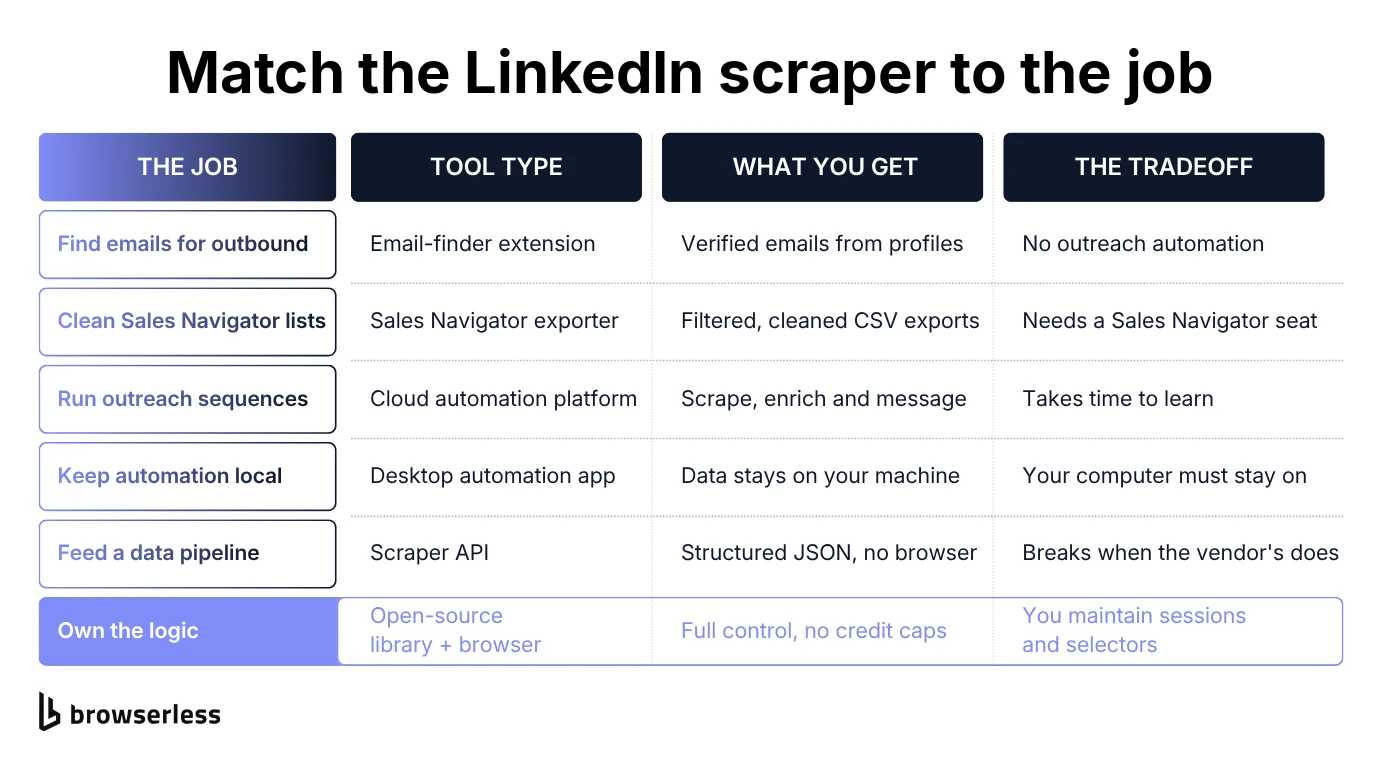
The right setup follows from the job. If you're a recruiter pulling ten candidate profiles a day, an extension is plenty. If you run LinkedIn outreach at scale, you'll want a Sales Navigator automation platform, and if you're feeding a lead-enrichment pipeline, a LinkedIn scraper API. If you want full control, reach for a library.
What you can pull also depends on the page, since profiles give you names, headlines, work history, and skills. LinkedIn company pages give you headcount, industry, and headquarters. LinkedIn job postings give you the job title, seniority level, and an apply link. Not every tool covers all three, so check before you commit.
Is scraping LinkedIn legal?
Whether web scraping is legal depends on what you collect and how, but LinkedIn's own rules are clear. Its User Agreement bans scraping tools outright, plus "bots or other unauthorized automated methods" for adding contacts or sending messages, and lets LinkedIn restrict or terminate accounts that break it.
The court case everyone cites settled less than people think. In hiQ Labs v. LinkedIn, the Ninth Circuit found "serious questions" about whether scraping public profiles violates the Computer Fraud and Abuse Act (CFAA), but hiQ was later found in breach of the User Agreement and ended up under a permanent injunction. LinkedIn is still suing, too, with a 2026 consent judgment against ProAPIs over fake-account scraping.
For most readers, the real risk is your account. LinkedIn can restrict automated activity temporarily, with a week-long invitation block or an identity check, or close the account for good. The odds rise with volume, since a few profiles you'd view anyway look nothing like thousands of automated LinkedIn searches a day.
Data protection regulations add another layer. A joint statement on data scraping from 12 privacy regulators, including the UK's Information Commissioner's Office, says public personal data is still protected. In the EU and UK, the General Data Protection Regulation (GDPR) applies on top of that, so you need a lawful basis and must honor rights like access and erasure.
How LinkedIn detects and blocks scrapers
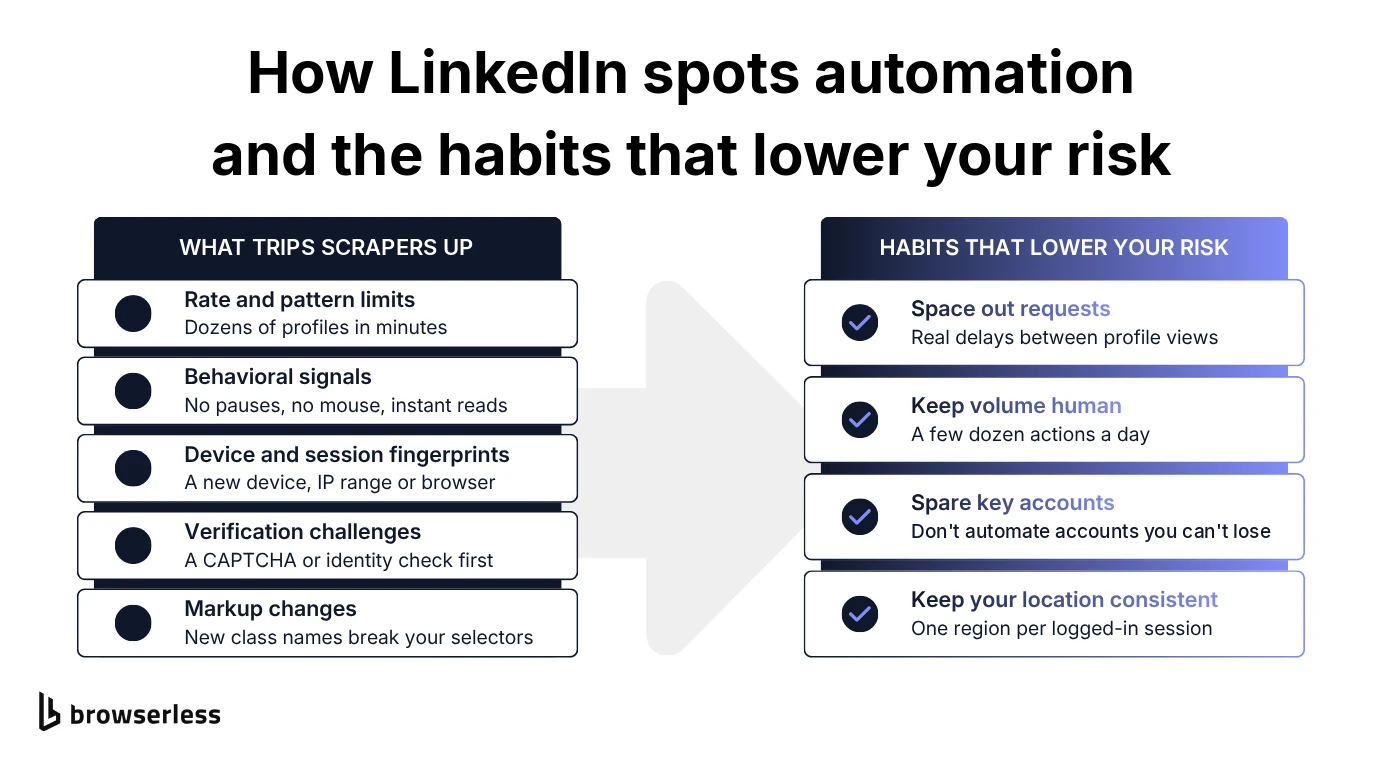
LinkedIn doesn't rely on its terms alone. It also looks for automation, and knowing roughly what it looks for explains why some tools get accounts flagged faster than others.
- Rate and pattern limits. Opening dozens of profiles in a couple of minutes, or sending identical LinkedIn connection requests to hundreds of people in an hour, doesn't look like anyone browsing.
- Behavioral fingerprinting. People move the mouse, pause, and scroll unevenly. A script that loads a profile and reads the DOM instantly, the same way every time, stands out.
- Device and session fingerprinting. A login from an unfamiliar device, IP range, or browser fingerprint can get flagged, especially when several of those change at once.
- Verification challenges. A suspicious session usually hits a CAPTCHA or identity check before it hits a ban. Fail those repeatedly and things escalate.
- Markup changes. This one isn't anti-bot at all. LinkedIn changes its HTML structure, class names, and layouts, and a scraper written against last month's markup can quietly start pulling the wrong fields.
Whatever tool you use, a few habits lower your risk:
- Space out requests. Put real delays between profile views and connection requests instead of firing them back to back.
- Keep volume human. A few dozen profile views or connection requests a day looks like normal browsing. A few thousand doesn't.
- Spare key accounts. If your own LinkedIn account holds a network you can't afford to lose, keep automation off it. Don't make a second profile to take the hit either, since LinkedIn's terms allow one account, in your real name.
- Keep your location consistent. Proxy rotation works for anonymous traffic, but a logged-in session that hops between countries is a red flag on its own. Keep an authenticated session in one region.
None of this guarantees you won't get flagged. It just stops you making detection easier than it has to be.
Best LinkedIn scraping tools in 2026
The best LinkedIn scrapers in 2026 fall into four groups by what each one does well, which is finding emails, automating Sales Navigator, pulling structured data through an API, or working from a spreadsheet or your own code. There's no single best LinkedIn scraping tool, so pick the group that matches your job. If you need tools beyond LinkedIn, Browserless's roundup of web scraping tools for data extraction covers every category.
Here's how the nine compare on price and deployment:
| Tool | Best for | Starting price | Free plan | Deployment |
|---|---|---|---|---|
| Browserless | Your own scraper on stealth browsers, logged in or not | $35/month | Yes (1,000 units/month) | Cloud or self-hosted |
| Skrapp | Bulk email extraction | $39/month | Yes (50 credits) | Chrome extension |
| Evaboot | Sales Navigator list cleaning | $9/month | No | Chrome extension |
| PhantomBuster | Multi-platform automation | $56-69/month | 14-day trial | Cloud |
| Linked Helper | Desktop-based outreach | $15/month | 14-day trial | Desktop app |
| Bright Data | Developer-grade scraper API | Pay-as-you-go | Yes (5,000 records/month) | API |
| Scrapingdog | High-volume profile scraping | $40/month | Yes (100 credits) | API |
| Derrick | Google Sheets prospecting | €20/month | Yes (100 credits/month) | Sheets add-on |
| linkedin_scraper | Free, self-hosted scraping | Free | Open source | Python library |
Browserless gets its own walkthrough in the Python section. You write the scraper, and it runs the browser.
Best for contact and email extraction
Skrapp does one thing, turning LinkedIn and Sales Navigator profiles into verified professional email addresses. It's a Chrome extension backed by a contact database it says it refreshes daily, and it exports results in bulk as CSV. It doesn't run email sequences or outreach campaigns, so if finding emails isn't your bottleneck, you'd be paying for the wrong thing.
- Extracts up to 2,500 verified email addresses per operation.
- Verifies emails in real time, and Skrapp claims 97% verification accuracy.
- Company Search finds the people and emails at a given company, not just one profile at a time.
- Bulk CSV export comes with paid plans, and the pricing page lists API integration as an Enterprise feature.
Evaboot is even narrower, since it only works on Sales Navigator results. It cleans and exports your LinkedIn Sales Navigator searches, fixing capitalization, stripping emojis, flagging leads that don't match your filters, and finding emails. It's quick to set up, but without a Sales Navigator subscription its core export has nothing to work on.
- Flags leads that don't match your search filters before you waste outreach on them.
- Keeps each export within LinkedIn's 2,500-lead limit per search.
- Uses credit-based pricing, and unused credits roll over.
Best for Sales Navigator and LinkedIn search automation
PhantomBuster is where scraping turns into automation. On top of its own Sales Navigator search scraper, it runs connection requests, personalized messages, and multi-step sequences. It's cloud-based, so campaigns keep running with your laptop closed, and it covers more than 15 platforms in total, LinkedIn included.
The catch is the learning curve. Individual automations, called Phantoms, chain together into workflows, and that takes longer to set up than a single-purpose tool.
- Extracts data from Sales Navigator search results and post engagement, not just static profiles.
- Connects several LinkedIn accounts to one workspace for sales teams with more than one sender.
- Its LinkedIn CRM integration covers HubSpot, Salesforce, and Pipedrive, so extracted data lands in your CRM without a manual import.
Linked Helper goes the other way and runs as a desktop app, which some teams like because the data and the automation stay on a machine they control. It handles connection requests, follow-up sequences, and data export across LinkedIn's account types, including Sales Navigator and LinkedIn Recruiter. The downside is that your computer has to stay on and online for scheduled sequences to run.
- Sends personalized connection requests and follow-up sequences to second- and third-degree LinkedIn connections.
- Randomizes delays and start times between actions to look closer to normal browsing.
- Exports profiles to CSV, with emails and phone numbers available through paid enrichment credits.
Best LinkedIn scraper APIs for developers
With a scraper API, you send a request and get structured data back, and someone else maintains the browser layer.
Bright Data's LinkedIn scraper API is for teams that want to extract data from LinkedIn without touching a browser. You send a request, get JSON back, and feed it to a pipeline or a CRM sync job while its infrastructure deals with proxies and retries.
That moves the anti-bot and markup-change problems out of your codebase, but it doesn't make them go away. When LinkedIn changes and the vendor's scraper breaks, your data stops until they fix it.
- Dedicated endpoints for profiles, company pages, job postings, and posts, returned as JSON, NDJSON, or CSV.
- Up to 5,000 records a month on the free plan.
- Pay-as-you-go pricing beyond the free tier, from $1.50 per 1,000 records.
Scrapingdog's LinkedIn API has a similar developer-first shape, with one endpoint for profile and company data and a separate Jobs API for listings. Its product page claims it can extract profiles "in the millions per day." There's no UI, just an API key and a response schema to parse, so it expects more technical comfort than any extension here.
- Built-in unblocking aimed at avoiding CAPTCHA challenges and hard blocks.
- The separate Jobs API returns LinkedIn job listings at 5 credits per request.
- Concurrency from 1 to 150 requests, depending on the plan.
- Credit-based plans from $40/month, plus 100 free credits to test with.
Best for Google Sheets and open-source scraping
Derrick lives in Google Sheets, where you import a Sales Navigator search or a column of profile URLs and it fills in job titles and company details, with emails and phone numbers coming from its separate finder tools. If your team already runs LinkedIn prospecting out of Sheets, that cuts out the export-and-reformat step, and the free tier lets you try it before paying.
- Imports a Sales Navigator search straight into a sheet, up to 2,500 leads per query.
- Finds a verified email from just a name and company, without a profile URL.
- Paid plans enrich each lead or company with more than 100 data points, from phone numbers to tech stack.
- A free duplicate finder cleans up a sheet that's been reused a few times.
linkedin_scraper is an open-source Python library and the free option if you're comfortable writing code. It pulls profile, company, post, and job data through a real browser session (it moved from Selenium to Playwright in version 3), and the only cost is your time.
- Scrapes person profiles, company pages, and company posts, and its
JobSearchScraperhandles scraping LinkedIn jobs. - Returns typed Pydantic models instead of loose dictionaries, which keeps downstream code easier to maintain.
- Open source, but check the license before you ship it, since the repo's LICENSE file says GPL v3 while its README says Apache 2.0.
What is the best free LinkedIn data scraper?
It depends on whether you write code. If you do, linkedin_scraper is the best free option. It's the only one here with no credit cap, and you pay for it in upkeep every time LinkedIn changes something.
If you don't, Derrick is the most usable free tier among the no-code tools here, since its 100 credits renew every month inside Google Sheets. Bright Data's 5,000 free records a month go further but assume you're calling an API, and the Skrapp and Scrapingdog credits are best treated as a test.
No commercial free tier will extract profile data at scale, so outgrowing one means a paid plan or your own code.
How to scrape LinkedIn profile data, company pages, and jobs with Python
If you'd rather own the data collection logic yourself, what you can scrape depends on whether you log in. LinkedIn shows a logged-out visitor full company pages and job search results, but a person's profile mostly gets a sign-up wall. Start with public data, which doesn't put an account at risk, and only reach for a login when you really need person-level data.
Scrape public LinkedIn company pages and search results
Company pages carry a structured data block (JSON-LD), the kind sites add for search engines, with the company's name, employee count, and address. Job search results are plain HTML cards. This script reads both with Playwright, which you install with pip install playwright and then playwright install chromium:
import asyncio
import json
from urllib.parse import urlencode

from playwright.async_api import async_playwright

async def scrape_company(page, slug):
    await page.goto(f"https://www.linkedin.com/company/{slug}/")
    data = await page.locator('script[type="application/ld+json"]').first.text_content()
    org = next(n for n in json.loads(data)["@graph"] if n["@type"] == "Organization")
    return {
        "name": org["name"],
        "employees": org.get("numberOfEmployees", {}).get("value"),
        "city": org.get("address", {}).get("addressLocality"),
    }

async def scrape_jobs(page, keywords, location):
    query = urlencode({"keywords": keywords, "location": location})
    await page.goto(f"https://www.linkedin.com/jobs/search?{query}")
    cards = page.locator("div.base-search-card")
    await cards.first.wait_for()
    jobs = []
    for card in await cards.all():
        jobs.append({
            "title": (await card.locator(".base-search-card__title").inner_text()).strip(),
            "company": (await card.locator(".base-search-card__subtitle").inner_text()).strip(),
            "location": (await card.locator(".job-search-card__location").inner_text()).strip(),
            "url": (await card.locator("a.base-card__full-link").get_attribute("href")).split("?")[0],
        })
    return jobs

async def main():
    async with async_playwright() as p:
        browser = await p.chromium.launch()
        try:
            page = await browser.new_page()
            print(await scrape_company(page, "microsoft"))
            jobs = await scrape_jobs(page, "python developer", "United States")
            print(f"{len(jobs)} jobs, first: {jobs[0]}")
        finally:
            await browser.close()

asyncio.run(main())
scrape_company() reads the JSON-LD block instead of the visible layout, so a redesign is less likely to break it. scrape_jobs() waits for the first card before reading. LinkedIn sometimes answers with a near-empty page, and the wait turns that into a timeout instead of a silently empty list. A search page returns around 60 job cards.
That runs fine on your own machine for a few pages. At volume, every request comes from one IP and one browser fingerprint, which makes it easy for LinkedIn's rate and pattern limits to spot. Moving to a managed browser from Browserless only changes main(). The Browserless version connects over the Chrome DevTools Protocol (CDP) to a Browserless stealth route with a US residential proxy, and the two scraping functions stay as they are:
import os

BROWSERLESS_URL = (
    "wss://production-sfo.browserless.io/stealth"
    f"?token={os.environ['BROWSERLESS_TOKEN']}"
    "&proxy=residential&proxyCountry=us&proxyLocaleMatch=1"
)

async def main():
    async with async_playwright() as p:
        browser = await p.chromium.connect_over_cdp(BROWSERLESS_URL)
        try:
            context = browser.contexts[0]
            page = context.pages[0] if context.pages else await context.new_page()
            print(await scrape_company(page, "microsoft"))
            jobs = await scrape_jobs(page, "python developer", "United States")
            print(f"{len(jobs)} jobs, first: {jobs[0]}")
        finally:
            await browser.close()

asyncio.run(main())
The token comes from a BROWSERLESS_TOKEN environment variable so it never lands in your script. The script reuses the browser's default context instead of opening a new one, so Browserless's CDP events stay visible to it, and the try/finally closes the remote browser even if a scrape fails. If a run dies with ERR_CONNECTION_CLOSED, the connection to LinkedIn dropped on that exit IP, and rerunning starts a new session on a different one.
Here's how that setup lines up with the detection list from earlier.
- Fingerprints. The stealth route runs a managed stealth browser with fingerprint mitigations and entropy injection, rather than a stock headless Chromium.
- IP reputation and location. Requests exit through a residential IP in the country you set with
proxyCountry. A stealth route keeps that IP for the whole session, andproxyLocaleMatch=1sets the browser's language to match it. - Verification challenges. Add
solveCaptchas=trueand Browserless will attempt CAPTCHA solving inside the session. A solve can outlast the default session timeout, so addtimeout=300000too. - Markup changes. Add
replay=trueand Browserless records the session as a replay in your dashboard, so when a field comes back empty you can see what the page actually showed.
Request rate is still on you, so the delay and volume habits from earlier still apply. If you'd rather not manage Playwright yourself, Browserless's Browser Automation Protocol (BAP) has SDKs for Python and TypeScript that give you the same stealth browser and residential proxies, with extraction running inside the browser.
Scrape person profiles with your own login
Person profiles are where you need an account, and it's the account LinkedIn can restrict. If you still need them, the open-source linkedin_scraper library gives you a LinkedIn profile scraper that handles the login and the parsing. These examples use version 3.1.2, which drives Chromium through Playwright:
pip install linkedin-scraper
playwright install chromium
PersonScraper won't run without a logged-in session. This first script opens a visible browser window, waits while you log in by hand, and saves the session to a file, so your later scripts never touch your password:
import asyncio
from linkedin_scraper import BrowserManager, wait_for_manual_login

async def create_session():
    async with BrowserManager(headless=False) as browser:
        await browser.page.goto("https://www.linkedin.com/login")
        print("Log in to LinkedIn in the browser window (you have 5 minutes)...")
        await wait_for_manual_login(browser.page)
        await browser.save_session("session.json")
        print("Session saved to session.json")

asyncio.run(create_session())
wait_for_manual_login() polls until LinkedIn shows a logged-in page, so it waits through two-factor prompts and verification checks too. The default is five minutes, after which it raises AuthenticationError. If you need longer, pass timeout, and note that it's in milliseconds, not seconds. session.json holds your LinkedIn cookies, so keep it out of version control.
With the session saved, the scraping script is short. It loads session.json into a headless browser, hands the page to PersonScraper, and returns the profile's name, location, job titles, and schools:
import asyncio
from linkedin_scraper import BrowserManager, PersonScraper

async def scrape_profile(url):
    async with BrowserManager(headless=True) as browser:
        await browser.load_session("session.json")
        person = await PersonScraper(browser.page).scrape(url)
        return {
            "name": person.name,
            "location": person.location,
            "experiences": [e.position_title for e in person.experiences],
            "educations": [e.institution_name for e in person.educations],
        }

print(asyncio.run(scrape_profile("https://www.linkedin.com/in/williamhgates/")))
If the session has expired, PersonScraper raises a ScrapingError telling you you're not logged in. Either way, BrowserManager closes the browser on the way out.
You can run this on a managed browser too, but the session file doesn't carry over well. It holds cookies from a login on your laptop, and replaying them from a remote browser on another IP changes the device and the network at once, which is the pattern LinkedIn flags. On Browserless, you log in on the remote browser itself instead.
The first script opens LinkedIn's login page on the same stealth route and prints a live URL where you log in by hand, two-factor prompts included. Once you're done, it saves the login as an authenticated profile named linkedin:
import asyncio
import os

from playwright.async_api import async_playwright

BROWSERLESS_URL = (
    "wss://production-sfo.browserless.io/stealth"
    f"?token={os.environ['BROWSERLESS_TOKEN']}"
    "&proxy=residential&proxyCountry=us&proxyLocaleMatch=1"
    "&timeout=300000"
)

async def save_linkedin_profile():
    async with async_playwright() as p:
        browser = await p.chromium.connect_over_cdp(BROWSERLESS_URL)
        try:
            context = browser.contexts[0]
            page = context.pages[0] if context.pages else await context.new_page()
            await page.goto("https://www.linkedin.com/login")

            cdp = await context.new_cdp_session(page)
            done = asyncio.Event()
            cdp.on("Browserless.liveComplete", lambda event: done.set())
            live = await cdp.send("Browserless.liveURL", {
                "timeout": 240000,
                "instructions": "Log in to LinkedIn, then choose Done.",
            })
            print("Log in here:", live["liveURL"])
            await done.wait()

            cookies = await context.cookies("https://www.linkedin.com")
            if not any(c["name"] == "li_at" for c in cookies):
                raise RuntimeError("No LinkedIn login found, so no profile was saved")
            result = await cdp.send("Browserless.saveProfile", {"name": "linkedin"})
            if not result["ok"]:
                raise RuntimeError(result["error"])
            print("Saved the linkedin profile")
        finally:
            await browser.close()

asyncio.run(save_linkedin_profile())
The live URL streams the remote browser into your own tab, so your password never passes through the script, but treat the link like a password while it's open. The li_at check stops the script from saving a profile when no login happened, since li_at is the cookie LinkedIn sets for a signed-in session.
The scraper then loads that profile with profile=linkedin in the connection URL, so there's no cookie file on disk:
import asyncio
import os

from playwright.async_api import async_playwright
from linkedin_scraper import PersonScraper

BROWSERLESS_URL = (
    "wss://production-sfo.browserless.io/stealth"
    f"?token={os.environ['BROWSERLESS_TOKEN']}"
    "&proxy=residential&proxyCountry=us&proxyLocaleMatch=1"
    "&profile=linkedin"
)

async def scrape_profile(url):
    async with async_playwright() as p:
        browser = await p.chromium.connect_over_cdp(BROWSERLESS_URL)
        try:
            context = browser.contexts[0]
            page = context.pages[0] if context.pages else await context.new_page()
            person = await PersonScraper(page).scrape(url)
            return {
                "name": person.name,
                "location": person.location,
                "experiences": [e.position_title for e in person.experiences],
                "educations": [e.institution_name for e in person.educations],
            }
        finally:
            await browser.close()

print(asyncio.run(scrape_profile("https://www.linkedin.com/in/williamhgates/")))
Each run starts from a fresh copy of the saved profile. Keep the route and proxy settings (proxyCountry, proxyLocaleMatch) the same in both scripts, since a change in the browser's identity can make LinkedIn ask you to log in again.
If you run the scraper before saving the profile, the connection fails with a Profile "linkedin" was not found error. When LinkedIn eventually signs the profile out, you get the same ScrapingError as before, and rerunning the first script logs you back in.
None of this changes whose account it is. A consistent session avoids the flags you'd otherwise trip by accident, but every profile view still counts against your LinkedIn account, so keep the volume to what you'd browse by hand.
Conclusion
The tool you pick changes what you pull, not who carries the risk. LinkedIn's terms treat an email finder, an automation platform, and your own script the same way, so once a tool fits the job, what matters most is whether you log in and how hard you push.
If you write your own, the hard part is the browser, which has to avoid looking automated, stay in one country, get past CAPTCHAs, and keep your login off your laptop. Browserless runs that layer for you, from the stealth route and residential proxy behind the company and job scraper to the saved profile behind the profile scraper. To point your own scraper at a managed browser, sign up for Browserless.
LinkedIn scraper FAQs
Can ChatGPT scrape LinkedIn profiles?
ChatGPT's cloud browser can open and read a page you point it at, including a LinkedIn profile if you sign in for it. It's not bulk extraction, though, and it's still an automated tool acting on your account, so LinkedIn's ban on bots and the same detection signals apply. For anything you run more than once, a script is faster and more predictable than an agent clicking around, and ChatGPT scraping covers where a model fits into that setup.
Can I use AI to scrape data from LinkedIn?
AI is most useful after the scraping, cleaning messy text, normalizing job titles, or sorting leads into segments. Something still has to fetch the pages, so AI scraping really means a regular scraper with a model on top. It doesn't get you around LinkedIn's restrictions or detection.
Is there a free way to extract emails from LinkedIn?
For your own network, yes. LinkedIn's connections export (Settings & Privacy, then Data privacy, then Get a copy of your data) includes your connections' email addresses, but only for connections who allow it in their privacy settings. It's also the one method here that doesn't break the User Agreement. Beyond your network, the free credits from Skrapp and Derrick find a limited number of emails at no cost.
How many LinkedIn profiles can I scrape per day without getting flagged?
LinkedIn doesn't publish a number, so anyone quoting an exact one is guessing. Pattern matters more than count. A few dozen profile views spread over a working day looks like a person, and the same number crammed into five minutes, or repeated identically every day, looks like a script.
Is scraping LinkedIn jobs easier than scraping profiles?
Yes. LinkedIn's job search results load for a logged-out visitor, so the scrape_jobs() function from the Python section reads titles, companies, locations, and links without an account, around 60 cards a page. Profiles sit behind a sign-up wall, which is why they need a login and carry more risk. If you'd rather not maintain selectors, Browserless's LinkedIn jobs example does the same scrape as a single BrowserQL request.