
TL;DR
- 403 status code – The server understood your request but refuses to authorize it. The page exists, you just aren't allowed to see it.
- Common causes – Incorrect permissions, a misconfigured
.htaccessfile, IP blocking, expired credentials, or bot detection at the network edge. - Fixes for both sides – Quick browser and network checks if it's someone else's website, plus permission and
.htaccessrepairs if it's yours. - For developers – Why scrapers and automation hit 403s, and how to diagnose them with curl, Python requests, and JavaScript fetch.
Introduction
You request a page and get the 403 status code instead of the content you wanted. The server is up, the URL is right, but the website has still denied access with a terse error page.
A 403 means access is deliberately refused, and the fix depends on which side of the block you're standing on.
In this guide, you'll learn what the 403 error means and what triggers it. Visitor fixes come first, then server-side repairs for site owners, then where you can incorporate automation.
For the wider context on how 403 fits alongside the other status codes:
What is the 403 status code?
The 403 status code indicates that the web server understood your request but refuses to fulfill it. That's the difference from a 404, where the resource doesn't exist: a 403 means it exists, but the server is choosing not to let you have it. In other words, a 403 forbidden error is access denial, not a broken link.
It belongs to the 4xx class of HTTP status code responses, which cover client-side problems. Depending on the server, the same refusal appears as 403 Forbidden, HTTP 403, HTTP error 403, or status code 403.
Some servers deliberately return a 404 instead of a 403 error, to avoid confirming that a protected resource exists.
What are common causes of a 403 error?
A 403 forbidden error almost always traces back to a handful of causes:
- Incorrect permissions – File or folder permission settings that stop the web server from reading what it needs to serve.
- A misconfigured
.htaccessfile – A single bad deny rule can lock every visitor out. - A missing or incorrect file – When directory listings are disabled, a folder with no index file returns denied access instead of contents.
- IP blocking and geo restrictions – IP address deny lists and country-level access restrictions both answer with a 403.
- Missing or expired authentication – Your session lapsed, or your account lacks the required permissions.
- Bot detection and WAF rules – Security layers that flag your traffic as automated, a common issue for scrapers.
The cause reveals whose problem it is and if it can be solved: Visitors can only fix their side of the connection, site owners control the server, and developers running automation sit in between.
How to fix a 403 forbidden error as a visitor
If the 403 error appears on a website you don't own, then the question is, "Is this my fault?" Work through the following steps from quickest to slowest.
Check the URL and refresh the page
Look for typos, and check whether the address ends in a folder rather than a page, since many servers deny directory-level requests. A refresh clears transient access issues, too.
Clear browser cache and cookies
Your browser cache can serve an outdated page, and stale cookies can present an expired login session. Clear the browser cache and cookies for the affected site – browsers usually label it as clearing site data – then reload and see whether the 403 error persists.
Disable browser extensions
Most extensions are harmless, but privacy tools, ad blockers, VPN helpers, and other browser extensions can trip a website's access rules.
Open the page in an incognito window, which runs without most extensions. If the site works there, disable extensions one at a time until you find the culprit; if the incognito window shows the same issue, it means that the block sits deeper than your extensions.
Switch networks or check your proxy settings
Try the page over a mobile hotspot. If the website works on mobile data, your usual IP address is blocked, which is common on VPNs and office networks with strict security policies.
Review your proxy settings and turn off your VPN (if you're not sure which is which, read our Proxy vs. VPN guide). If you're behind a corporate proxy, try a direct connection. If nothing helps, contact the site owner – certain sites block entire networks, and only the owner can lift that.
How to fix 403 forbidden as a site owner
When your own website starts returning a 403 forbidden error, the server config is almost always to blame. Work through the following steps in order to fix it.
Check for incorrect permissions
Permission issues are the classic cause. Set file permissions to 644 and folder permissions to 755, so the web server can read them while write access stays restricted. Fix values over FTP or with chmod, and avoid 777 – it trades security for convenience and still doesn't guarantee access.
Inspect your htaccess file
A corrupted or overzealous .htaccess file causes sitewide denied access faster than anything else. Rename it to .htaccess_old and reload your website.
If the 403 error disappears, regenerate a clean .htaccess file – WordPress rebuilds it when you re-save permalinks – or check the old one for Deny or Require directives a plugin added without you noticing.
Review access control and IP blocking rules
Check your hosting control panel and any security plugin for deny lists, geo blocks, hotlink protection, and rate limits. If they're not written with enough specificity, access control rules can refuse legitimate users and search engines along with the abusers.
Loosen the access rules until only unwanted traffic is refused, and confirm folders meant for public access aren't matched by a block pattern.
Look for a missing or incorrect file
If directory listings are off and a folder has no index file, requests to it return a 403 error code. Confirm index.html or index.php exists in the document root, and check for an incorrect file path left behind by a migration.
Check your application logs
Your server and application logs record every refusal, including the request path and the visitor's IP address and user agent. Security plugins log which rule fired as well. A quick read of the logs resolves the guesswork, so check them early whenever the steps above don't clear the 403 forbidden error.
401 vs. 403: what's the difference?
Developers compare 401 vs. 403 more than any other pair of status codes, and the split is simple.
- A 401 means the server doesn't know who you are: no valid credentials were sent, so authenticate and try again.
- A 403 means the server knows who you are – you may be fully authenticated – and still refuses, so retrying with the same credentials changes nothing.
| 401 unauthorized | 403 forbidden | |
|---|---|---|
| What it means | No valid credentials yet | Identity known, access refused |
| The server is saying | Prove who you are | You can't have this |
| What to do | Log in or refresh your token, then retry | Request access; retrying won't help |
For example, a logged-out user hitting a members page gets a 401, while a logged-in user opening the admin panel without admin rights gets a 403 error.
If you build APIs, keep the same split: 401 for authentication issues and 403 for permission problems, so clients know whether they should try logging in again.
Why scrapers and automation get a 403 HTTP error
On the modern web, a 403 often comes from a security layer in front of the website rather than the web server behind it.
Cloudflare alone sits in front of 23.7% of all websites as of mid-2026, according to W3Techs, and its bot management answers suspicious requests with a 403 error before your traffic reaches the origin.
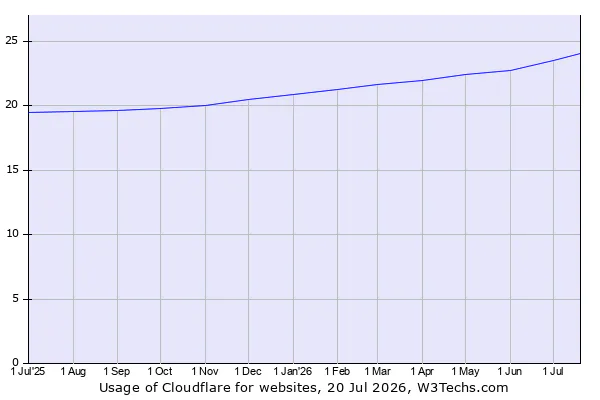
For context, the 2026 Thales Bad Bot Report found bots made up 53% of all web traffic in 2025, and malicious bots alone accounted for 40% of internet traffic. Websites defend accordingly, and your scraper gets judged alongside that crowd. The answer you get back is a 403 forbidden error.
The signals are layered. Your IP address reputation and rate limiting catch noisy senders, while user agent checks catch default library headers.
TLS fingerprinting catches HTTP clients pretending to be browsers. Bot detection systems combine these signals into a score, and a low score earns you a 403 or an endless challenge loop.
Work out which layer refused you first.
- A JSON error body usually means the application denied you.
- A plain server page points at server config.
- A branded challenge page means the edge flagged your client.
Some 403s indicate that a website is legitimately enforcing its access restrictions – if there's an official API or clear terms against scraping, use the API and respect the block.
How to diagnose a 403 error in code
To understand a 403 error, reproduce it outside your app and read the whole response, not just the status.
Reproduce it with curl
curl -i https://httpbin.org/status/403
What this does: -i prints the response headers along with the body, so the Server header shows whether the response came from the origin. On a site fronted by Cloudflare, look for a cf-ray header too – httpbin.org won't show one, but a real blocked request often will.
Handle it in Python requests
import requests
headers = {
    "User-Agent": "Mozilla/5.0 (Macintosh; Intel Mac OS X 10_15_7) "
                  "AppleWebKit/537.36 (KHTML, like Gecko) "
                  "Chrome/126.0.0.0 Safari/537.36"
}
resp = requests.get("https://httpbin.org/status/403", headers=headers, timeout=10)
if resp.status_code == 403:
    body = resp.text.lower()
    if "cloudflare" in body or "challenge" in body:
        print("Blocked at the edge – bot detection, not permissions")
    else:
        print("Refused by the site – check credentials and access rules")
What this does: it sends a realistic User-Agent instead of the default python-requests string, which many WAFs refuse, then inspects the body to separate an edge block from a permissions refusal. If the 403 only appears after bursts of requests, add delays with backoff – that's rate limiting, not access control.
Check it in JavaScript fetch
(async () => {
  const resp = await fetch("https://httpbin.org/status/403");
  console.log(resp.status); // 403
  const body = await resp.text();
  if (
    resp.headers.get("cf-mitigated") === "challenge" ||
    body.includes("challenge")
  ) {
    console.log("Bot check – a plain HTTP client won't get through");
  } else {
    console.log("Access refused – check authentication and permissions");
  }
})();
What this does: it reads the status, the body, and Cloudflare's cf-mitigated header to spot a challenge response. A challenge can only be solved by a real browser environment, which is your cue to change approach.
When the 403 is aimed at your automation
If the diagnosis points at bot detection, header tweaks stop working. The DIY path is to run real browsers instead of raw HTTP clients, keep the user agent consistent with the underlying browser, route traffic through a residential proxy pool, and reuse sessions so you look like a returning visitor.
Building that stack yourself is its own infrastructure project. Browserless's managed browsers offer stealth routes and built-in residential proxies, while BrowserQL handles CAPTCHAs and challenges as part of a scripted workflow.
The Unblock API fetches protected pages through a single REST call, and Authenticated Profiles let you reuse a logged-in session across runs. None of it makes you invisible, and none of it overrides a website's terms – it makes well-behaved automation look like the real browser traffic it is.
Conclusion
The 403 status code is a refusal with a reason behind it, and finding the reason will help you find the solution.
Visitors can clear the browser cache and disable extensions before trying another network. Site owners can repair permissions, the .htaccess file, access control rules, and whatever else the application logs point at. Developers should read the full response to find which layer refused them.
If that layer is bot detection, it's the problem that web scraping infrastructure exists to solve. Sign up for a free Browserless account and run your automation on browsers that are built to be trusted.
403 status code FAQs
Is 403 forbidden my fault?
Sometimes. A 403 forbidden error on your own website usually is – incorrect permissions, a broken htaccess file, an overzealous security plugin, or a block you set up and forgot.
If you're a visitor, however, it's mostly the site's configuration or a block on your network, and clearing site data or switching networks is the extent of your control.
Does 403 forbidden mean I'm blocked?
Not always. A 403 forbidden error covers everything from a missing index file to a deliberate block on your IP address. If the site works elsewhere, part of your setup is being refused; if it fails everywhere, the restriction applies to everyone.
Is error 403 permanent?
No. A 403 error lasts as long as the rule behind it. Misconfigurations get fixed and login sessions get renewed. IP blocks expire, or get lifted once you contact the site owner. Only deliberate account-level bans tend to stick.
What is the difference between 402 and 403?
A 402 means payment is required and mostly appears in API billing. A 403 refuses access regardless of payment – check your permissions and credentials.